



The 3 P.M. Desk Slump We All Know Too Well
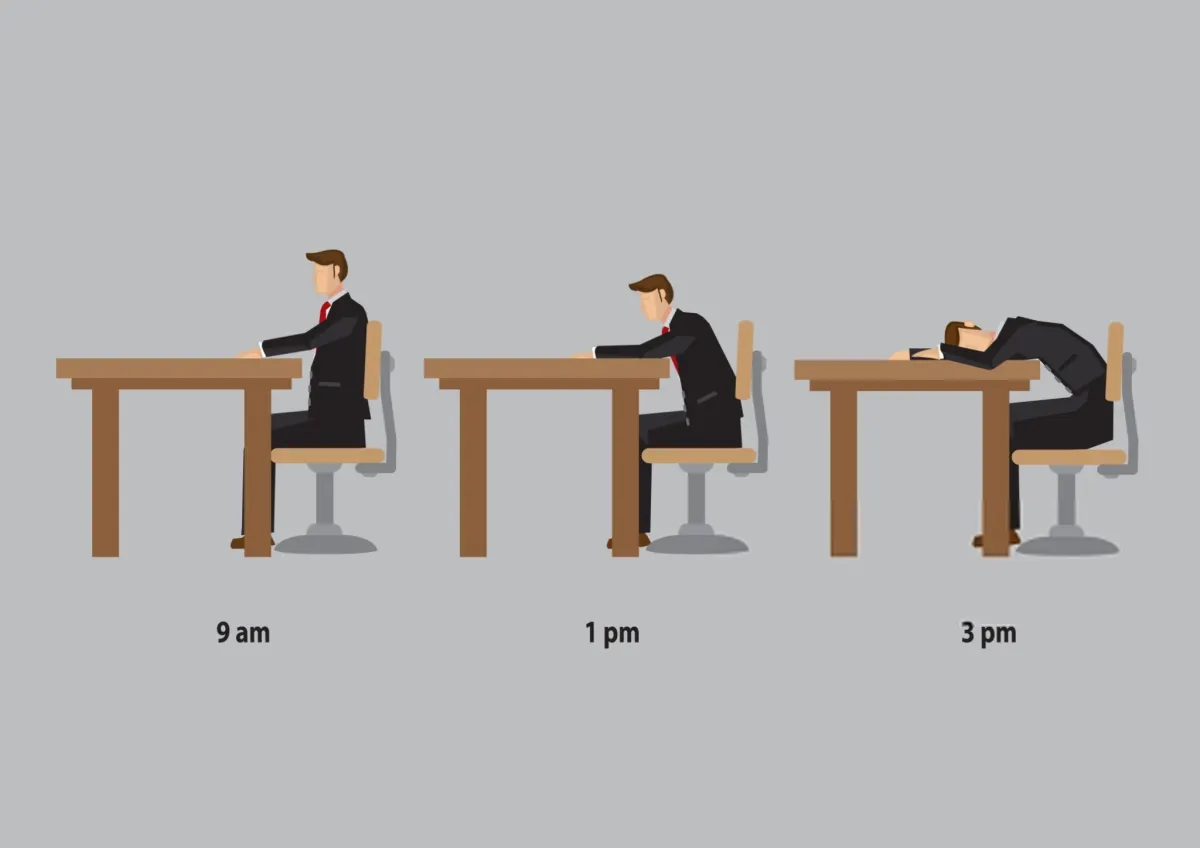
It happens to millions of desk workers every afternoon around three o'clock: your shoulders hunch toward your ears, your lower back develops a dull ache, and your eyes feel strained after hours of staring at a computer screen. Most people try stretching for thirty seconds or pour another cup of coffee, only to return to the same uncomfortable posture fifteen minutes later.
Many remote workers believe the only solution to desk fatigue is purchasing an expensive designer office chair or a motorized standing desk. While high-end equipment has benefits, ergonomic specialists and physical therapists emphasize that physical comfort depends primarily on how your body aligns with your display, keyboard, and floor.
By implementing five evidence-based adjustments to your existing workspace, you can relieve spinal strain and finish your workday with sustained physical comfort.
1. Elevate Your Display to Eye Level
The most common postural mistake in home workspaces is working directly on a laptop resting flat on a desk. Looking down at an angled laptop screen forces the head to tilt forward by thirty to forty-five degrees.
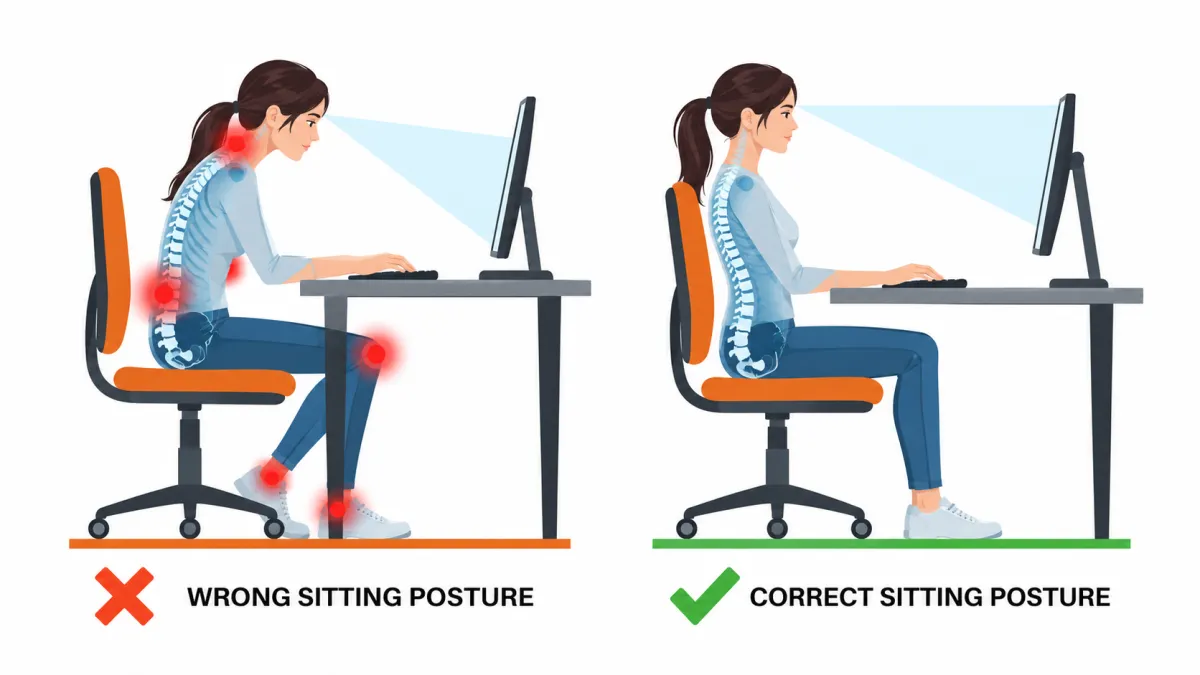
In biomechanics, the adult human head weighs approximately ten to twelve pounds in a neutral upright posture. However, when the neck flexes forward to peer down at a low screen, gravitational leverage multiplies the mechanical load on the cervical spine. Research in spinal biomechanics demonstrates that a thirty-degree forward head tilt exerts approximately forty pounds of effective force on cervical vertebrae and upper back muscles.
The adjustment is straightforward: raise your screen or laptop stand so that the top third of the display aligns horizontally with your eye level when seated upright. Using an external keyboard and mouse on your desk surface allows your neck to remain in a neutral, relaxed position throughout the day.
| Workspace Adjustment | Common Setup Error | Ergonomic Adjustment | Biomechanical Benefit |
|---|---|---|---|
| Display Height | Laptop flat on desk surface | Top third of screen at horizontal eye level | Relieves up to 40 lbs of cervical neck load |
| Foot Support | Feet dangling or tucked beneath chair | Firm footrest or flat floor contact | Stabilizes pelvis and unloads lumbar discs |
| Lighting Placement | Harsh overhead glare & high contrast | Warm indirect bias lighting behind screen | Reduces pupil contraction and ocular strain |
| Wrist & Forearm Position | Reaching up to elevated desk edge | Elbows rested at relaxed 90-degree angle | Prevents carpal tunnel pressure and nerve strain |
2. Support Your Feet to Stabilize Your Lumbar Spine
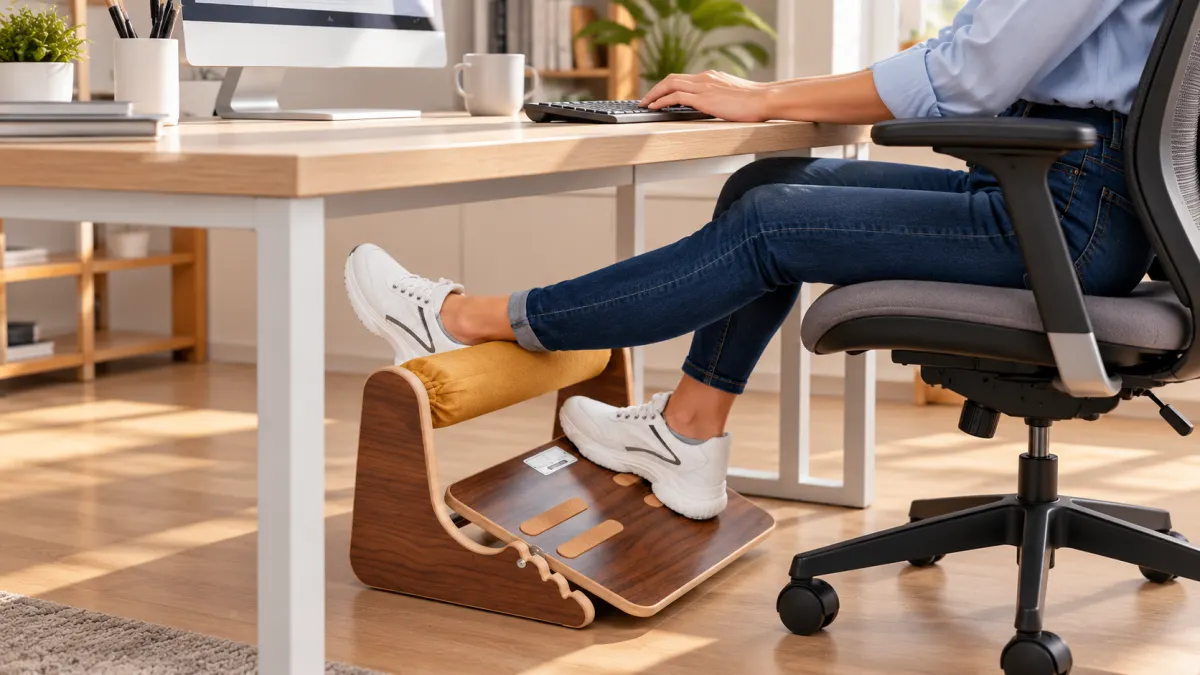
When individuals experience lower back pain during computer work, they frequently assume the chair backrest is at fault. In many cases, physical therapists find the issue originates at the floor.
Most standard writing desks are built twenty-nine to thirty inches high. To type comfortably, shorter or average-height users raise their chair, leaving their feet dangling or resting on tiptoes. Dangling feet rotate the pelvis forward, flattening the natural inward curve of the lower back and concentrating compressive force on lumbar spinal discs.
Placing a firm, angled footrest beneath your desk ensures your feet rest flat with your knees positioned at approximately ninety degrees, creating a stable foundation that allows your chair back to support your spine properly.
3. Add Inexpensive Lumbar Support
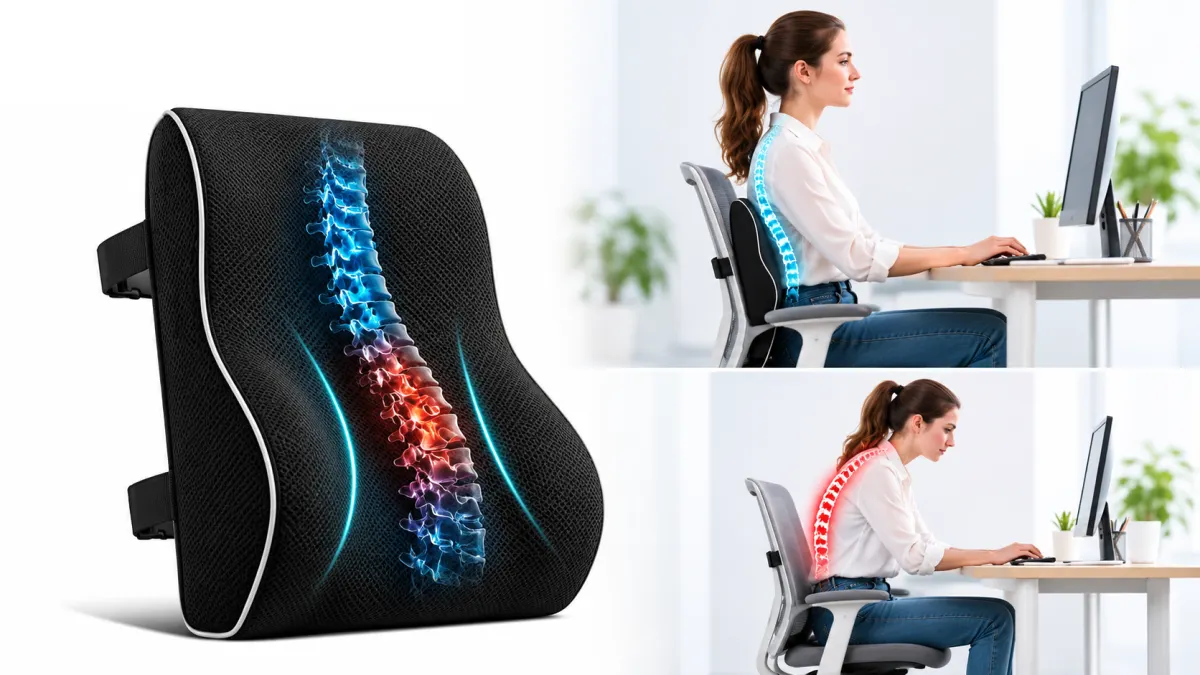
You do not need to replace your chair to maintain healthy spinal alignment. Many home chairs lack sufficient lower-back contouring, leading users to slouch backward into a curved posture after thirty minutes of typing.
A simple memory-foam lumbar roll positioned at the small of your lower back gently preserves your spine's natural inward lordotic curve. This simple support keeps your chest open and reduces fatigue in your spinal muscles.
Why Ergonomic Gel Seat Cushions Are Becoming Essential for Modern Office Workers
4. Implement Warm Indirect Bias Lighting

Afternoon fatigue is frequently exacerbated by eye strain. Staring at a high-brightness monitor in a dim room forces your eyes to work continuously to manage high visual contrast, causing dry eyes and mental tiredness.
Placing a warm, indirect lamp or an LED light bar behind your computer monitor projects soft light onto the wall behind your screen. This "bias lighting" softens the contrast between the display and the ambient room, significantly reducing visual fatigue during long work sessions.
5. Take 30-Second Movement Micro-Breaks

Even the most refined ergonomic workstation cannot replace physical movement. The human musculoskeletal system is designed for regular postural variety rather than hours of static positioning.
Setting a gentle reminder to stand up every thirty minutes for thirty seconds—rolling your shoulders backward and looking at an object twenty feet away—stimulates circulation, relaxes eye muscles, and resets your concentration.
The Importance of Forearm and Wrist Neutrality
While elevating your monitor and supporting your feet relieve major complaints in the spine and neck, preventing chronic soreness in the wrists and forearms requires addressing your interface devices. Standard flat computer mice force your forearm bones into an unnatural twisted posture known as pronation, which pinches the median nerve inside the carpal tunnel during prolonged computer use.
Switching to an ergonomic vertical mouse positions your hand in a neutral handshake posture, completely relieving torque on your forearm muscles and eliminating repetitive strain injuries. Pairing this with a split or tenkeyless external keyboard keeps your hands aligned with your shoulders, preventing the painful chest hunching caused by typing on a narrow laptop keyboard for eight consecutive hours.
Proper Chair Height and Knee Positioning
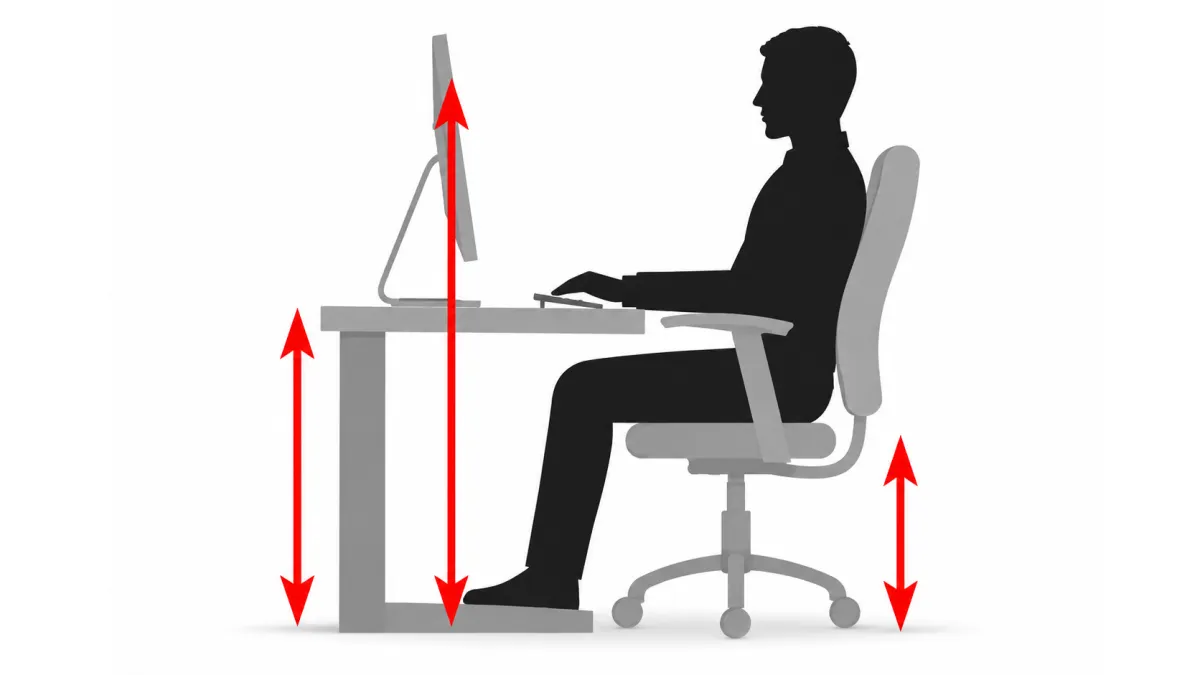
Adjusting the vertical height of your office chair is just as crucial as supporting your lumbar spine. When seated, your knees should form an approximate ninety to one-hundred-degree angle, with your hips positioned slightly higher than your knees. This slight downward angle opens up your pelvic basin, promotes diaphragmatic breathing, and prevents pressure buildup against the backs of your thighs.
If your chair's built-in armrests collide with your desk surface, lower them or remove them entirely. Fixed armrests that push against a desk force you to sit too far away from your keyboard, prompting you to lean forward and undo the benefits of your ergonomic backrest.
Investing in an Adjustable Monitor Arm
While elevating your monitor on books or a fixed desktop stand provides immediate ergonomic relief, installing an adjustable gas-spring monitor arm provides millimeter-precise positioning. An articulating arm allows you to effortlessly pull the screen closer when reviewing dense spreadsheets or push it back when writing drafts, preventing subconscious neck craning.
Furthermore, freeing up valuable desktop real estate beneath your monitor creates an open, uncluttered workspace. A clean, organized desk surface reduces cognitive clutter and visual distractions, helping you maintain mental clarity and physical relaxation throughout demanding work hours.