
 20 November 2026
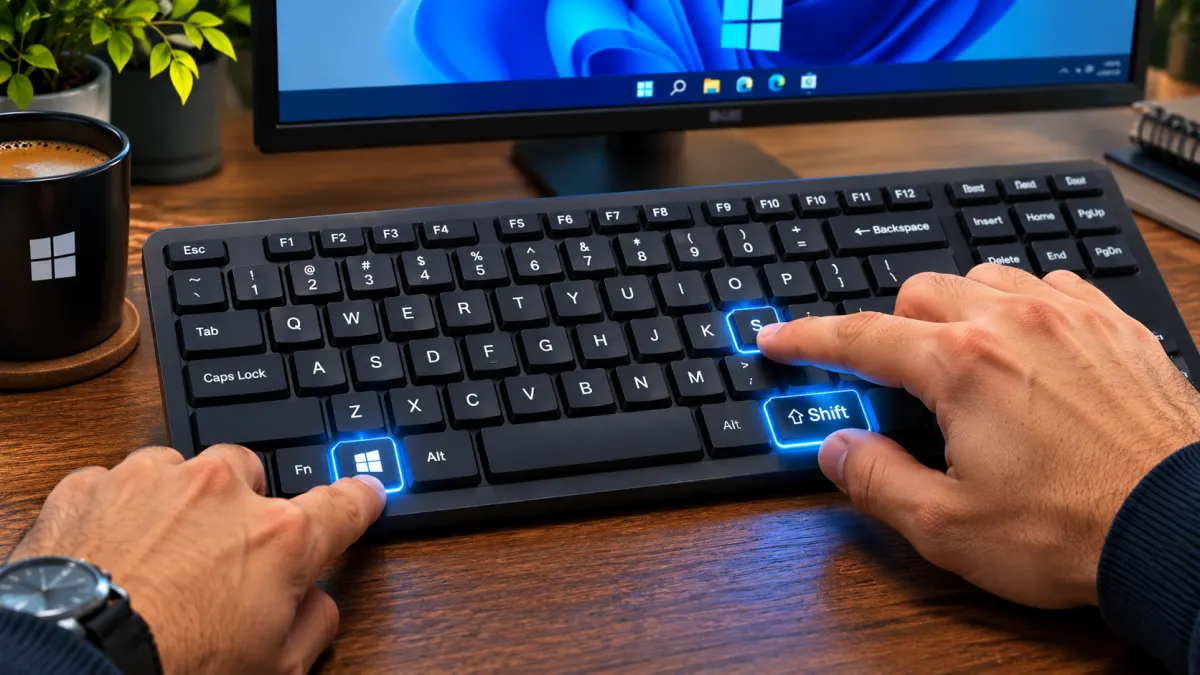
You probably use your keyboard every day, but Windows has plenty of shortcuts that can make everyday tasks faster and easier.
18 Hidden Windows Shortcuts That Can Save You Hours of Clicking!
16 Top-Rated Computer Speakers Amazon Shoppers Say Are Worth Every Dollar
 Inside the List
18 Items
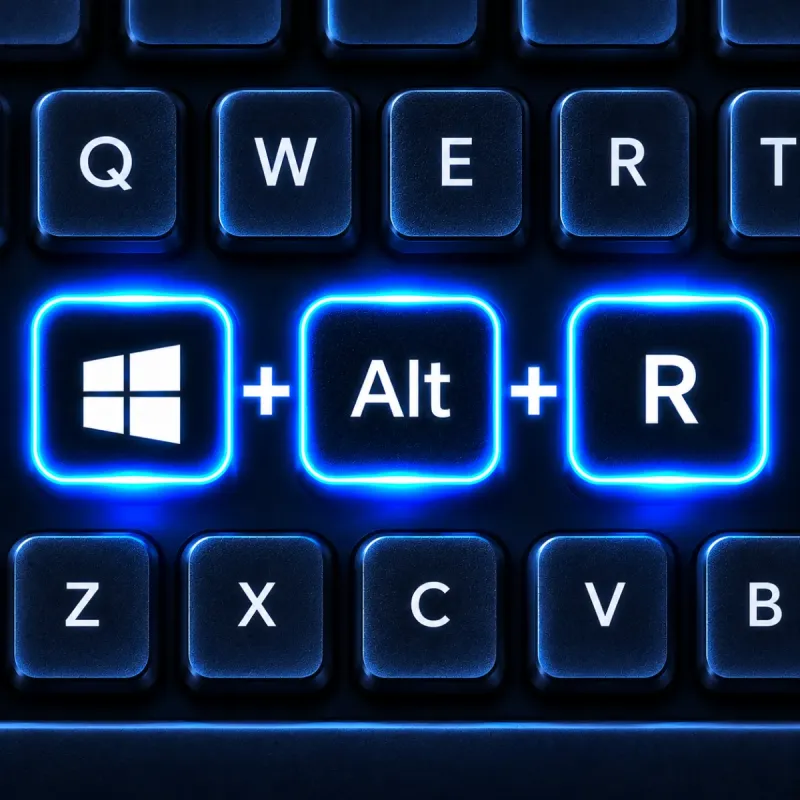
Windows + Alt + R
Start or stop recording your screen
This shortcut starts or stops screen recording through Xbox Game Bar. It is especially useful for capturing gameplay, app demonstrations, and on-screen activities.
- Start recording
- Stop recording
- Xbox Game Bar
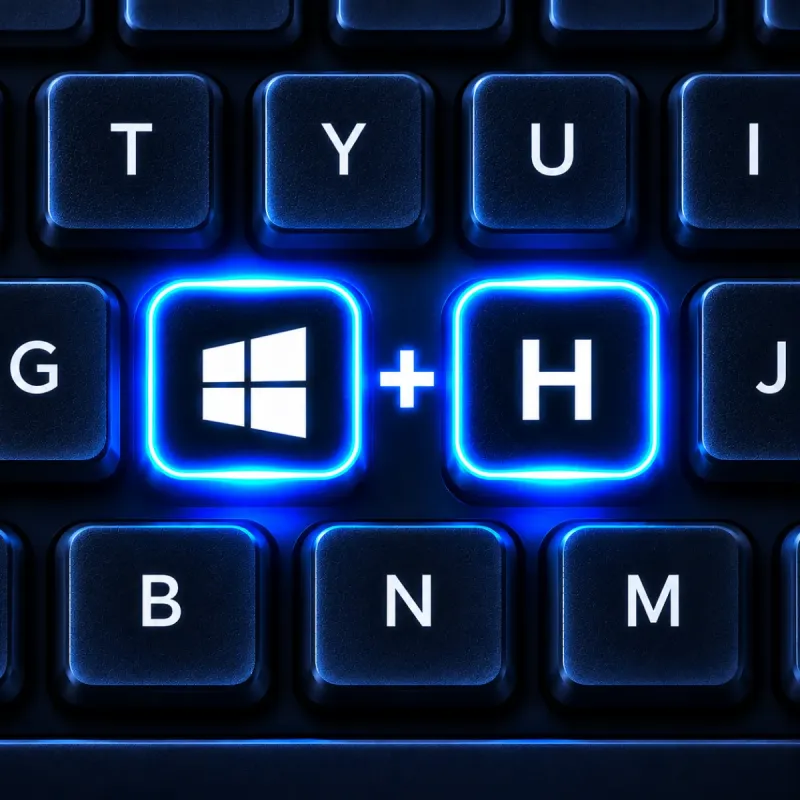
Windows + H
Turn your speech into text
Press Windows + H to open voice typing. Speak into your microphone and Windows converts your words into text in the active text field.
- Speech-to-text
- Microphone input
- Voice dictation
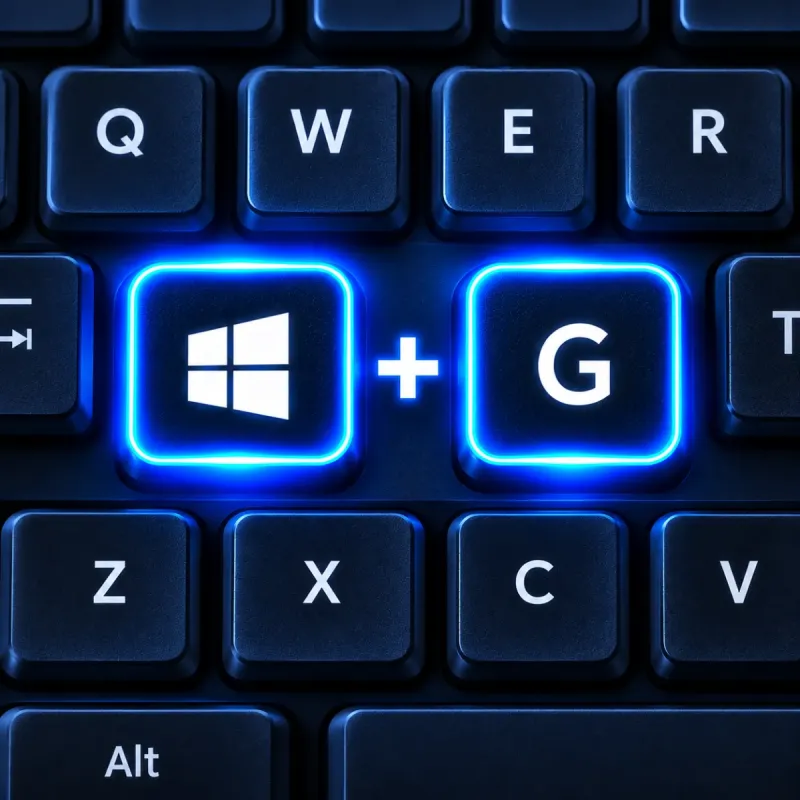
Windows + G
Open the built-in gaming toolbar
Windows + G opens Xbox Game Bar, giving you access to recording controls, screenshots, audio settings, performance information, and other gaming tools.
- Recording controls
- Screenshots
- Audio and performance widgets
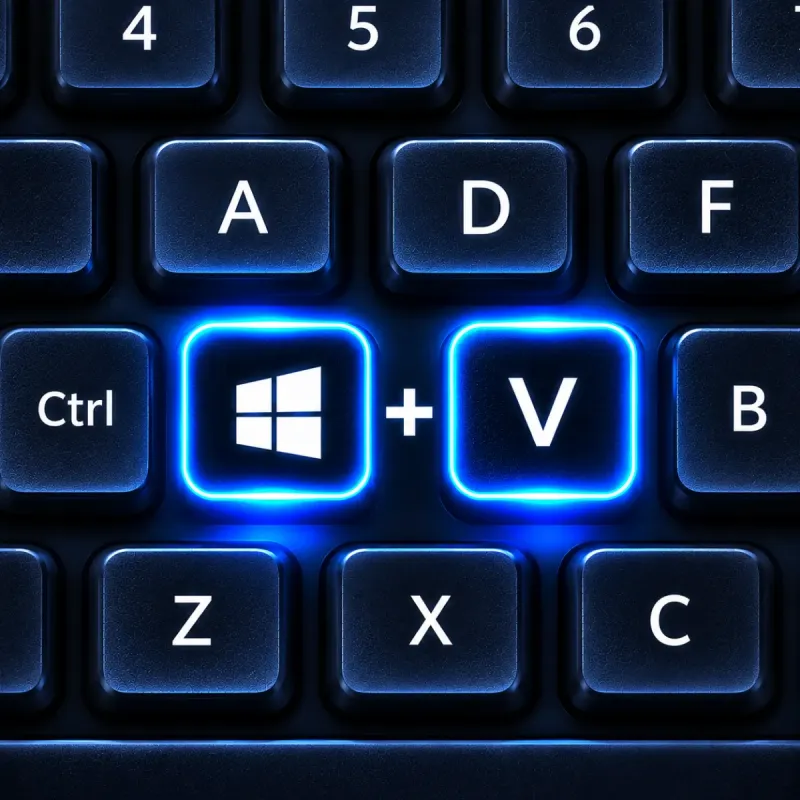
Windows + V
See everything you've recently copied
Instead of accessing only your latest copied item, Windows + V opens clipboard history, allowing you to revisit previously copied text, images, and other supported content.
- Clipboard history
- Reuse copied items
- Pin frequently used content
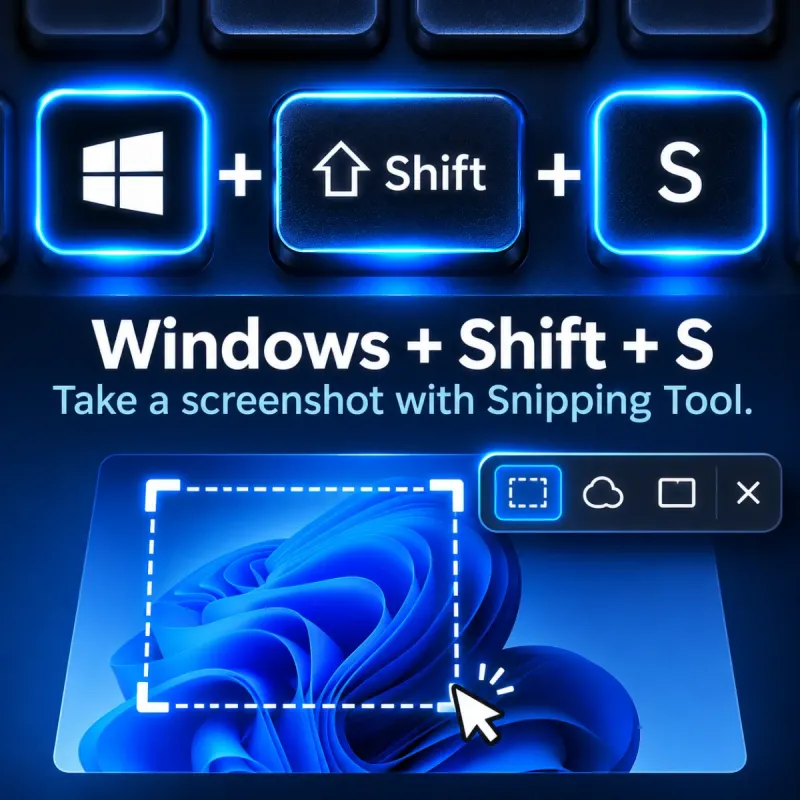
Windows + Shift + S
Capture any part of your screen
Press Windows + Shift + S to open the Snipping Tool overlay and capture a selected area, a window, or the entire screen. You can then edit or copy the screenshot.
- Partial screenshot
- Window capture
- Full-screen capture
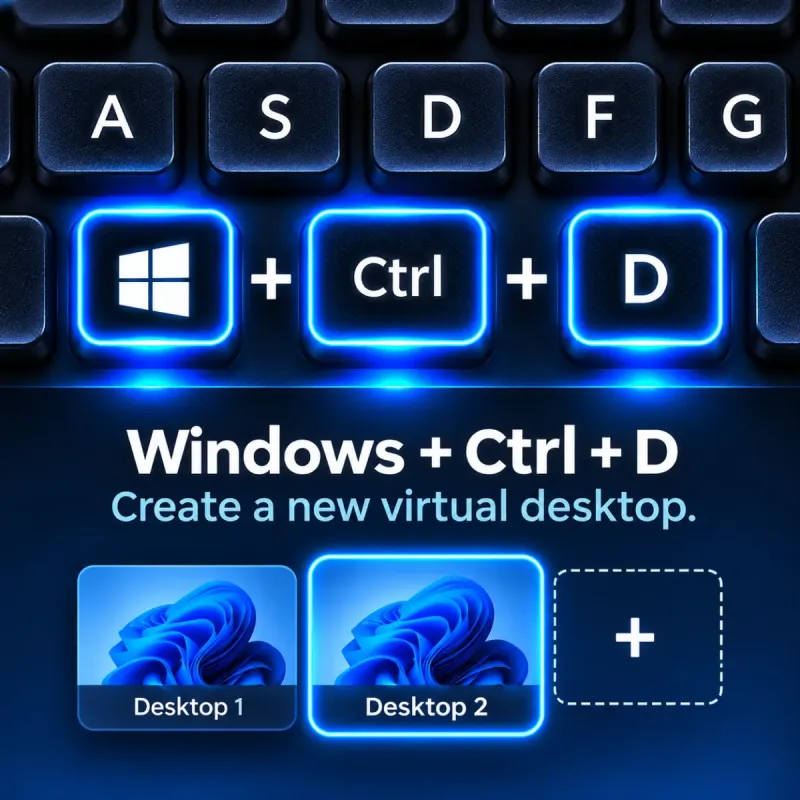
Windows + Ctrl + D
Create a separate virtual workspace
Create a new virtual desktop instantly. You can use separate desktops for work, browsing, entertainment, or different projects without closing your open applications.
- Create virtual desktop
- Separate workspaces
- Better organization
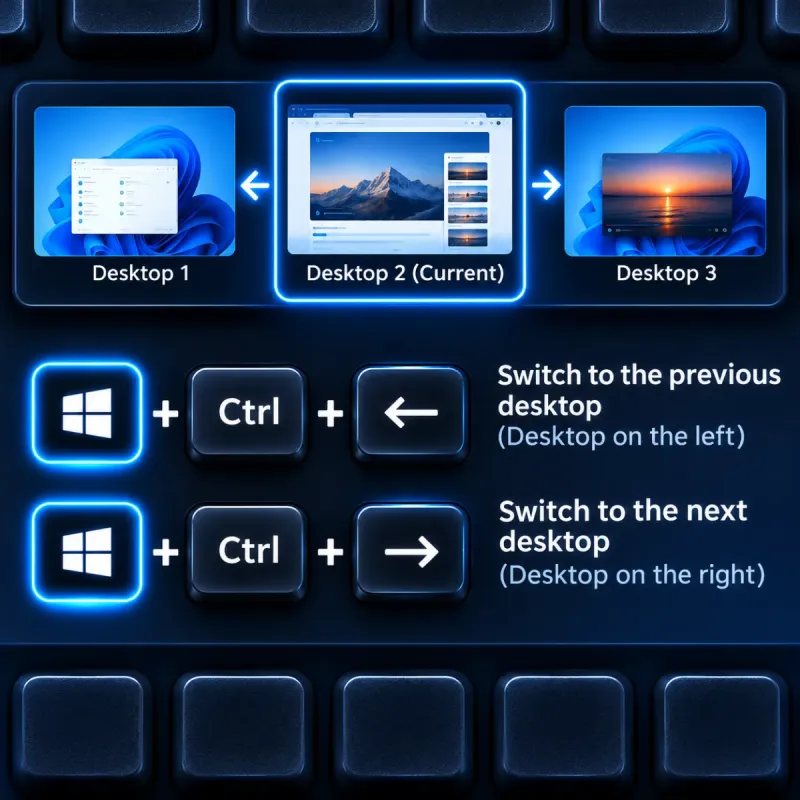
Windows + Ctrl + Left / Right
Move between virtual desktops
Switch between your virtual desktops without opening Task View. This shortcut makes it easy to move between different workspaces using only your keyboard.
- Switch left
- Switch right
- Virtual desktop navigation
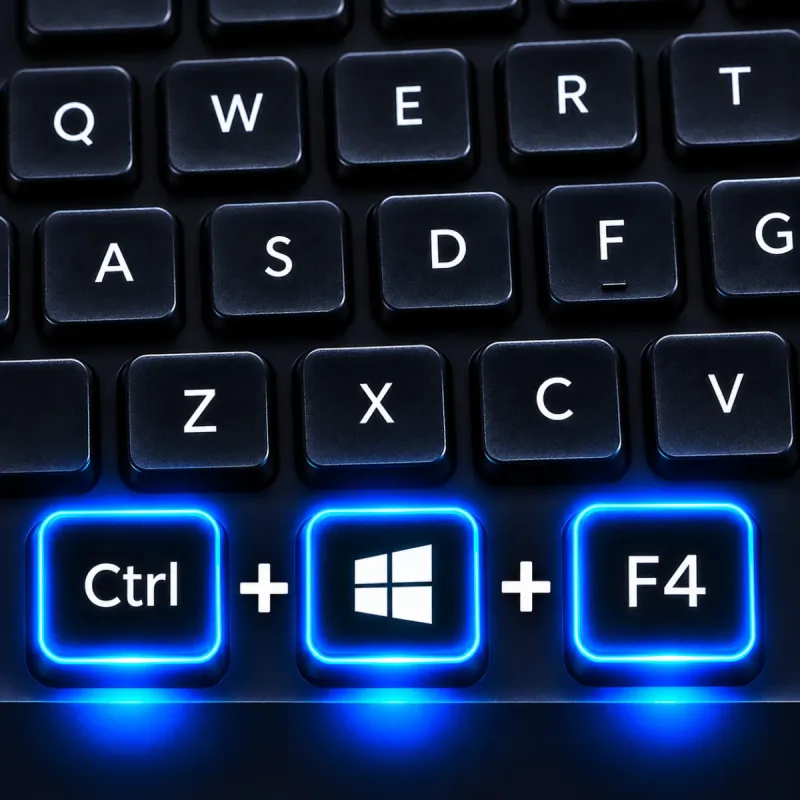
Windows + Ctrl + F4
Remove the current virtual desktop
Close your current virtual desktop with this combination. Open applications are moved to another available desktop rather than being automatically closed.
- Close current desktop
- Keep open apps
- Workspace management
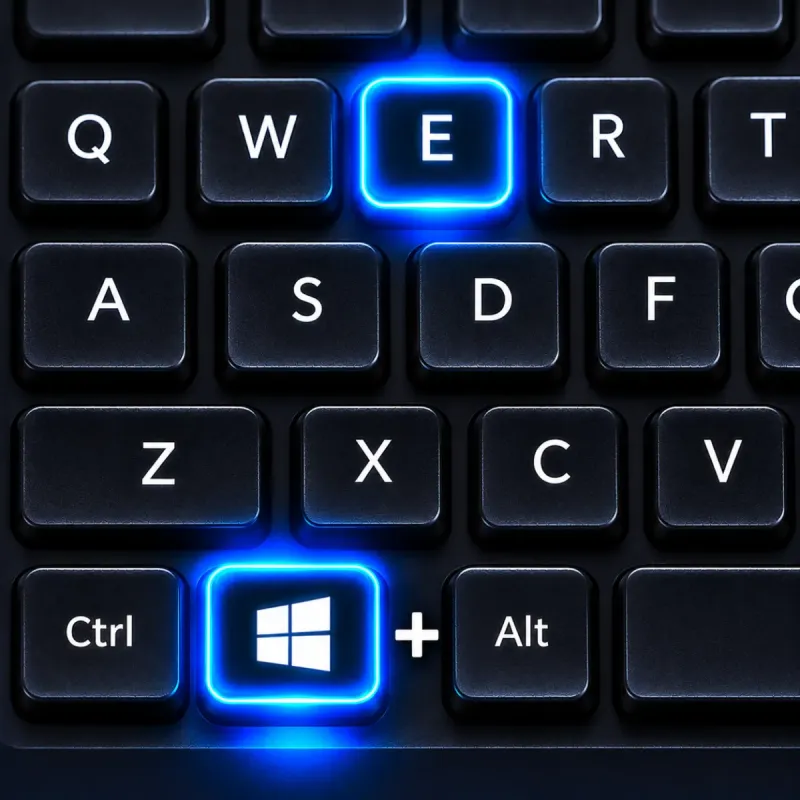
Windows + E
Open your files and folders instantly
Launch File Explorer immediately to browse documents, downloads, pictures, connected drives, and other files without searching through the Start menu.
- Open File Explorer
- Browse folders
- Access drives
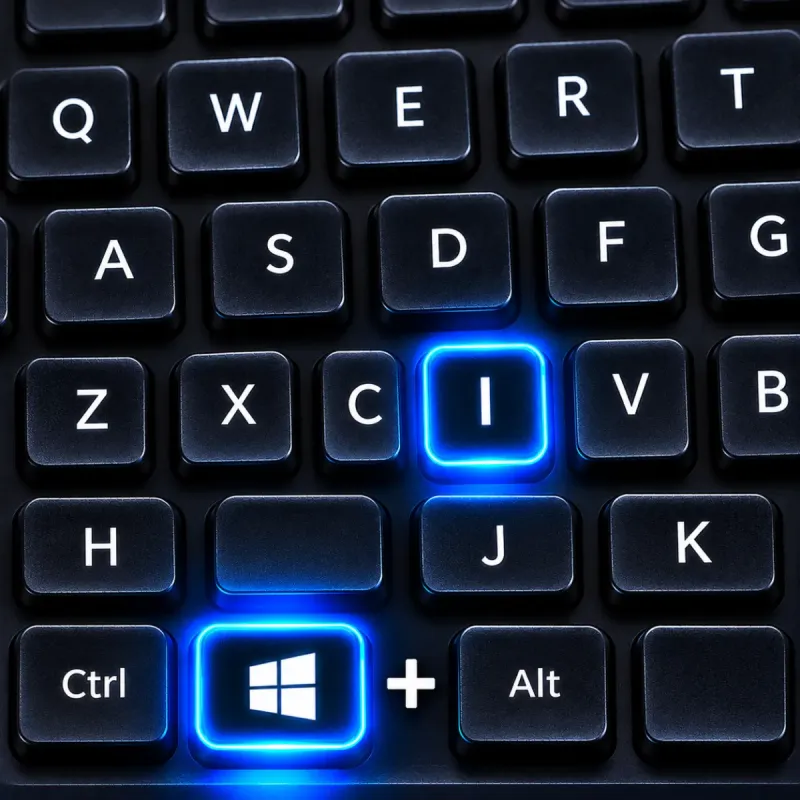
Windows + I
Jump straight into Windows Settings
Open the Windows Settings app instantly to manage your display, sound, network, Bluetooth, personalization, accounts, and system preferences.
- System settings
- Device preferences
- Personalization
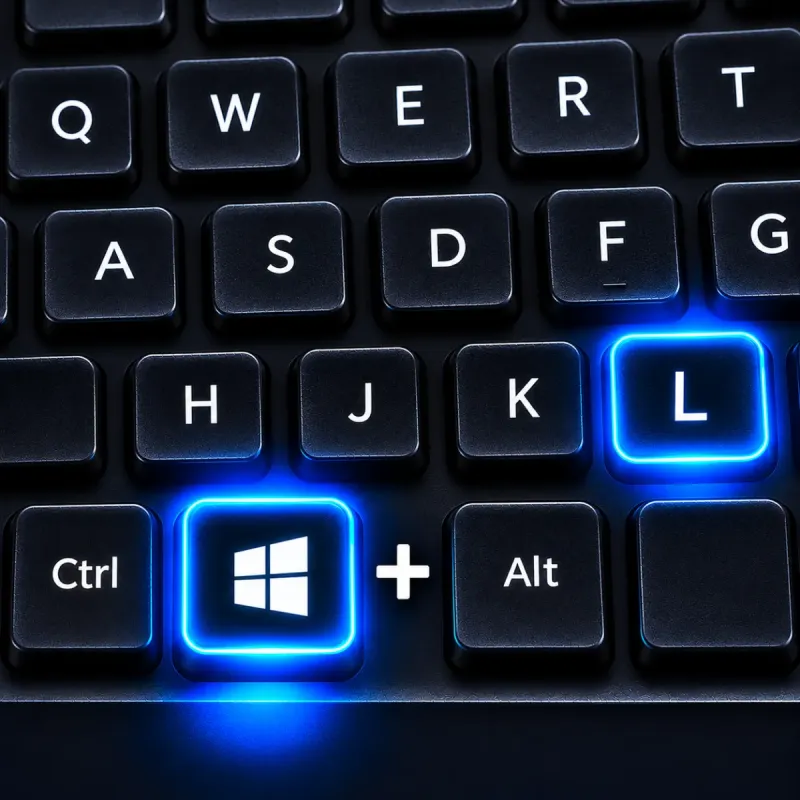
Windows + L
Lock your computer in one second
Lock your Windows session immediately when leaving your desk. Your open applications remain running while the sign-in screen protects your computer.
- Instant screen lock
- Protect privacy
- Keep apps running
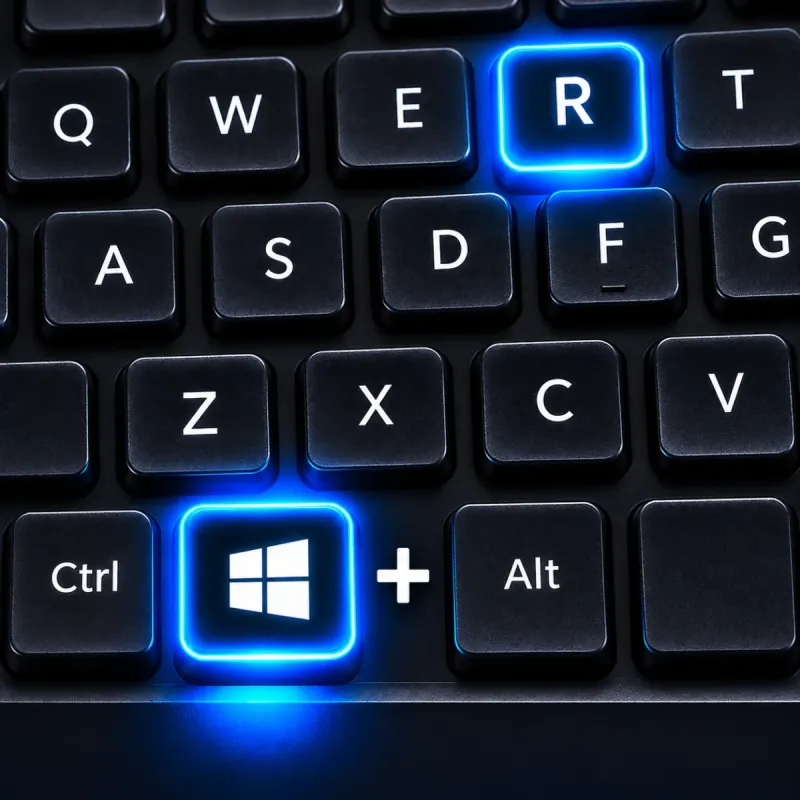
Windows + R
Open apps and system tools quickly
The Run dialog lets you launch applications, folders, and Windows utilities by typing their names or commands instead of navigating through menus.
- Launch programs
- Run system commands
- Open folders
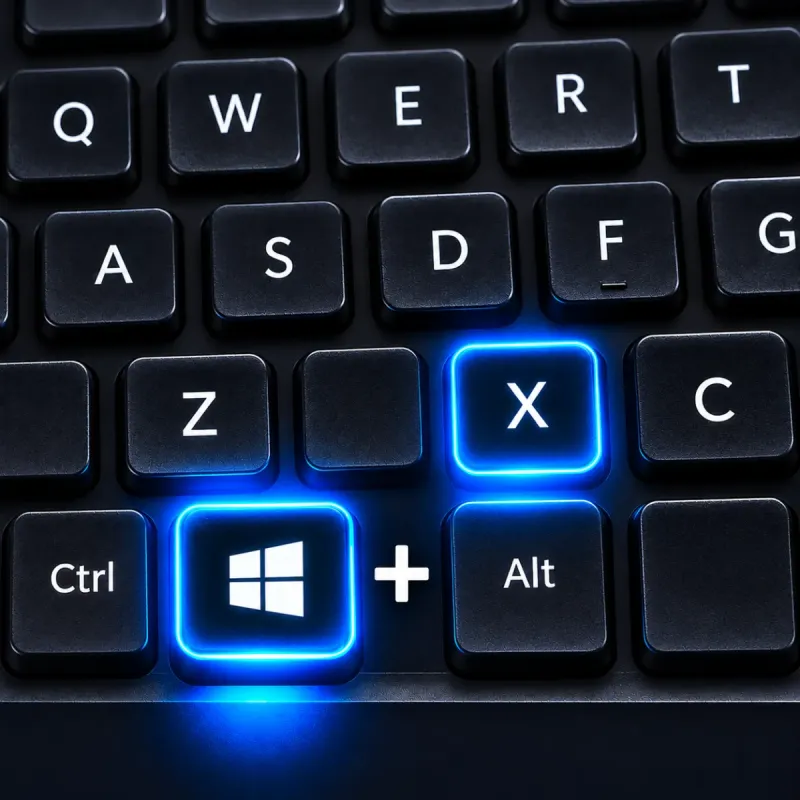
Windows + X
Access advanced Windows tools
Open the Quick Link menu to reach useful system tools such as Device Manager, Disk Management, Terminal, Task Manager, and power options.
- Device Manager
- Disk Management
- Windows Terminal
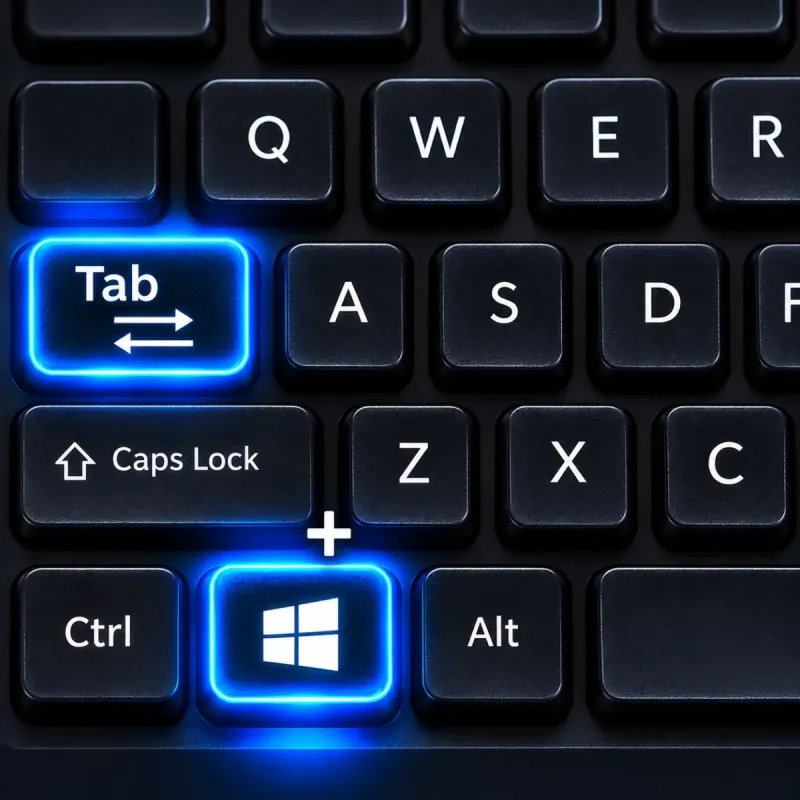
Windows + Tab
See all your open windows at once
Task View displays your open applications and virtual desktops in one place, making it easier to switch between different tasks and workspaces.
- Open windows overview
- Virtual desktops
- Quick navigation
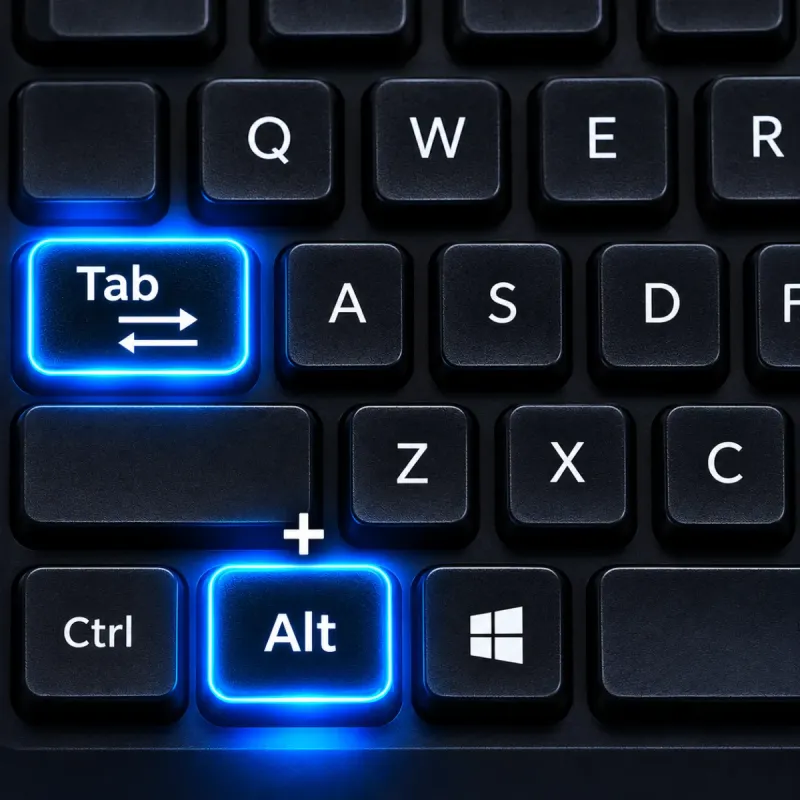
Alt + Tab
Jump between open applications
Switch between your recently used open applications without minimizing windows or clicking the taskbar. Hold Alt and press Tab to cycle through them.
- Switch applications
- Preview open windows
- Faster navigation
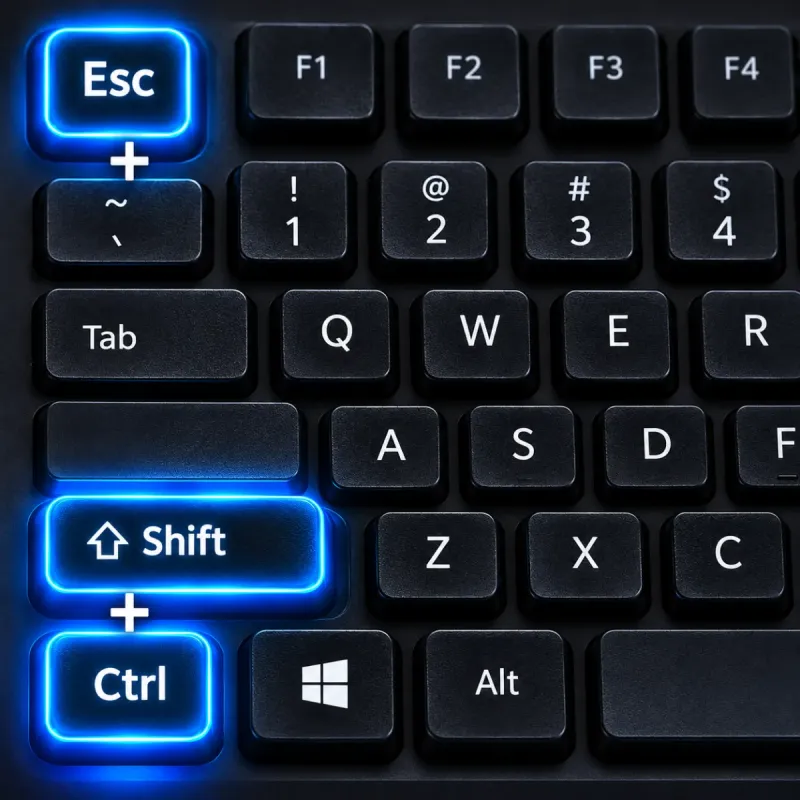
Ctrl + Shift + Esc
Open Task Manager directly
Launch Task Manager immediately to check running applications, monitor CPU and memory usage, manage startup programs, and close unresponsive processes.
- Monitor performance
- Manage processes
- Startup apps
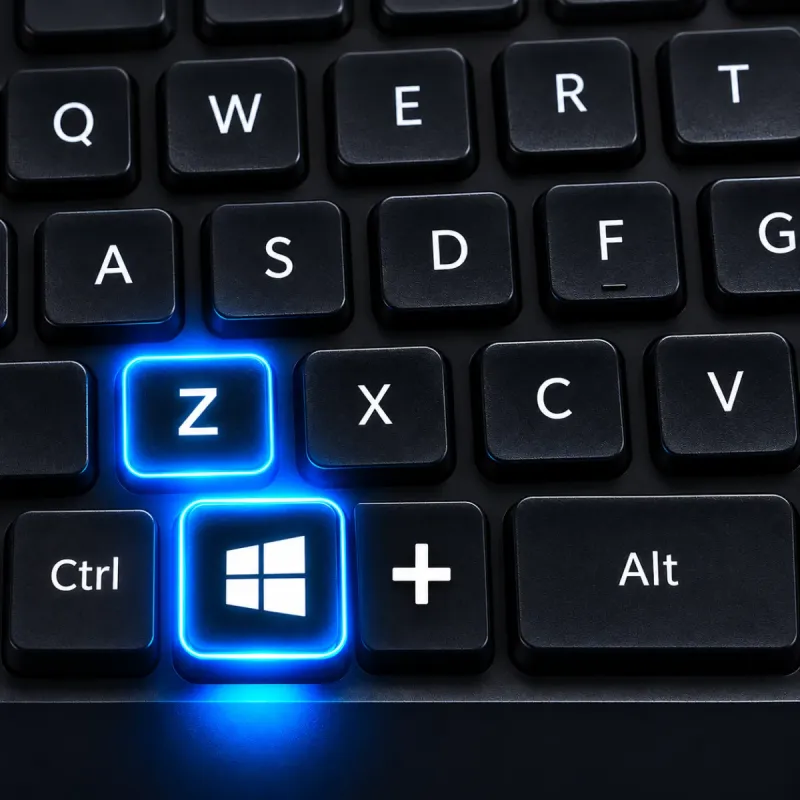
Windows + Z
Arrange multiple windows on your screen
Open Snap Layouts in Windows 11 to organize application windows into predefined screen arrangements, making multitasking easier on larger displays.
- Window layouts
- Split-screen workspace
- Multitasking
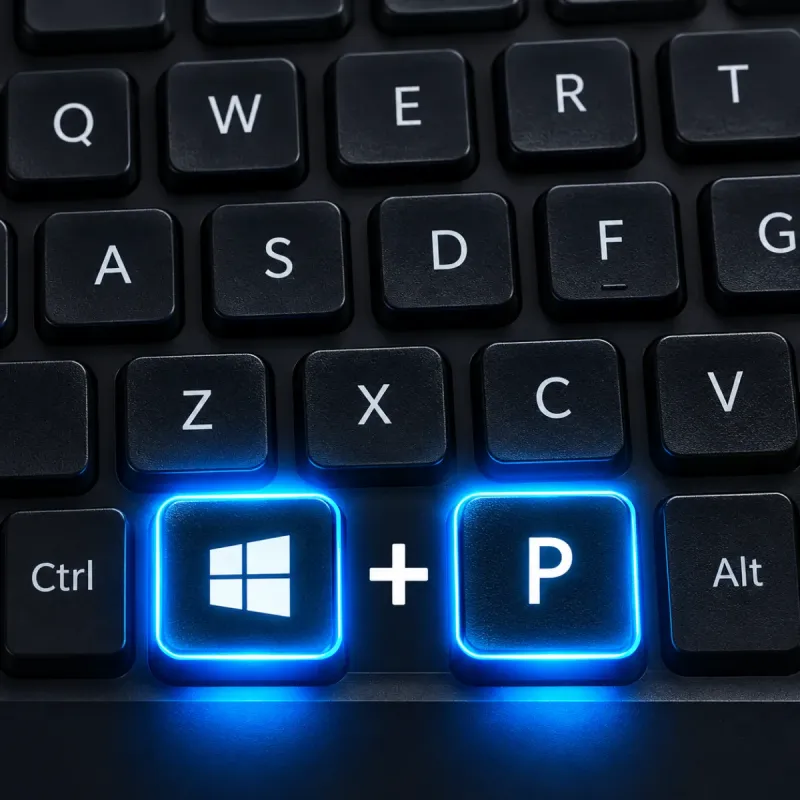
Windows + P
Switch between display modes
Quickly choose how Windows uses connected displays, including extending your desktop, duplicating the screen, or showing content on a second display only.
- PC screen only
- Duplicate
- Extend
- Second screen only