

You’ve probably heard of Discord, especially if you’re interested in video games, online communities, or digital communication. At first glance, Discord may look like a simple messaging app. In reality, it is a powerful and flexible communication platform that has evolved from a tool built primarily for gamers into a social space used by communities, creators, students, developers, and friends around the world.
So, what exactly is Discord, how does it work, and what can you do with it? This guide covers everything from Discord servers and channels to voice calls, video chats, screen sharing, bots, and Discord Nitro.
Read More
What Is Discord?
If you’re looking for a simple answer to the question “What is Discord?”, Discord is a free communication platform built around text, voice, and video.
Instead of organizing conversations primarily around individual profiles or public posts, Discord centers on servers. A server is a dedicated online community where members can communicate, share files, join voice conversations, and participate in different discussions.
Servers can be private and invitation-only or open to the public. This community-focused structure is one of the main things that sets Discord apart from traditional social media platforms.
Discord Servers, Channels, and Roles
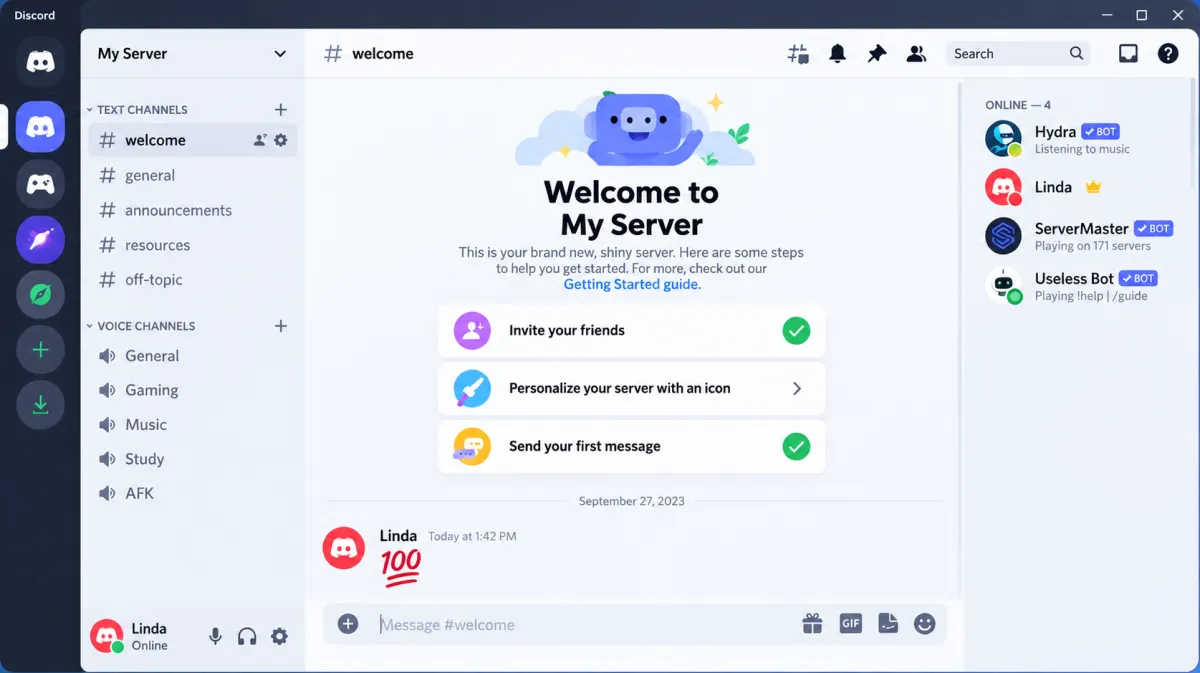
One of Discord’s biggest strengths is its flexible structure. It can work equally well for a small group of friends or a community with thousands of members.
Three core features make this possible:
Servers
A Discord server is a dedicated space created around a particular community, interest, project, game, or group.
Think of a server as an online clubhouse. Inside it, members can find different rooms—or channels—for specific conversations and activities.
Channels
Channels help organize conversations within a server.
Text channels are used for written conversations, announcements, questions, file sharing, and other discussions.
Voice channels allow members to join live conversations without making a traditional phone call. You can simply enter a voice channel, talk to other members, and leave whenever you want.
Some servers also use dedicated channels for announcements, media, support, gaming, events, or specific topics.
Roles and Permissions
Discord also gives server administrators detailed control over members and their permissions.
Server owners can create different roles and decide what each role can access. For example, a community might have separate roles for administrators, moderators, regular members, VIP users, or new members.
Permissions can also be used to control access to private channels and administrative features.
This system makes Discord suitable for everything from small private groups to large online communities.
The History of Discord
Discord was launched in May 2015 by Jason Citron and Stan Vishnevskiy, two developers with a strong interest in video games.
The idea behind Discord came from an unexpected place. Citron’s company had previously worked on a multiplayer game called Fates Forever. Although the game did not achieve the commercial success the team had hoped for, its communication system stood out.
The developers realized that gamers needed a lightweight, reliable way to communicate while playing. At the time, many popular communication tools were not designed specifically for the fast-moving needs of gaming communities.
Rather than continuing to focus entirely on the game, the team shifted its attention toward building a standalone communication platform.
Discord initially grew largely through word of mouth within online gaming communities. Over time, however, its audience expanded far beyond gaming.
Today, Discord is used by communities focused on technology, education, entertainment, art, software development, hobbies, and countless other interests.
How to Sign Up for Discord
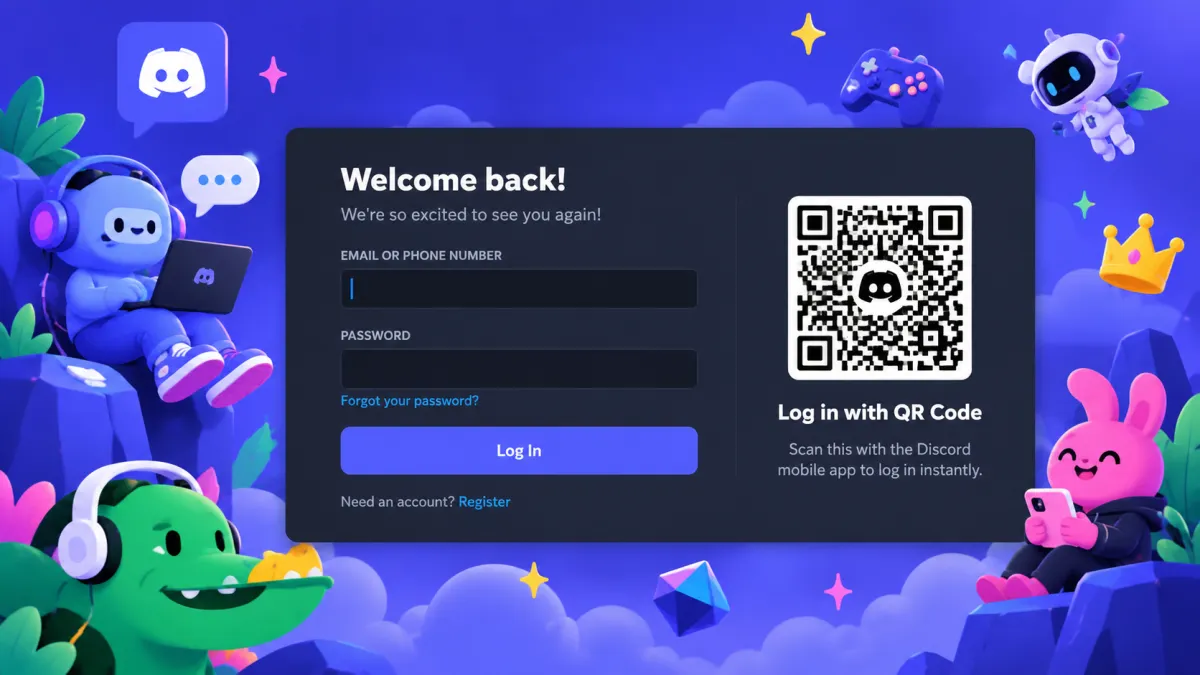
Getting started with Discord is relatively simple.
Follow these steps:
- Visit the official Discord website.
- Select Login and then choose the option to create a new account.
- Enter the requested information, including your email address, username, display name, and password.
- Complete the verification process if required.
- Once your account is ready, you can join servers and start communicating with other users.
You can also create an account through the Discord mobile app. The registration process is similar on Android and iOS.
How to Download and Install Discord
Discord is available across several major platforms, making it easy to use on different devices.
Windows, Mac, and Linux
Discord offers desktop applications for major computer operating systems. The desktop version provides a full-featured experience and is particularly popular with gamers and community managers.
Android and iPhone
The Discord mobile app is available for Android and iOS devices. It allows you to send messages, participate in voice and video conversations, manage servers, and stay connected while away from your computer.
PlayStation and Xbox
Discord can also be connected with supported gaming consoles, allowing users to integrate their Discord account with their gaming setup and use voice communication while playing.
How to Use Discord
After creating an account, the next step is usually joining a server.
If someone has invited you to a private community, you can join using an invitation link. You can also browse publicly available communities through Discord’s server discovery features.
Once you join a server, you’ll typically see a list of text and voice channels on the left side of the interface.
From there, you can choose where you want to participate.
Sending Messages on Discord
Text channels work much like group chats, but they offer considerably more organization.
You can:
- Send text messages
- Share images and files
- React to messages with emojis
- Mention specific users with @mentions
- Reply to messages
- Share links
- Participate in organized discussions
Depending on the server, you may also find dedicated channels for announcements, help, news, gaming, or community events.
Voice and Video Calls
Discord is particularly well known for its voice communication.
To join a voice conversation, simply click on a voice channel. You can then talk to other members who are already there.
You don't need to make a traditional phone call. Voice channels remain available, allowing users to come and go whenever they want.
Discord also supports video calls, making it useful for meetings, group discussions, online classes, gaming sessions, and casual conversations.
How Does Discord Screen Sharing Work?
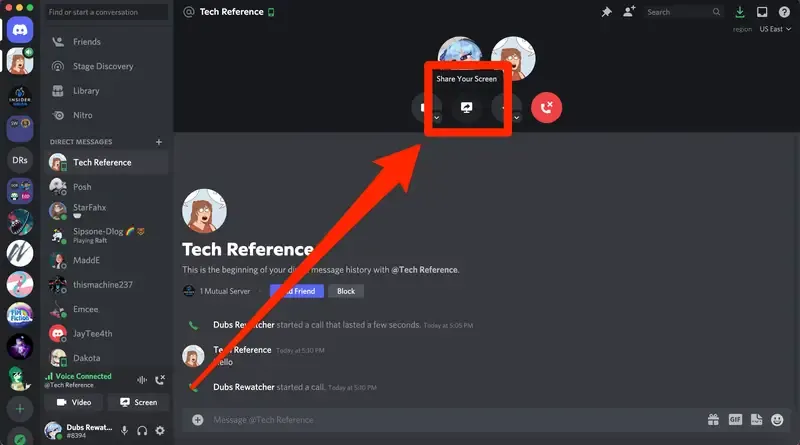
One of Discord’s most useful features is Screen Share, also known as Go Live in certain contexts.
It allows you to share your screen, a specific application, or a game with other people in a voice channel.
To use it, join a voice channel and select the screen-sharing option. You can then choose what you want other participants to see.
Screen sharing can be useful for:
- Gaming
- Presentations
- Troubleshooting technical problems
- Online study sessions
- Watching content together
- Demonstrating software
- Remote collaboration
Screen sharing is also available on supported mobile devices, although the available options can vary depending on the device and operating system.
Discord App vs. Discord Web
There are two main ways to use Discord: through its applications or directly through a web browser.
Discord Desktop App
The desktop application generally provides the most complete Discord experience.
It offers features designed for frequent users, including voice communication tools, notifications, keyboard shortcuts, and integrations that can be particularly useful for gaming.
Discord Web
Discord can also be accessed through a web browser without installing a desktop application.
This can be convenient if you're using another computer or simply don't want to install additional software.
For everyday messaging and communication, the browser version can be more than sufficient. However, users who spend a lot of time on Discord may prefer the dedicated desktop application.
Advanced Discord Features
Discord offers several features that can make the platform much more powerful for experienced users and community administrators.
Discord Nitro
Discord Nitro is Discord's premium subscription service.
Depending on the current plan and features offered, Nitro can provide benefits such as larger file uploads, higher-quality streaming, additional customization options, and access to premium emojis and other features.
For casual users, the free version of Discord may be enough. More active users and community members may find Nitro's additional features useful.
Discord Bots
Bots are automated programs that can perform tasks inside Discord servers.
Depending on how they are configured, bots can help with:
- Server moderation
- Automated messages
- Music
- Polls
- Welcome messages
- Community management
- Games and entertainment
- Automated commands
Popular Discord bots have become an important part of managing larger communities.
Improving Discord Streaming Quality
If you want a smoother streaming experience, a stable internet connection is important.
You can also improve performance by closing unnecessary background applications and selecting appropriate streaming quality settings.
For professional or frequent streaming, a quality microphone, webcam, and reliable computer can make a noticeable difference.
Why Is Discord Not Working?
Like any online service, Discord can occasionally experience technical problems.
If Discord isn't opening, connecting, or working properly, several things may be responsible.
Check Discord's Status
The first thing to check is whether Discord itself is experiencing an outage.
Discord provides an official status page where users can check for ongoing service disruptions.
Restart Discord
Completely close the application and open it again.
If that doesn't work, restarting your computer can sometimes resolve temporary software or connection problems.
Check Your Internet Connection
A weak or unstable connection can cause problems with messages, voice calls, video, and screen sharing.
Restarting your router or switching to a more reliable connection may help.
Discord Won't Open on Windows
If Discord refuses to launch, you can open Task Manager and close any remaining Discord processes.
Then try launching the application again.
Running the application with administrator privileges may also help in certain situations.
Voice or Video Problems
If your microphone or speakers aren't working correctly, open:
User Settings → Voice & Video
Check that the correct input and output devices are selected.
You can also reset Discord's voice settings if you've changed multiple audio options and aren't sure which setting is causing the problem.
Is Discord Only for Gamers?
Absolutely not.
Gaming may have played a major role in Discord's early popularity, but the platform has evolved significantly.
Today, Discord communities cover a huge range of subjects, including:
- Technology
- Programming
- Art
- Music
- Education
- Movies and entertainment
- Sports
- Cryptocurrency
- Hobbies
- Content creation
- Online communities
- Professional projects
For many users, Discord has become less like a gaming chat application and more like a flexible community platform.
Why Is Discord So Popular?
Discord combines several communication tools in one place.
Instead of switching between separate applications for group messaging, voice calls, video calls, file sharing, and community management, users can handle many of these activities inside a single server.
Its customizable structure is another major advantage.
A small group of friends can create a simple server with only a few channels, while a large community can build a much more sophisticated structure with moderators, private channels, automated bots, roles, rules, and dedicated discussion areas.
That flexibility is one of the biggest reasons Discord has expanded beyond gaming.