
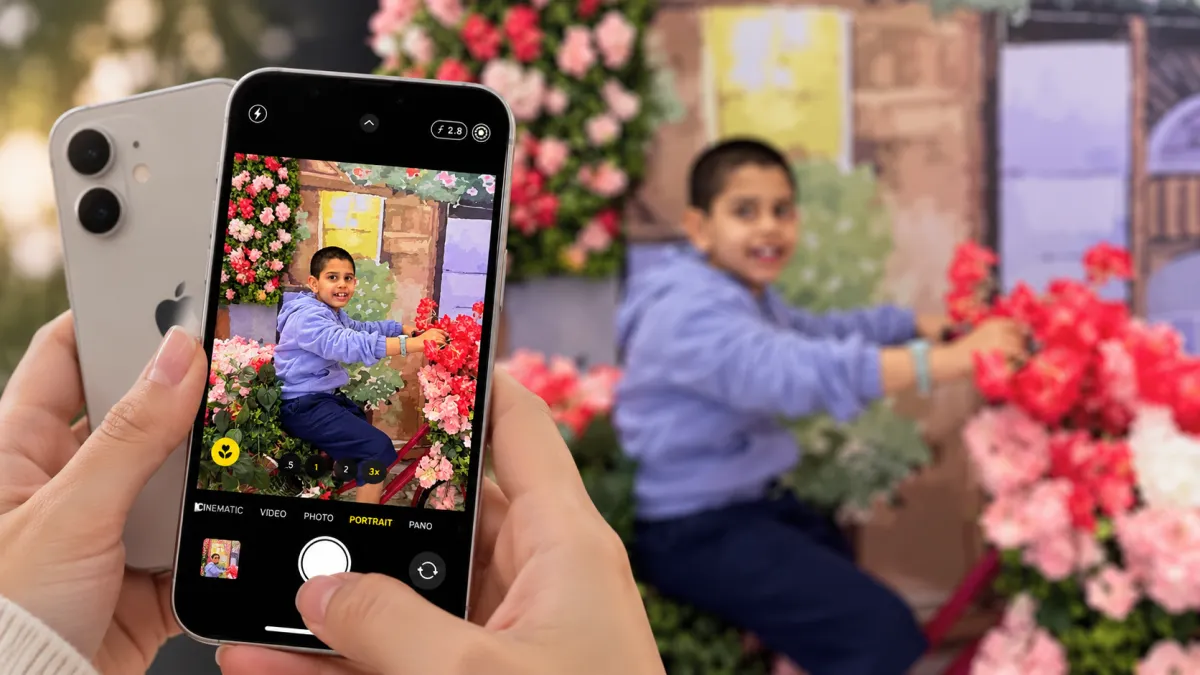

Taking professional-looking portraits with a beautifully blurred background is one of the most impressive features of modern smartphone cameras. The good news is that you don't need to be a professional photographer to take great portrait photos with an iPhone.
With Apple's Portrait mode, you can create photos with a shallow depth of field that keeps your subject sharp while softly blurring the background. The basic process is simple: open the Camera app, switch to Portrait mode, frame your subject, wait for the camera to recognize the subject, and press the shutter button.
But getting a truly polished portrait takes more than simply turning on Portrait mode. Lighting, composition, camera distance, focal length, and editing can all make a noticeable difference.
This guide explains how to take better portrait photos on an iPhone, how Portrait Lighting works, how to adjust background blur after taking a photo, and how to get better results in different lighting conditions.
Read More


How to Take a Portrait Photo on an iPhone
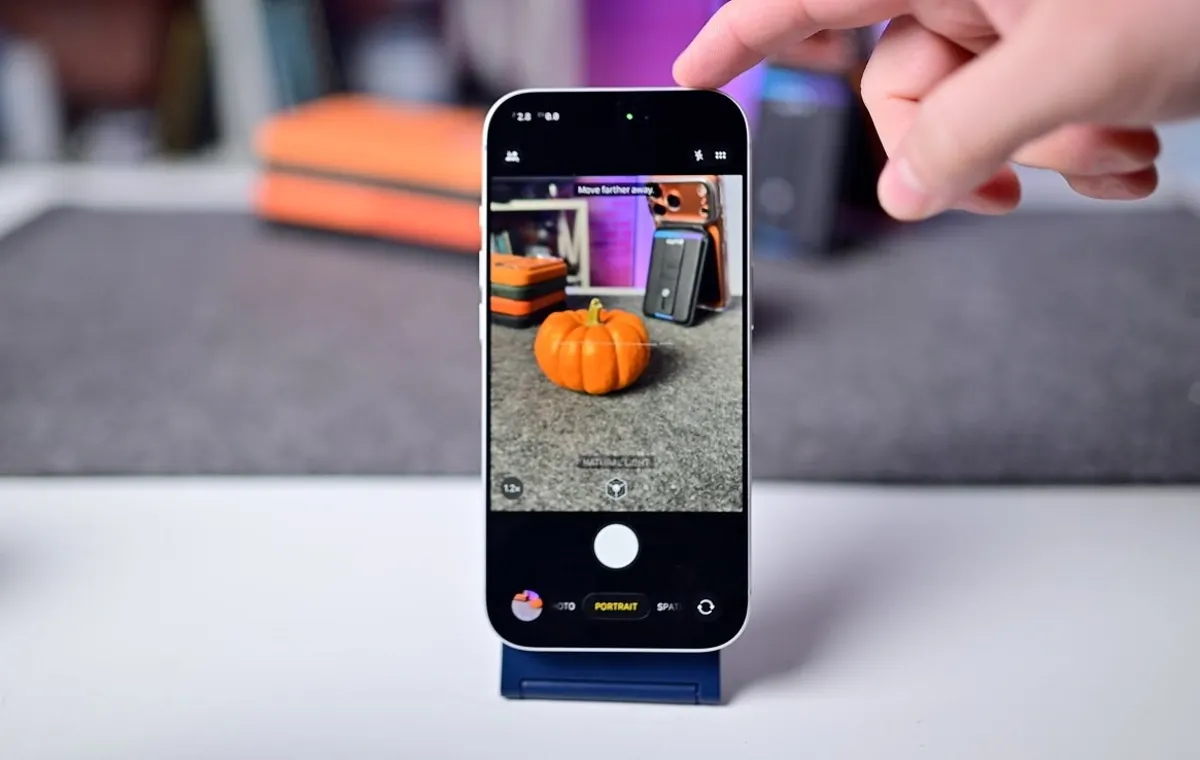
Although taking a portrait photo on an iPhone is straightforward, paying attention to the camera's on-screen guidance can significantly improve the final result. Pasted markdown
Follow these steps:
- Open the Camera app on your iPhone.
- Swipe through the camera modes above the shutter button and select Portrait.
- Point the camera at your subject.
- Watch for the camera's on-screen guidance as you frame the shot.
- Wait for the iPhone to recognize the subject and prepare the Portrait effect.
- If the camera asks you to move farther away or find more light, follow the instructions.
- Once everything is ready, press the shutter button to take the photo.
For the best results, give your subject some distance from the background. This usually creates a more natural-looking blur and helps the subject stand out.
Which iPhones Have Portrait Mode?
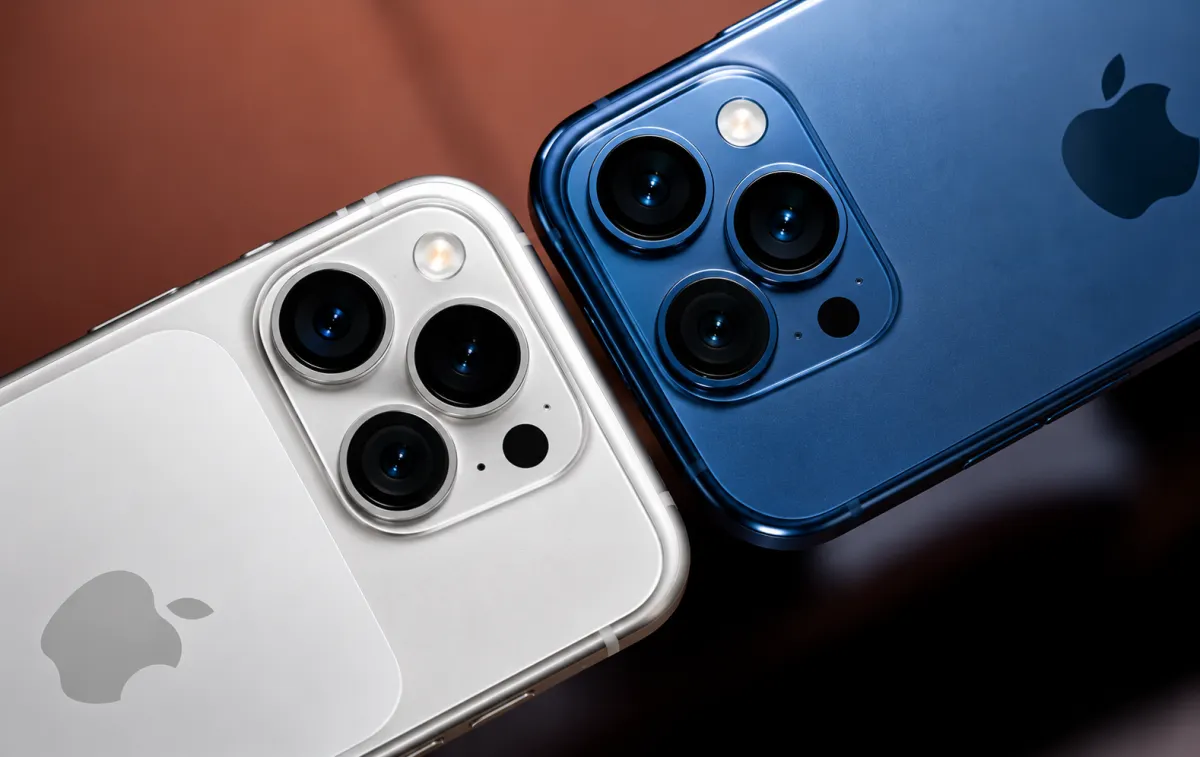
Portrait mode isn't available on every iPhone. The feature relies on camera hardware and computational photography to separate the subject from the background and create a depth effect. Pasted markdown
Depending on the iPhone model, depth information can be created using multiple cameras or software-based image processing.
Rear Camera Portrait Mode
Portrait photography is supported on:
- iPhone 7 Plus
- iPhone 8 Plus
- iPhone X
- iPhone XS
- iPhone XS Max
- iPhone XR
- iPhone SE (2nd generation)
- iPhone SE (3rd generation)
- iPhone 11 series and later
- iPhone 12 series
- iPhone 13 series
- iPhone 14 series
- iPhone 15 series
- Newer compatible iPhone models
Front Camera Portrait Mode
Selfie Portrait mode is supported on:
- iPhone X
- iPhone XR
- iPhone XS
- iPhone XS Max
- iPhone 11 series and later compatible models
The exact Portrait capabilities can vary by iPhone model and iOS version.
How Does iPhone Portrait Mode Work?
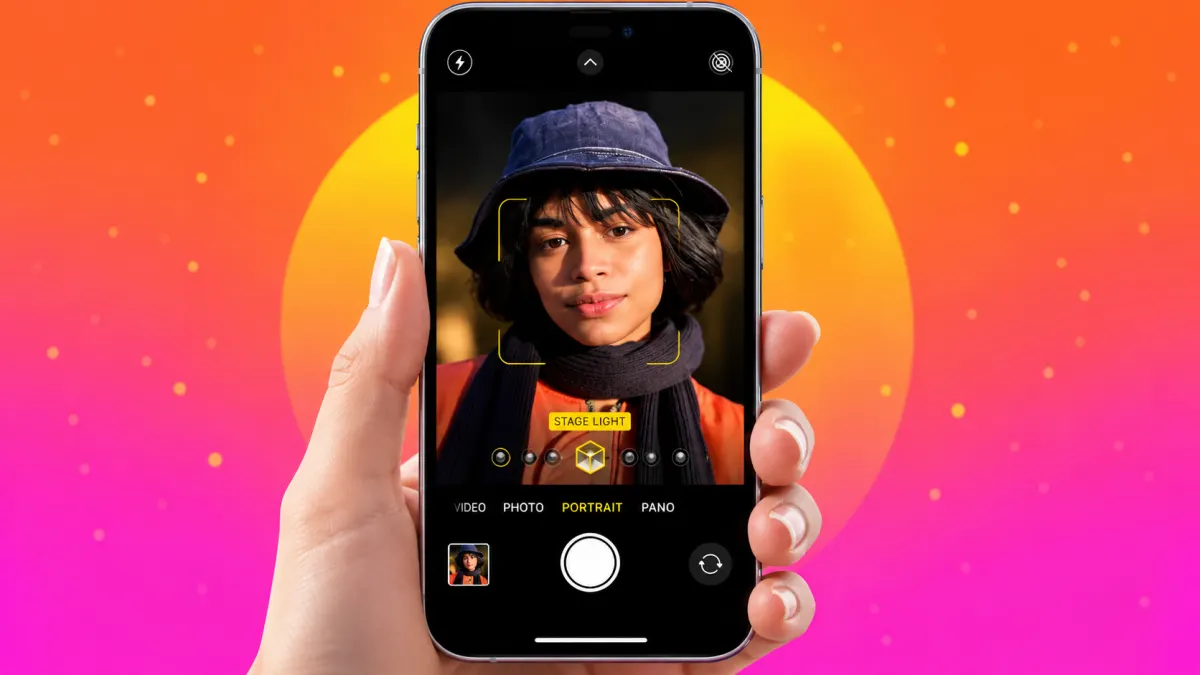
The technology behind Portrait mode combines camera hardware with computational photography.
Some iPhones use multiple cameras to gather depth information, while other models rely more heavily on machine learning to identify the subject and separate it from the background. Apple's TrueDepth camera system can also provide depth information for compatible front-camera portraits. Pasted markdown
The result is a photograph in which the subject remains sharp while the background receives a soft depth-of-field or bokeh effect.
Understanding Portrait Lighting on iPhone
One of the most useful features of iPhone Portrait mode is Portrait Lighting. It lets you apply different lighting effects to your subject while composing the image, and supported effects can also be adjusted after you take the photo. Pasted markdown
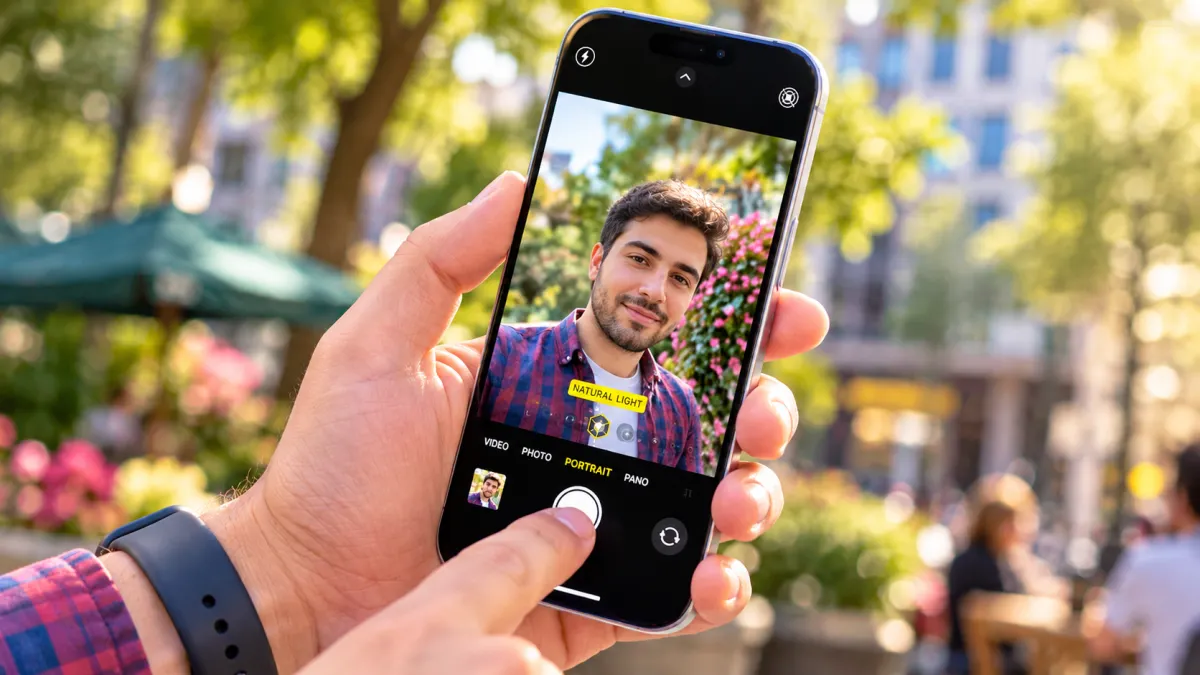
Natural Light
Natural Light is the standard Portrait Lighting effect. It keeps the subject naturally illuminated while separating them from the blurred background.
Studio Light
Studio Light brightens the subject's face and creates a cleaner, more polished look that resembles studio photography.
Contour Light
Contour Light creates stronger highlights and shadows, adding more definition and drama to facial features.
Stage Light
Stage Light isolates the subject and replaces the background with a dark backdrop.
Stage Light Mono
Stage Light Mono uses the same basic concept as Stage Light but produces a classic black-and-white portrait.
High-Key Light Mono
Available on supported newer models, High-Key Light Mono creates a bright monochrome portrait with a clean white background.
Tip: Natural Light, Studio Light, and Contour Light are generally more forgiving because they modify the appearance of the lighting rather than completely replacing the background. Stage Light and High-Key Light Mono perform more aggressive background separation, so complicated edges such as hair can sometimes be challenging for the camera to process. Pasted markdown
How to Change Background Blur After Taking a Portrait
One of the biggest advantages of shooting portraits on an iPhone is that many adjustments can be made after you've taken the photo. Compatible iPhones can preserve depth information that can be used during editing. Pasted markdown
To adjust the depth effect:
- Open the portrait photo in the Photos app.
- Tap Edit.
- Look for the f-number control, such as f/1.4.
- Tap it to reveal the Depth slider.
- Move the slider toward a smaller f-number to increase background blur.
- Move it toward a larger f-number to reduce the blur and reveal more background detail.
A setting closer to f/1.4 creates stronger background blur, while a higher f-number produces a deeper-looking image with more background detail.
Can You Change the Focus After Taking an iPhone Portrait?
On supported newer iPhone models, you can change the focus point after capturing a portrait. Pasted markdown
To try it:
- Open the portrait photo.
- Tap Edit.
- Tap another subject or area of the image.
- The iPhone can shift the focal point and adjust the depth effect accordingly.
This can be useful when you want to experiment with the composition after taking the photograph.
How to Remove Portrait Mode After Taking a Photo
Sometimes a portrait looks better without the artificial background blur. Fortunately, you don't necessarily need to take the picture again.
To remove the Portrait effect:
- Open the image in Photos.
- Tap Edit.
- Look for the Portrait button.
- Tap it to turn the Portrait effect off.
The image will return to a standard version without the Portrait depth effect. You can turn the effect back on later when supported by the original photo. Pasted markdown
Tips for Taking Better iPhone Portrait Photos
Simply switching to Portrait mode isn't enough to create a great photograph. Lighting, composition, subject placement, and camera positioning can make a much bigger difference.
Use Soft, Natural Light
Lighting is one of the most important elements in portrait photography. iPhone Portrait mode generally performs better when there is enough light for the camera to distinguish the subject from the background. Pasted markdown
Avoid placing your subject under harsh midday sunlight whenever possible. Strong overhead sunlight can create unpleasant shadows across the face.
Instead, try:
- Shooting outdoors during the golden hour
- Photographing near a large window
- Using indirect natural light
- Taking portraits on bright but cloudy days
Cloudy weather can actually be excellent for portraits because clouds diffuse sunlight and create softer, more even illumination.
Turn On the Camera Grid
For better composition, enable the Grid option in:
Settings → Camera → Grid
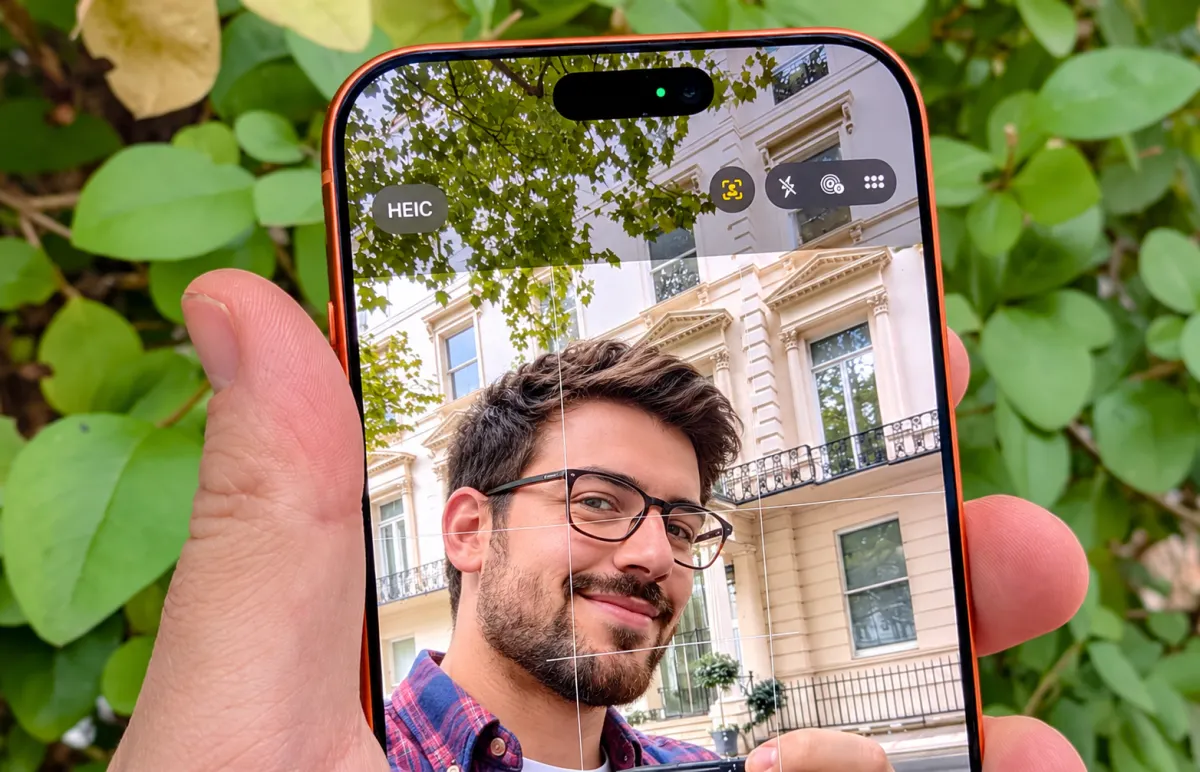
The grid can help you position your subject according to the rule of thirds, rather than automatically placing them in the exact center of the frame. Pasted markdown
Focus on the Eyes
When photographing a person, the eyes are usually the most important part of the portrait.
Before taking the photo, tap on the subject's face or eyes to help the iPhone establish the desired focus and exposure.
Sharp eyes can make even a simple portrait feel significantly more professional.
Give Your Subject Some Space
Don't stand too close to your subject.
Portrait mode works within a certain shooting range, and the exact distance varies by iPhone model and camera. If the iPhone displays a message such as "Move farther away," simply step back.
Also consider the distance between your subject and the background. A subject standing farther in front of a wall, tree, or other background element will often produce a more noticeable and natural-looking blur.
Use the Right Focal Length
If your iPhone has a telephoto camera, consider using a longer focal length for portraits.
A 2x or 3x perspective, when available, can create a more flattering perspective than shooting extremely close with a wide-angle lens.
It can also help reduce the facial distortion that may occur when a wide lens is positioned very close to the subject. Pasted markdown
Keep the Background Simple
A busy background can compete with your subject.
Look for:
- Open spaces
- Greenery
- Architecture
- Plain walls
- Softly lit streets
- Flower gardens
- Distant landscapes
A clean background makes the Portrait effect easier to appreciate and keeps attention on your subject.
Experiment With Different Angles
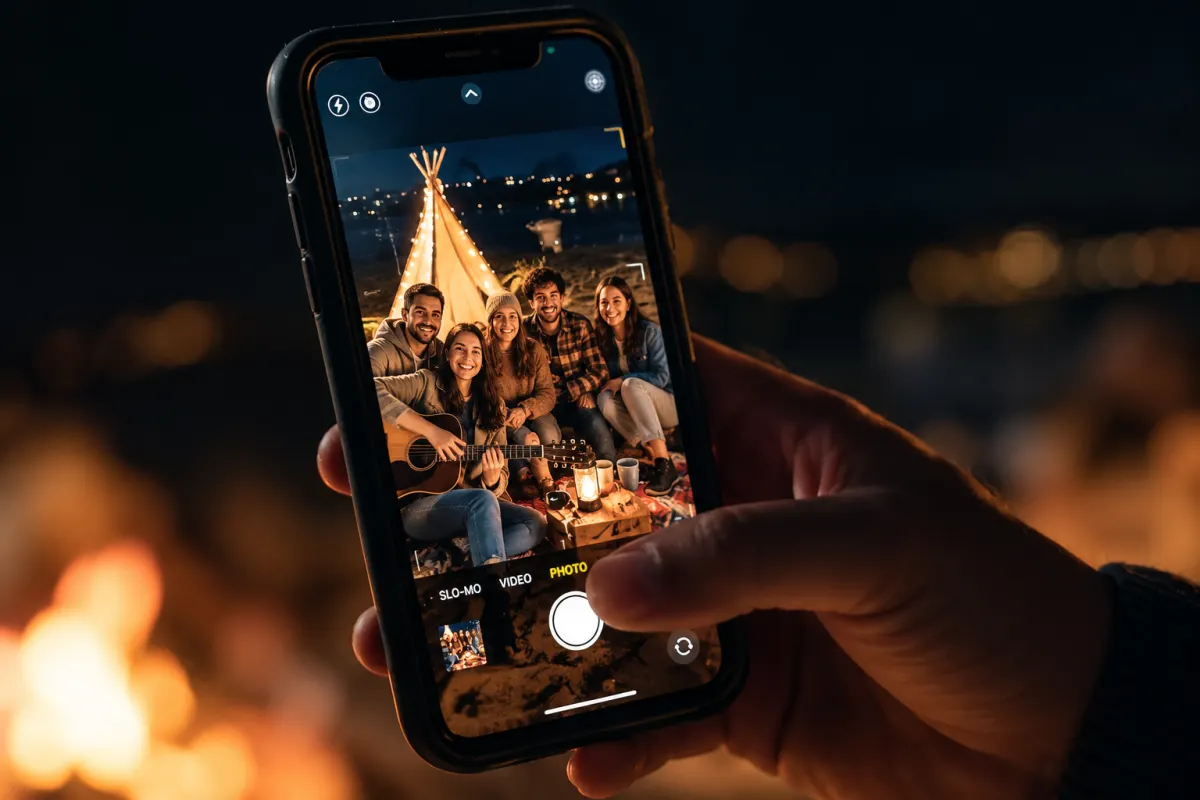
Portrait photography doesn't always have to mean a centered headshot.
Try different angles, poses, distances, and compositions. Photograph your subject looking away from the camera, walking, sitting, or interacting with their surroundings.
The best portrait is often the one that feels natural rather than overly posed.
How to Take Portrait Photos at Night
Newer iPhone models can combine Portrait photography with Night mode under supported conditions. On compatible models, the Night mode icon may appear automatically when the environment is dark. Pasted markdown
Because low-light photography can require longer exposure times, keeping the iPhone as steady as possible is important.
For better results:
- Hold the iPhone with both hands.
- Avoid moving while the photo is being captured.
- Use a tripod when possible.
- Ask your subject to remain still.
- Look for available light from windows, streetlights, lamps, or nearby buildings.
What Are Photographic Styles on iPhone?
On supported iPhone models, Photographic Styles allow you to customize the look of your photos while preserving natural-looking skin tones. Pasted markdown
Unlike traditional filters, Photographic Styles are integrated into the image-processing process and can affect different elements of the image more intelligently.
This allows you to create a distinctive look without necessarily making skin tones appear unnatural.
Can You Use Portrait Mode and ProRAW Together?
There is an important limitation to keep in mind: Portrait mode and ProRAW have compatibility restrictions on certain iPhone generations because both rely on computational image processing.
If your iPhone does not allow you to use both simultaneously, you'll need to decide whether you prefer:
- Portrait mode for depth and background separation, or
- ProRAW for greater flexibility when editing color and exposure.
The available options can vary depending on your iPhone model and iOS version. Pasted markdown
Portrait Mode Troubleshooting
Sometimes Portrait mode doesn't produce the result you expect. The problem is often related to lighting, distance, or the complexity of the subject.
"Move Farther Away"
This message means you're too close to your subject.
Take a few steps backward and try again.
"More Light Required"
The scene may be too dark for the iPhone to accurately separate the subject from the background.
Move to a brighter location or add more light.
"Place Subject Within 8 Feet"
The subject is too far away. Move closer until the iPhone can properly detect the subject. Pasted markdown
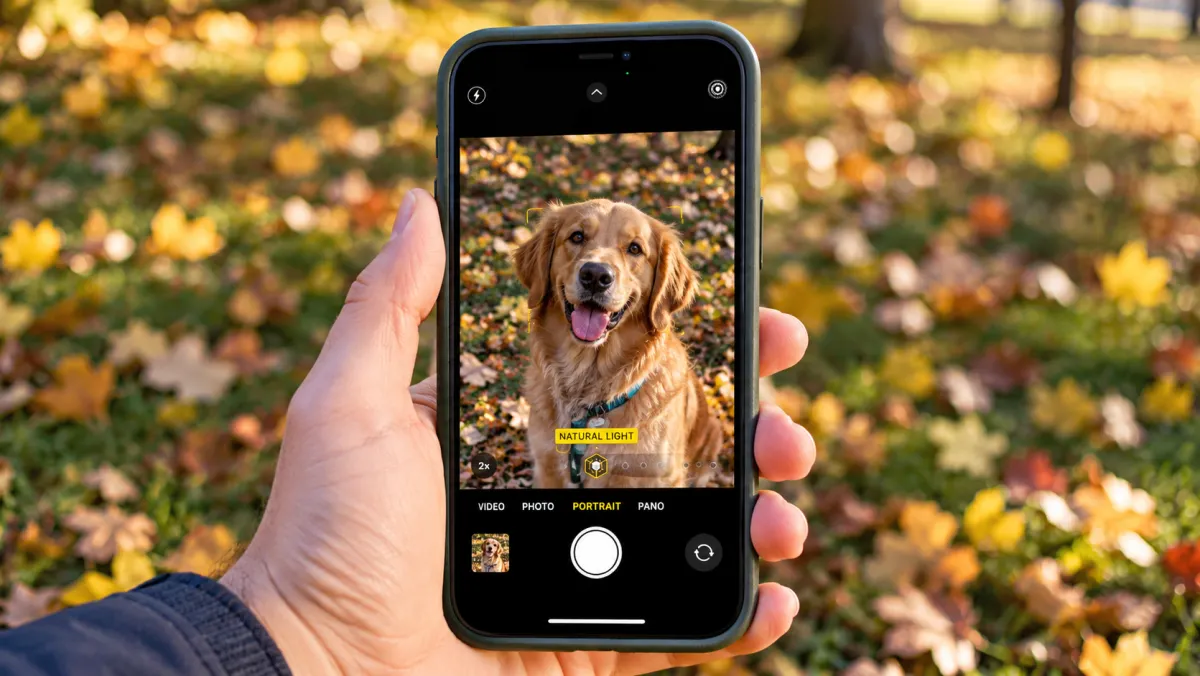
Why Doesn't Portrait Mode Work With Some Pets or Objects?
Older single-camera iPhones, including models such as the iPhone XR and second-generation iPhone SE, relied heavily on software-based subject detection for Portrait mode. Some of these older implementations were more limited when identifying subjects other than people. Pasted markdown
Newer iPhone models have considerably broader subject-recognition capabilities.
For older devices, third-party camera apps may offer alternative depth-processing features, although their capabilities vary by app and iPhone model.