



Protecting your personal files, work documents, and online accounts starts with one essential step: securing your laptop with a password. Whether you use your computer at home, at work, or while traveling, setting up the right security measures can help prevent unauthorized access to your information.
Windows offers several ways to secure your device, including account passwords, PINs, Windows Hello, and built-in encryption tools. You can also configure a BIOS or UEFI password for additional protection, although this serves a different purpose from a Windows login password.
Read More


This guide explains how to password-protect a laptop running Windows 7, Windows 8, Windows 10, or Windows 11. You'll also learn how to set up a BIOS password on popular laptop brands, create stronger passwords, and choose additional security features to protect your data.
Quick Comparison: Laptop Security Methods
| Security method | What it protects | Best for |
|---|---|---|
| Windows password | Access to your Windows account | Everyday laptop security |
| Windows Hello PIN | Signing in to a specific device | Fast, convenient access |
| Fingerprint or facial recognition | Windows sign-in | Compatible laptops |
| BIOS/UEFI password | Firmware settings or startup, depending on configuration | Additional startup protection |
| BitLocker or device encryption | Data stored on the drive | Protecting files if a laptop is lost or stolen |
Which method should you choose? For most users, a strong Windows sign-in method combined with full-disk encryption provides a practical foundation for laptop security. A BIOS or UEFI password can offer additional protection, but it is not a substitute for encrypting your data.
How to Set a Password on a Windows Laptop
The steps for setting a laptop password depend on your version of Windows. Older versions use the traditional Control Panel, while Windows 10 and Windows 11 rely primarily on the Settings app.
How to Set a Password on Windows 7
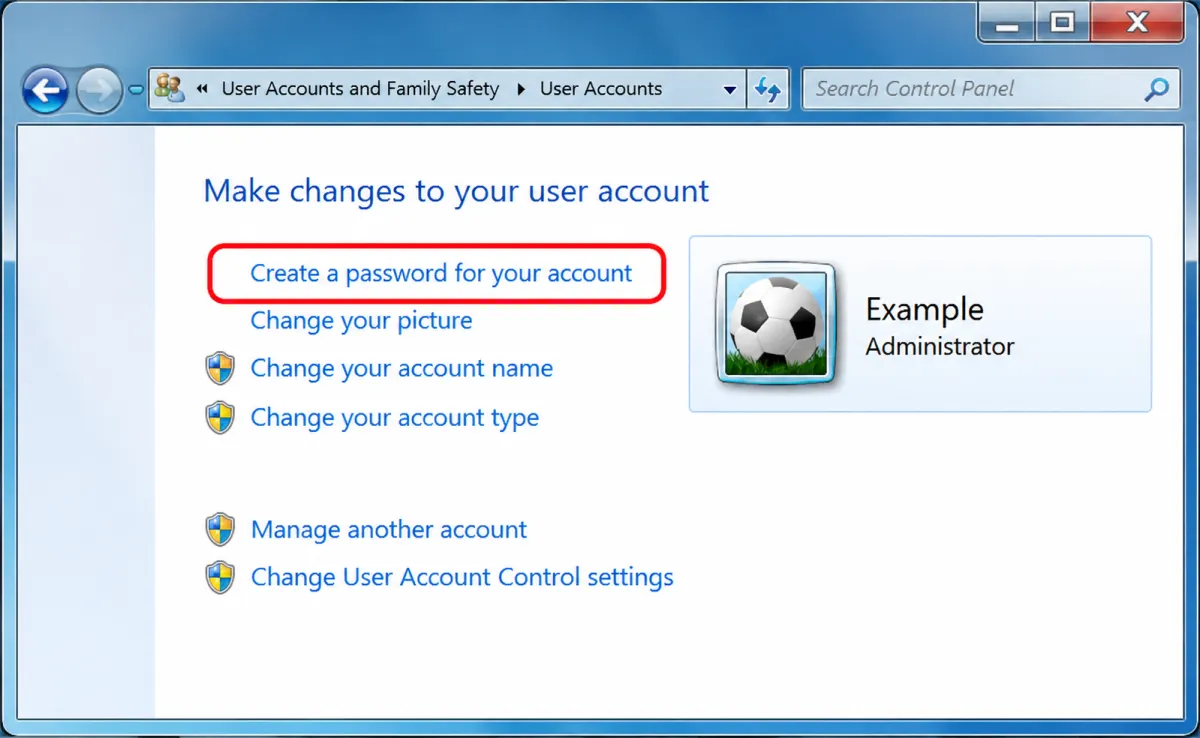
Windows 7 manages account passwords through the Control Panel. Although the operating system is no longer supported by Microsoft, you can still configure a password on an existing installation.
Follow these steps:
- Open the Start menu and select Control Panel.
- Click User Accounts and Family Safety.
- Select User Accounts.
- Click Create a password for your account.
- Enter your preferred password in the New password field.
- Type it again in the Confirm new password field.
- Enter a password hint if you want one.
- Click Create password to finish.
Your account will now require the password when signing in.
Security note: Windows 7 reached the end of standard support on January 14, 2020. Setting a password does not protect an unsupported operating system against newly discovered vulnerabilities. If possible, upgrade to a supported operating system or replace the device.
How to Set a Password on Windows 8
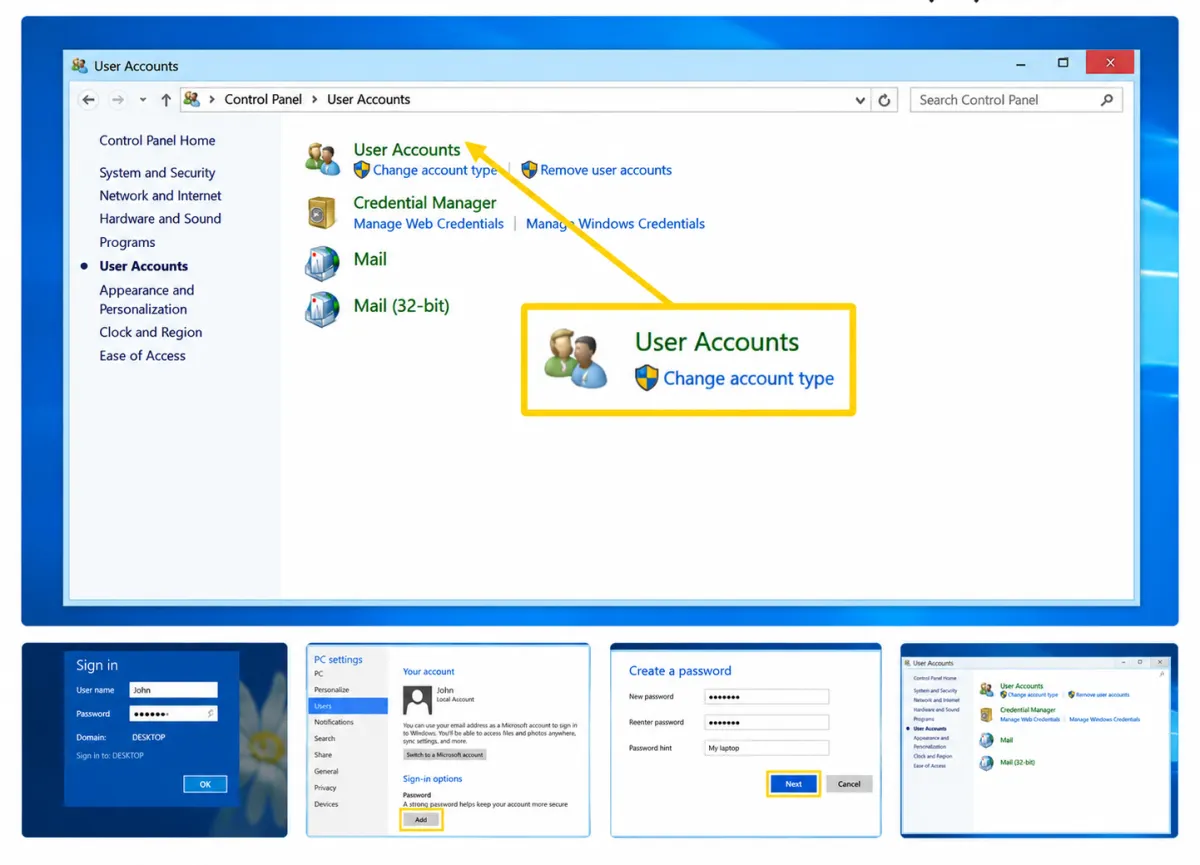
Windows 8 introduced a dedicated PC settings interface, making it possible to manage account credentials outside the traditional Control Panel.
Here's how to set a password:
- Move your mouse to the upper-right corner of the screen to open the Charms bar.
- Select Settings, represented by the gear icon.
- Click Change PC settings.
- Select Users or the relevant account settings option, depending on your version.
- Open Sign-in options if available.
- Under Password, select Add.
- Enter your new password and confirm it.
- Follow the on-screen instructions to complete the setup.
Depending on your account type and Windows 8 version, the available options may differ slightly.
Important: Windows 8 and Windows 8.1 are no longer supported. A login password is useful, but upgrading to a supported operating system is a better long-term security measure.
How to Set a Password on Windows 10
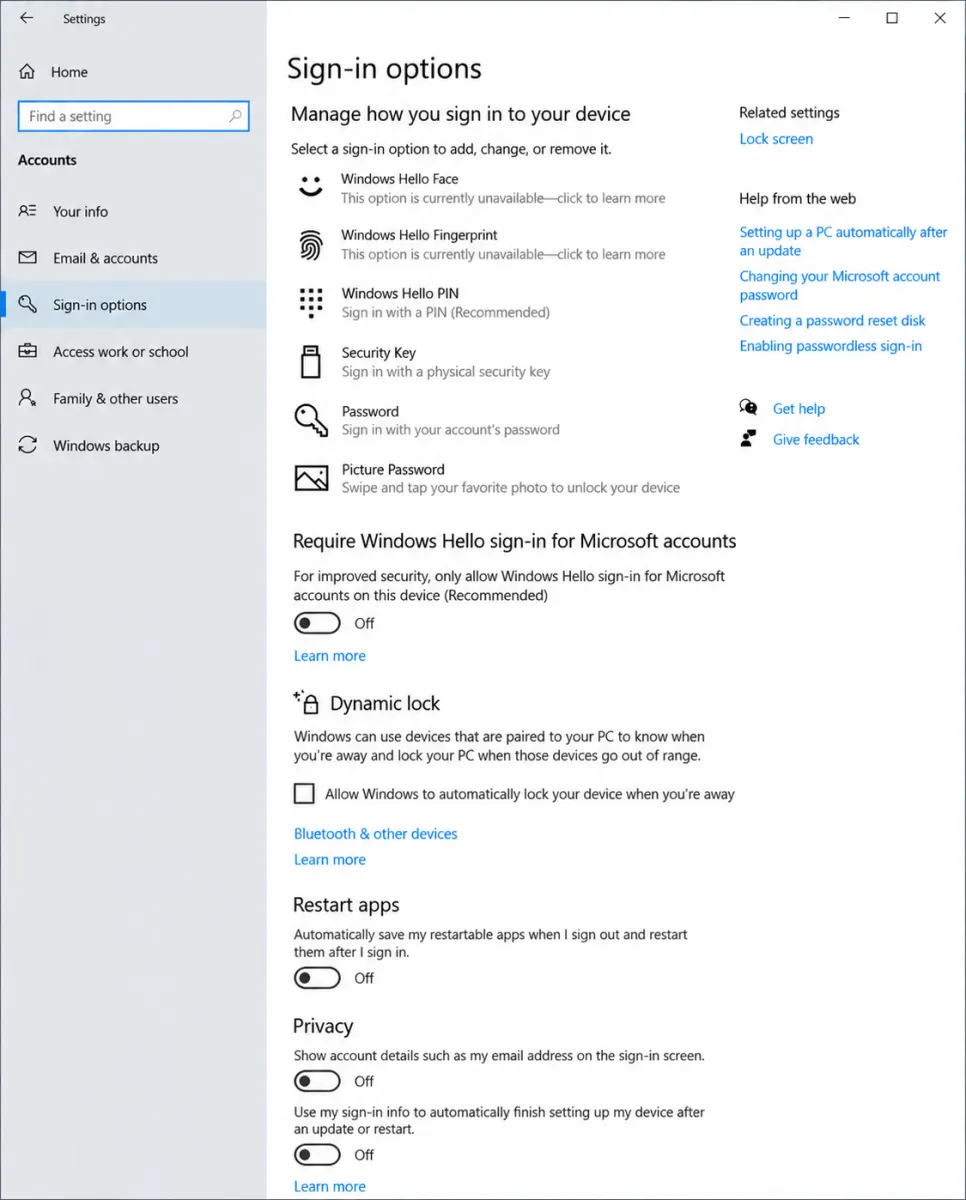
Windows 10 provides a straightforward way to create or change your account password through the Settings app.
Follow these instructions:
- Open the Start menu.
- Select Settings.
- Click Accounts.
- Choose Sign-in options from the left-hand menu.
- Find Password under the available sign-in methods.
- Click Add if your account does not have a password, or Change if you want to update an existing one.
- Enter your new password and confirm it if prompted.
- Follow the remaining instructions to save your changes.
The exact process depends on whether you use a local Windows account or a Microsoft account.
Local Account vs. Microsoft Account
A local account is tied to your laptop, while a Microsoft account uses credentials associated with Microsoft's online services.
If you use a Microsoft account, changing your account password may require you to follow Microsoft's account verification process. A local account generally lets you manage its password directly through Windows.
If you forget a local account password, the available recovery options depend on your account setup. You may be able to answer security questions, use a previously created password reset disk, or access another authorized administrator account.
Windows 10 support notice: Microsoft ended standard support for Windows 10 on October 14, 2025. Some eligible devices may qualify for Extended Security Updates, but users should consider moving to a supported version of Windows to receive ongoing security protection.
How to Set a Password on Windows 11
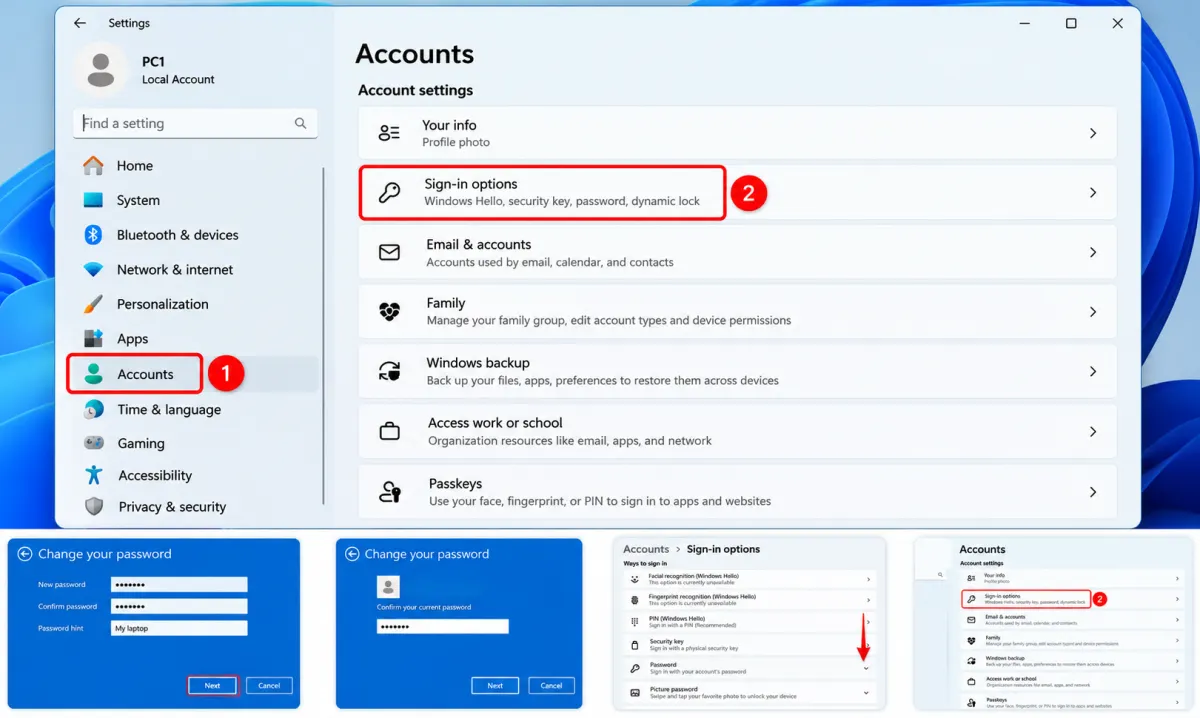
Windows 11 offers a modern interface for managing passwords and other sign-in methods.
To create or change your password:
- Open the Start menu.
- Select Settings.
- Click Accounts.
- Choose Sign-in options.
- Expand the Password section.
- Select Add or Change, depending on your current settings.
- Enter your new password and confirm it when prompted.
- Follow the on-screen instructions to finish.
If you use a Microsoft account, Windows may direct you to the appropriate account verification or password management process.
Once the password is configured, you can also adjust when Windows requires you to sign in again after the device has been idle or has gone to sleep.
For better protection, consider enabling automatic screen locking and requiring sign-in whenever you return to your laptop.
How to Set a BIOS or UEFI Password on a Laptop
A Windows login password protects access to your account, but it does not encrypt the contents of your drive. Depending on the device and its configuration, someone with physical access to your laptop may attempt to start another operating system or remove the storage drive to access unencrypted files.
A BIOS or UEFI password provides a different layer of protection. Depending on the laptop, it can restrict access to firmware settings or require a password before the system starts.
However, a BIOS password is not the same as drive encryption. For sensitive files, full-disk encryption is an important additional security measure.
How to Enter BIOS or UEFI Settings
The key used to open firmware settings varies by manufacturer and model. Common options include F2, F10, F12, Esc, and Delete.
- Shut down your laptop.
- Turn it on and immediately press the appropriate setup key repeatedly.
- If the Windows login screen appears, restart and try again.
- Once inside the BIOS or UEFI interface, locate the security or password settings.
- Configure the appropriate password option, if available.
- Save your changes and exit.
Some computers also provide a firmware settings option under Windows recovery or advanced startup settings.
Before setting a firmware password: Check your laptop manufacturer's documentation. Forgetting certain firmware passwords can make recovery difficult and may require authorized service.
How to Set a BIOS Password on an ASUS Laptop
On many ASUS laptops, firmware settings can be accessed using F2 during startup. The exact key and menu layout depend on the model.
- Turn off your laptop.
- Press the power button and immediately press F2 repeatedly.
- If available, press F7 to open Advanced Mode.
- Navigate to the Security or password-related section.
- Look for an option such as Administrator Password, User Password, or a startup password setting.
- Follow the on-screen instructions to create and confirm your password.
- Press F10 to save changes and exit, if supported by your firmware.
ASUS firmware interfaces vary across models. An administrator password may protect firmware settings without necessarily requiring a password at every startup, so check the description of the specific option before enabling it.
How to Set a BIOS Password on a Dell Laptop
Many Dell laptops use F2 to access BIOS Setup, although the available options vary by model.
- Restart or turn on your laptop.
- Press F2 when the Dell logo appears.
- Open the Security or Passwords section.
- Look for the available system, administrator, or setup password options.
- Select the appropriate option and enter your new password.
- Confirm the password as instructed.
- Apply the changes and exit BIOS Setup.
Some Dell models use different menu names or provide additional password controls. Consult the official documentation for your exact model before making changes.
How to Set a BIOS Password on a Lenovo Laptop
Lenovo laptops commonly use F1 or F2 to enter BIOS or UEFI Setup. Certain models also include a Novo button that opens a startup menu.
To configure a password:
- Turn off your laptop.
- Start it and press the appropriate setup key, or use the Novo button if your model has one.
- Enter the BIOS or UEFI Setup utility.
- Navigate to Security.
- Look for an option such as Set Administrator Password or another supported password setting.
- Enter your password and confirm it.
- Open the Exit menu.
- Select Exit Saving Changes or the equivalent option.
The available settings depend on your Lenovo model. A supervisor or administrator password may protect firmware configuration rather than normal startup, so verify the purpose of the setting before proceeding.
Windows Password vs. BIOS Password: What's the Difference?
These two security methods serve different purposes.
A Windows password controls access to your Windows account. It is designed for everyday use and helps prevent someone from opening your desktop and accessing your files through your account.
A BIOS or UEFI password operates at the firmware level. Depending on its configuration, it can restrict firmware settings or prevent unauthorized startup.
Neither password alone guarantees that files on an unencrypted drive cannot be accessed through other methods.
For stronger protection, consider combining your Windows sign-in credentials with full-disk encryption, such as BitLocker on supported Windows editions or Windows device encryption where available.
A More Convenient Way to Sign In: Windows Hello and PINs
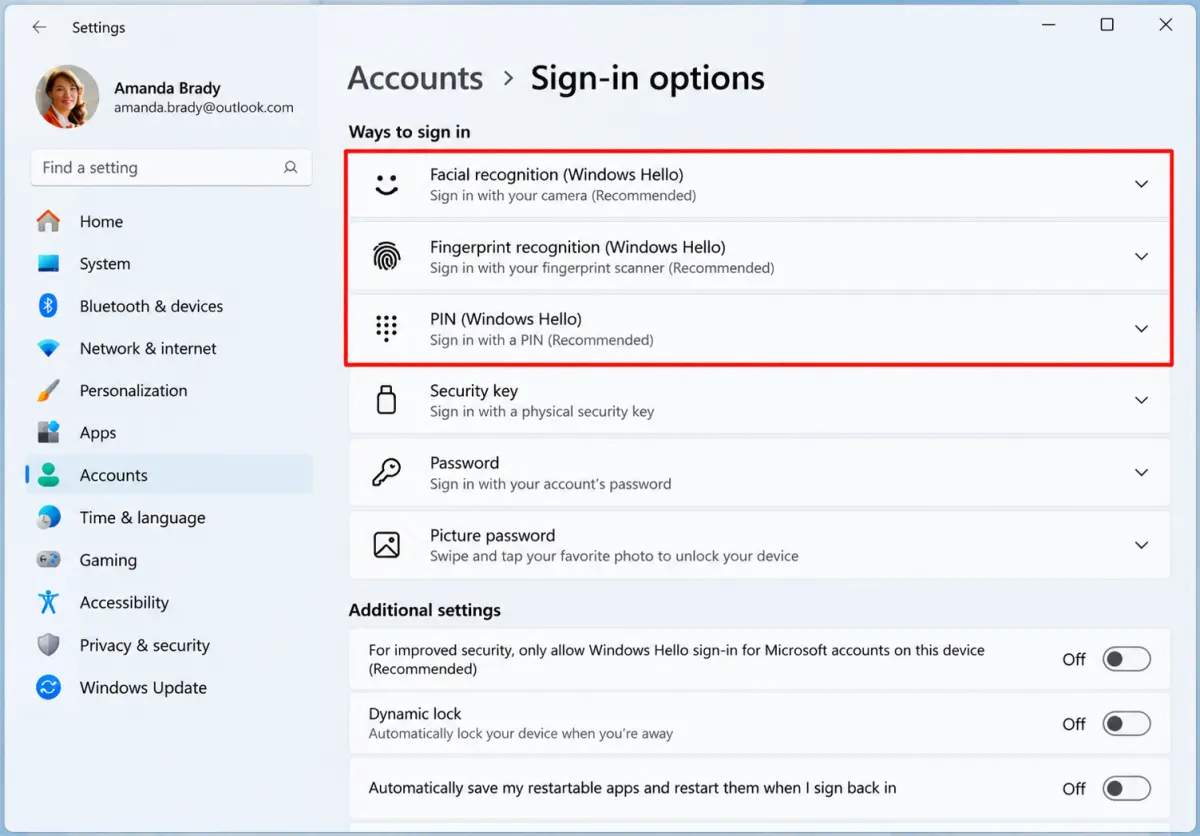
Traditional passwords are useful, but Windows 10 and Windows 11 also support alternative sign-in methods. These options can make logging in faster without abandoning security.
How to Set Up a Windows Hello PIN
A Windows Hello PIN is associated with a specific device and is different from your Microsoft account password.
To configure one:
- Open Settings.
- Select Accounts.
- Click Sign-in options.
- Find PIN (Windows Hello).
- Select Set up or Add.
- Verify your identity if prompted.
- Create and confirm your PIN.
Windows may allow you to use a PIN containing letters and symbols, depending on the configuration.
A PIN is generally tied to the device's sign-in security mechanisms. If someone learns your laptop PIN, that does not automatically give them your Microsoft account password, although they may be able to access the device if they have it.
How to Set Up Fingerprint or Facial Recognition
Windows Hello can also support fingerprint recognition or facial recognition on compatible laptops.
To configure either option:
- Open Settings.
- Select Accounts.
- Go to Sign-in options.
- Choose Fingerprint recognition (Windows Hello) or Facial recognition (Windows Hello), if available.
- Select Set up and follow the instructions.
Your laptop must have compatible hardware, such as a fingerprint reader or a supported infrared camera.
Biometric sign-in can be convenient, but it is not infallible. Keep a secure backup sign-in method available, and remember that Windows Hello availability varies by device.
How to Create a Strong Laptop Password
Setting a password is only the first step. Its strength matters just as much.
A short, predictable password can be vulnerable to guessing or automated attacks. To improve your laptop's security, follow these recommendations.
1. Choose a Long Password or Passphrase
Aim for at least 12–16 characters, with greater length preferred when practical.
A passphrase made from several randomly selected words can be easier to remember than a short string of complicated characters. Avoid familiar quotations, common phrases, or information that someone could learn about you.
2. Avoid Predictable Passwords
Do not use passwords such as:
- 123456
- password123
- Your name followed by your birth year
- Your phone number
- Common keyboard patterns
These choices are easy to guess and should be avoided.
3. Use a Different Password for Every Account
Reusing passwords creates unnecessary risk. If one service suffers a data breach, attackers may try the same credentials on other accounts.
A reputable password manager can generate and store unique passwords, reducing the need to remember each one individually.
4. Enable Multifactor Authentication
Multifactor authentication (MFA), sometimes called two-factor authentication (2FA), adds another verification step to supported online accounts.
For example, signing in may require your password plus an authenticator app approval or a security key.
MFA is especially useful for your email, cloud storage, banking services, and Microsoft account. It does not replace your laptop's local security settings, but it helps protect the online accounts connected to your device.
5. Lock Your Laptop When You Step Away
Even a strong password cannot help much if you leave your laptop unlocked.
Press Windows + L to lock your Windows session whenever you leave your computer unattended. You can also configure Windows to require sign-in after sleep or a period of inactivity.
Is a Laptop Password Enough to Protect Your Files?
No. A login password is an important security measure, but it does not provide complete protection against every type of access.
If someone steals a laptop, they may attempt to remove its storage drive or use another boot environment. Whether they can access the files depends on the device's security configuration and whether the data is encrypted.
For better protection, consider these additional measures.
Enable BitLocker or Device Encryption
BitLocker and Windows device encryption can protect data stored on a drive by encrypting it. Availability depends on your Windows edition, hardware, and system configuration.
To check for BitLocker in a compatible Windows installation:
- Open Start.
- Search for Manage BitLocker.
- Open the relevant Control Panel result.
- Check the encryption status of your system drive.
- If available and appropriate, follow the instructions to enable encryption.
On some devices, the relevant feature is called Device encryption and is available through Windows Settings.
Before enabling encryption, make sure you understand how recovery works and securely save your recovery key somewhere separate from the laptop. If the recovery key is lost, recovering access to encrypted data can be difficult or impossible.
Keep Windows and Your Applications Updated
Security updates address known vulnerabilities in operating systems, browsers, and other applications.
Install available updates for supported software and remove applications you no longer use. If your laptop runs an unsupported version of Windows, consider upgrading to a supported operating system when possible.
Back Up Important Files
Encryption protects confidentiality, but it does not replace a backup.
Maintain a separate backup of important documents, photos, and work files. A backup can help you recover data after hardware failure, accidental deletion, ransomware, or other incidents.
For particularly important information, keep at least one backup separate from your laptop and protect it with appropriate access controls.
Frequently Asked Questions
How do I put a password on my laptop when I turn it on?
On Windows 10 or Windows 11, open Settings > Accounts > Sign-in options and configure a password or another supported sign-in method. To require authentication when you return to the computer, also review the sign-in requirements and screen-lock settings.
Can I password-protect my laptop without a Microsoft account?
Yes. Windows supports local accounts, which can have their own passwords. The available account-management and recovery options differ from those associated with a Microsoft account.
What should I do if I forget my laptop password?
For a Microsoft account, use Microsoft's official account recovery process. For a local account, available options may include security questions or a previously created password reset disk.
If you cannot recover access, use the official recovery options for your device and Windows version. Avoid unofficial tools that promise to bypass account security, especially when your files are important.
Is a BIOS password more secure than a Windows password?
They protect different parts of the system. A BIOS or UEFI password can restrict firmware access or startup, depending on the setting, while a Windows password controls account sign-in.
For protecting files against physical theft, full-disk encryption is particularly important. A BIOS password alone does not encrypt the contents of your drive.
Can I use a PIN instead of a password on Windows 11?
Yes. Windows 11 supports Windows Hello PINs, and compatible devices may also support fingerprint or facial recognition. A PIN is associated with the device rather than serving as your Microsoft account password.
How can I protect my laptop if it gets stolen?
Use a strong sign-in method, enable full-disk encryption where supported, keep your recovery key safe, and maintain separate backups. You can also review the available device-location and remote-management features associated with your operating system and account.
Final Thoughts: Choose the Right Security Measures for Your Laptop
Password-protecting your laptop is a simple but important step toward safeguarding personal information, work documents, and online accounts.
Windows 7, Windows 8, Windows 10, and Windows 11 provide different ways to configure account passwords, while compatible devices may also support PINs, fingerprint recognition, and facial recognition. BIOS or UEFI passwords can add another layer of protection, but they serve a different purpose from Windows sign-in credentials.
For the strongest practical approach, use a long and unique password or a suitable Windows Hello sign-in method, enable full-disk encryption where available, keep supported software updated, and maintain secure backups.
Most importantly, remember that laptop security involves more than a single password. Combining multiple safeguards can make your device and the information stored on it significantly more difficult to compromise.