

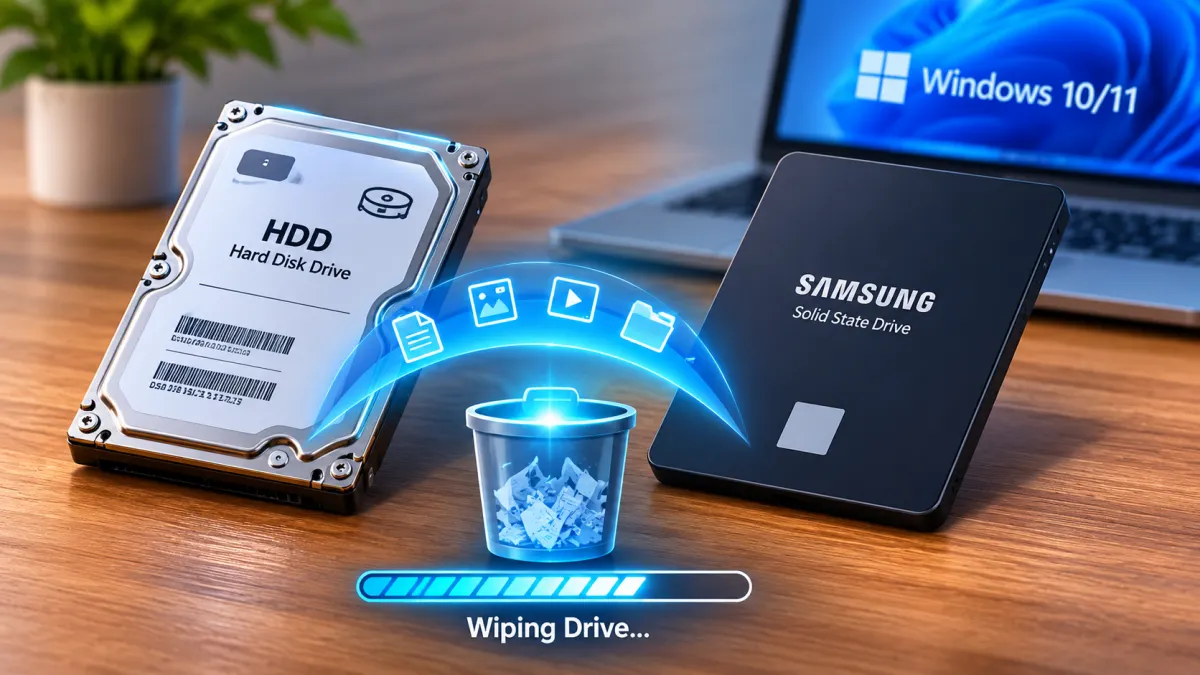

Deleting files doesn't always mean they're gone for good. In many cases, someone can recover deleted data using specialized recovery software. If you're selling your computer, giving away a USB drive, or simply want to make sure your personal files are harder to recover, it's worth knowing how to wipe a drive properly.
Windows 10 and Windows 11 come with built-in tools that can help you erase data from a drive, clean up space left behind by deleted files, or reset your entire PC before handing it over to someone else.
In this guide, we'll walk you through three practical methods, explain when to use each one, and show you what to watch out for before you get started.
The Overnight 100% Trap: What Actually Happens Under Your Laptop Keyboard While You Sleep
Why Would You Need to Wipe a Drive Completely?
When you delete a file, Windows usually removes its reference from the file system rather than immediately erasing every bit of data stored on the drive. That means recovery software may be able to bring the file back, as long as the underlying data hasn't been overwritten.
The exact process depends on the type of storage you're using.
- Traditional hard drives (HDDs): Deleted files may remain on the drive until their storage space is overwritten, making recovery possible.
- Solid-state drives (SSDs): Features such as TRIM can help the drive manage deleted data, but a regular deletion or format shouldn't be treated as a guarantee that every trace of the data is gone.
- USB flash drives and external drives: Deleted files may also be recoverable, depending on the device, file system, and how the data was removed.
A proper wipe is especially useful when you're selling or giving away a computer, disposing of an old drive, or getting rid of a USB stick that once held personal or confidential information.
If the drive contains highly sensitive data, use a secure-erase or sanitization method that's compatible with your specific storage device. Standard Windows formatting isn't a universal guarantee of permanent data destruction.
Method 1: Perform a Full Format on a Drive
A full format is an option when you want to format a secondary drive, USB flash drive, or external hard drive. Unlike a quick format, a full format in modern Windows versions writes zeros across the drive's data area as part of the process.
Important: Formatting deletes access to the files on the selected volume. Back up anything you want to keep before proceeding. You also can't format the Windows system volume while Windows is running from it.
Step 1: Open This PC
Open File Explorer and select This PC from the sidebar.
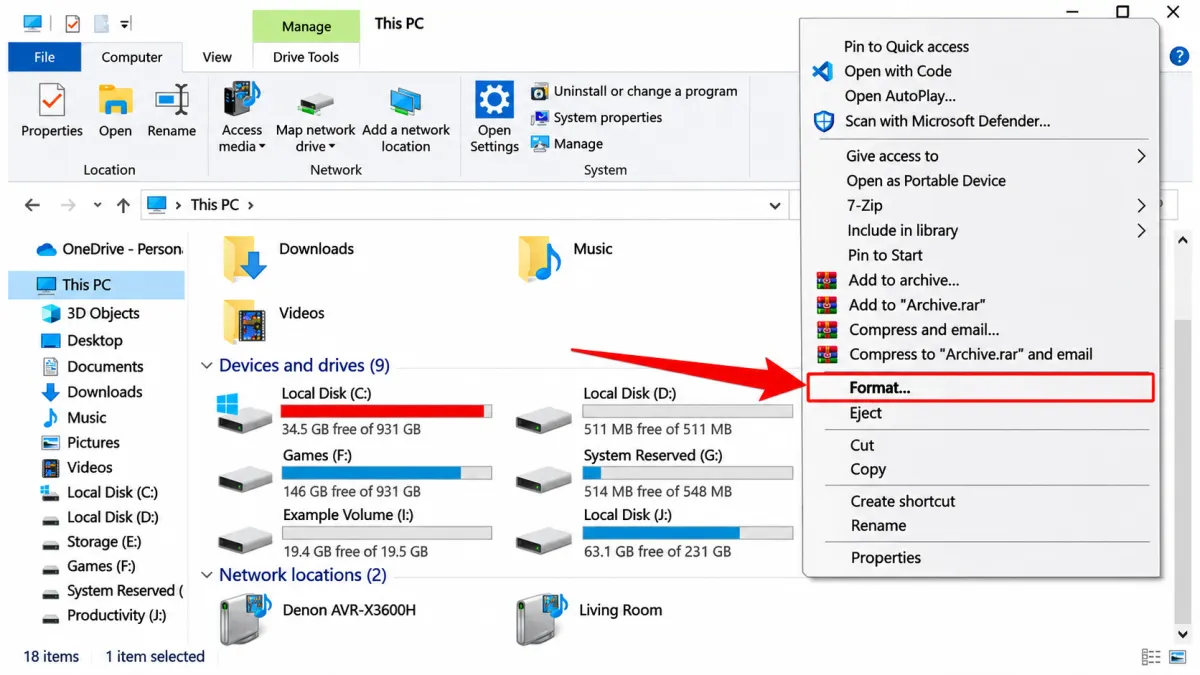
Find the drive you want to format, then right-click it and choose Format.
Step 2: Turn Off Quick Format
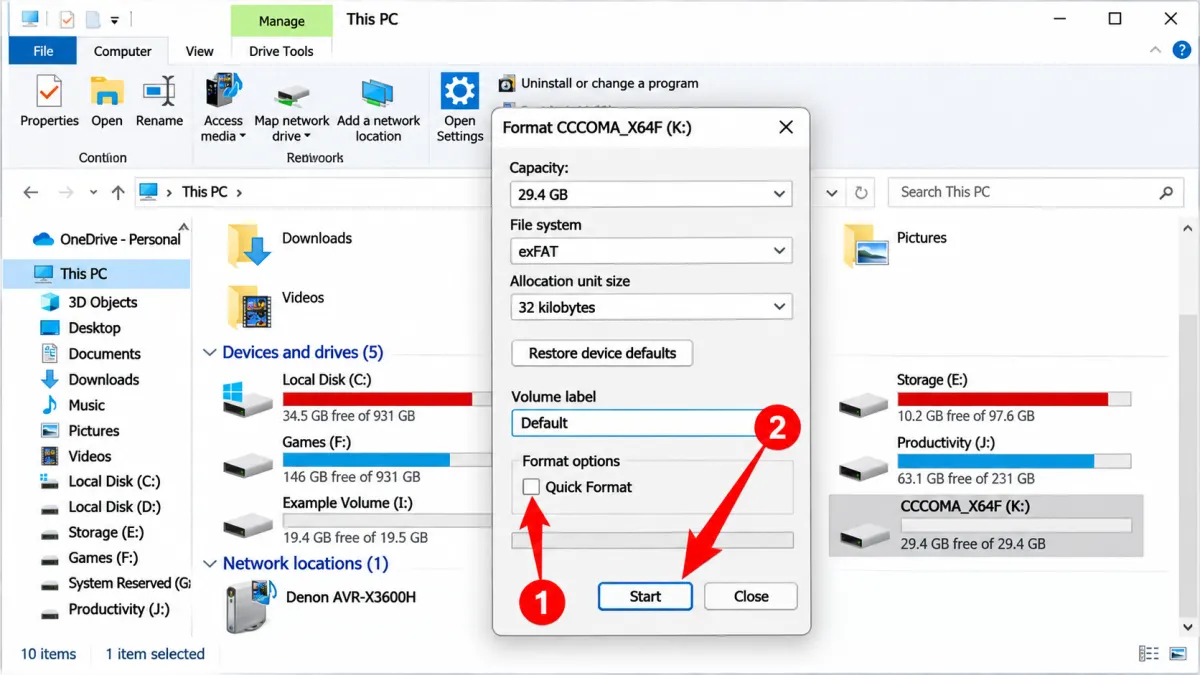
In the Format window, look for the Quick Format checkbox and clear it.
Leaving this option unchecked tells Windows to perform a full format instead of just preparing a new file system.
Step 3: Start the Format
Double-check that you've selected the correct drive. Choose the appropriate file system if necessary, then click Start.
Windows will format the drive and scan it for bad sectors. Depending on the drive's size and speed, this can take several minutes or much longer.
Keep in mind: A full format is more thorough than a quick format, but it isn't the same as a dedicated secure-erase operation, particularly on SSDs.
Method 2: Wipe the Free Space Left by Deleted Files
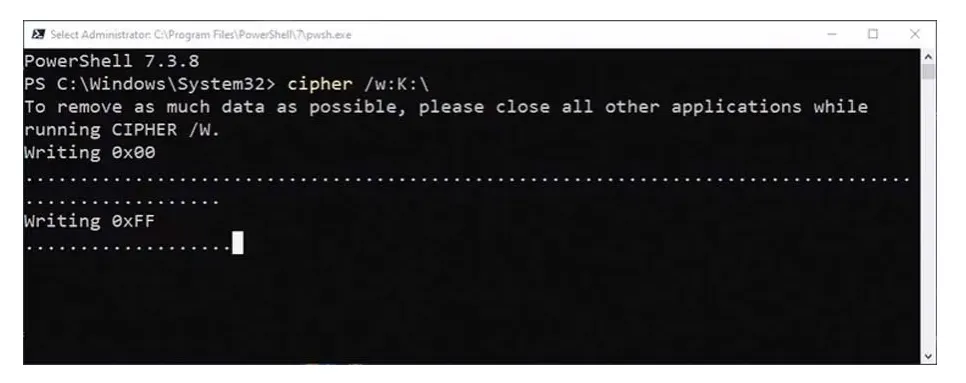
Already deleted some files and don't want to format the entire drive? Windows has a built-in command-line tool called cipher that can overwrite unused space on a supported volume.
This method is useful when you want to make previously deleted files harder to recover without removing your existing files.
Step 1: Open Windows Terminal as an Administrator
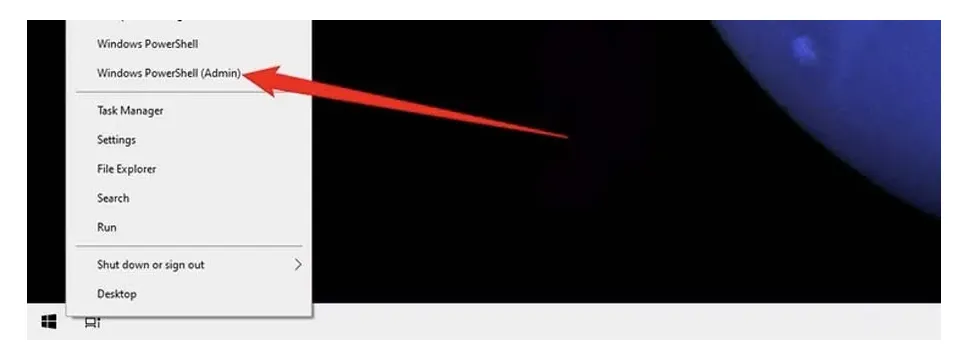
Right-click the Start button and select Terminal (Admin) or Windows PowerShell (Admin), depending on your version of Windows.
Approve the permission prompt if one appears.
Step 2: Run the Cipher Command
Type the following command, replacing X with the drive letter you want to clean:
cipher /w:X

For example, to clean the unused space on drive D, enter:
cipher /w:D

Make sure you use the correct drive letter. This command targets unused space on the selected volume, not your existing files.
Step 3: Let the Process Finish
Press Enter and wait for the command to complete. The process may take a while, especially on a large or slow drive.
The cipher /w command overwrites unused space on the selected volume. It doesn't erase files that are still present, and it shouldn't be considered a complete secure-erase solution for an entire SSD or USB drive.
Method 3: Wipe Your Windows PC Before Selling It
If you're selling or giving away your desktop or laptop, you may want to remove your personal files, apps, and settings while reinstalling Windows.
The built-in Reset this PC feature is a convenient way to do that.
Step 1: Open the Recovery Settings
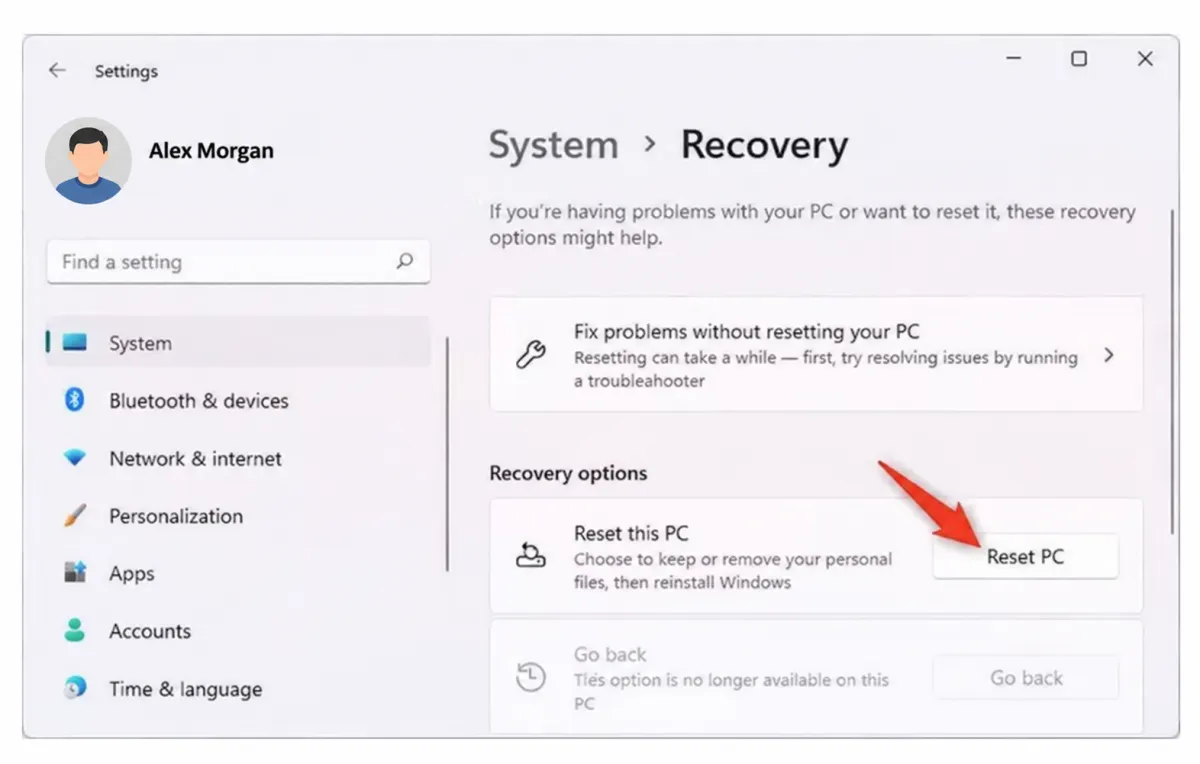
In Windows 11:
- Open Settings.
- Select System > Recovery.
- Under Recovery options, click Reset PC.
In Windows 10:
- Open Settings.
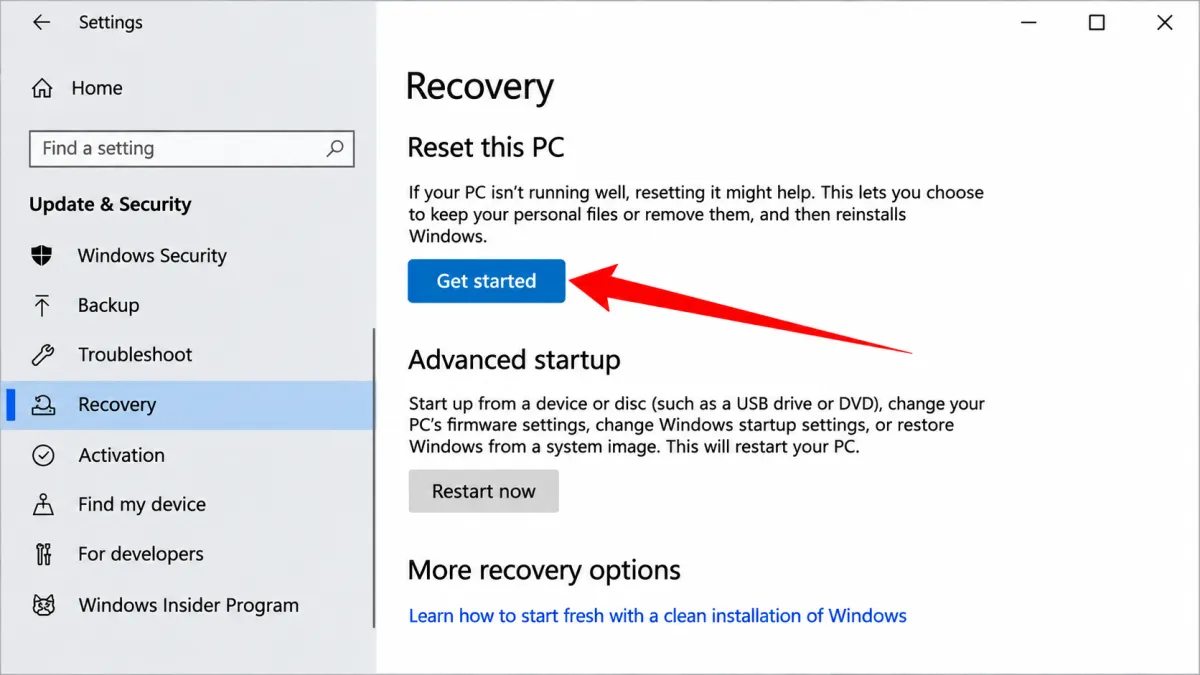
- Go to Update & Security > Recovery.
- Under Reset this PC, click Get started.
Step 2: Choose Remove Everything
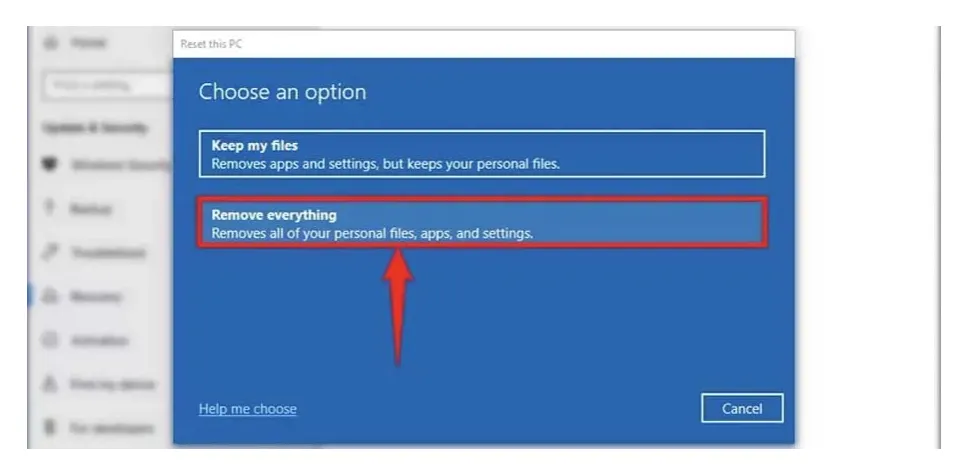
Select Remove everything when prompted.
This option removes your personal files, installed apps, and settings as Windows is reinstalled.
Step 3: Choose How to Reinstall Windows
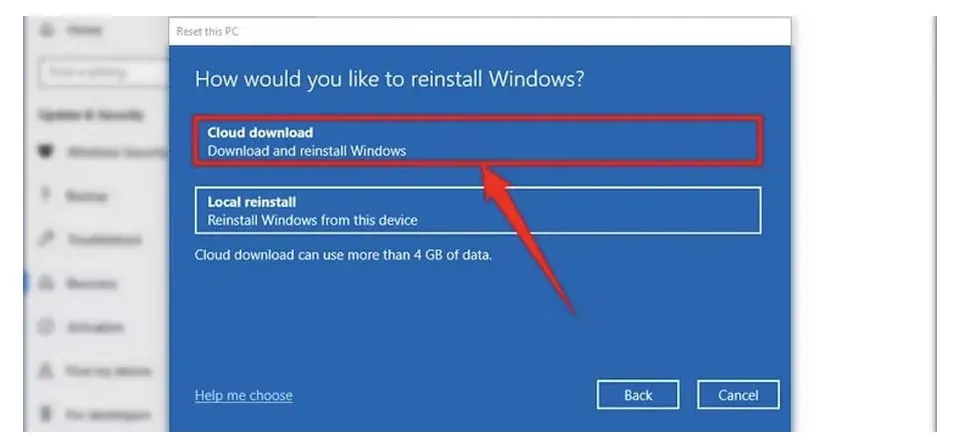
Windows may offer two options:
- Cloud download: Downloads a fresh copy of Windows. You'll need a reliable internet connection.
- Local reinstall: Uses Windows files already stored on your computer.
Choose the option that best suits your situation. Local reinstall can be convenient if your internet connection is slow or limited, although it may not include the latest updates.
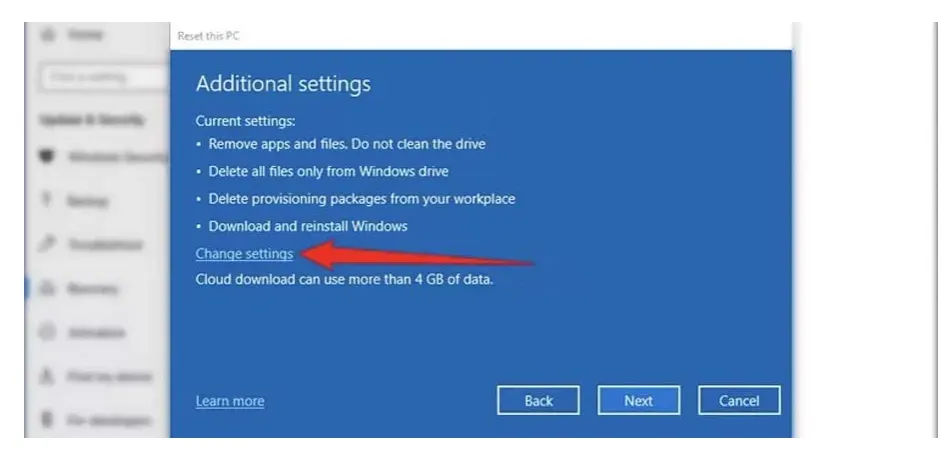
Step 4: Enable Data Cleaning
Look for Change settings or the additional reset options. Turn on the option labeled Clean data, Clean the drive, or similar wording, if available.
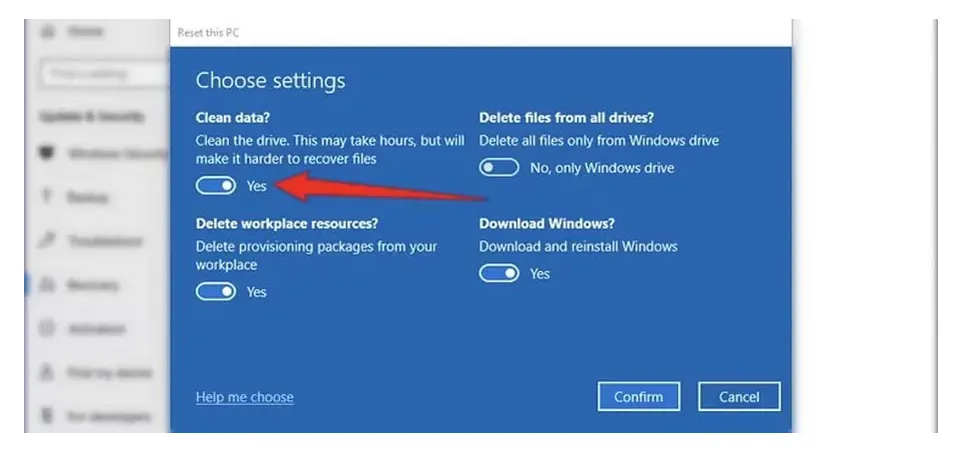
This makes it harder for someone else to recover your removed files, although Microsoft notes that this consumer-level cleaning option doesn't meet every government or industry data-erasure standard.
Review the settings carefully, confirm which drives will be affected, and start the reset only when you're ready. The process can take a considerable amount of time.
Before you begin: Back up your files, keep the computer connected to power, and make sure you have any BitLocker recovery key you might need.
Which Method Should You Use?
| Your goal | Best starting point |
|---|---|
| Format a secondary HDD | Full format |
| Make deleted files harder to recover without deleting existing files | cipher /w |
| Prepare a Windows PC for resale or donation | Reset this PC with data cleaning enabled |
| Securely erase an SSD containing sensitive data | A compatible manufacturer-provided secure-erase or sanitization tool |
For SSDs, specialized secure-erase or sanitization tools may be more appropriate than ordinary formatting. Check your drive manufacturer's instructions before choosing a method.
Frequently Asked Questions
Can deleted files still be recovered in Windows?
Yes. Depending on the drive and how the files were deleted, recovery software may be able to restore them. Avoid writing new data to the drive if you want to maximize the chance of recovering something important.
Does a full format permanently erase everything?
A full format in modern Windows versions overwrites the formatted volume's data area with zeros, making ordinary file recovery much harder. However, it isn't a universal guarantee of secure erasure, especially for SSDs and devices with areas that normal software can't directly access.
Does cipher /w delete my existing files?
No. It targets unused space on the selected volume. Your existing files should remain in place, but it's still wise to back up important data before running maintenance commands.
What's the best way to wipe a PC before selling it?
Use Reset this PC > Remove everything and enable the data-cleaning option. If the computer contains highly sensitive information, check whether your storage device supports a dedicated secure-erase or sanitization feature.
Can I wipe the drive that Windows is installed on?
You can't format the active Windows system volume from within the running operating system. However, you can use the Reset this PC feature to remove personal files and reinstall Windows. For more thorough drive sanitization, you may need to use a supported recovery or manufacturer tool.