
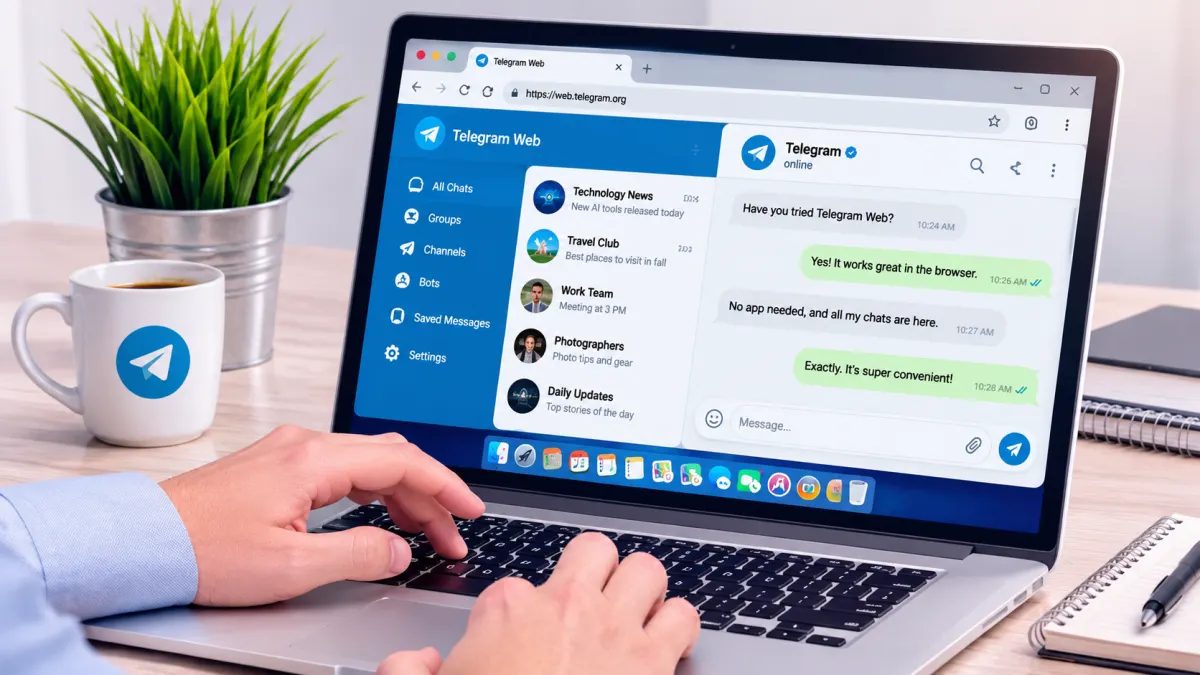

Telegram Web lets you use Telegram right from your browser without installing an app. Whether you're using a Windows PC, a Mac, an Android phone, or an iPhone, you can log in to your account, send messages, share files, and keep up with your chats.
It's especially useful if you don't want to install Telegram on your computer, need to access your account from another device, or simply prefer using a web browser.
In this guide, we'll show you how to log in to Telegram Web, how it works on different devices, what you can do with it, and what you should know about security.
What Is Telegram Web?
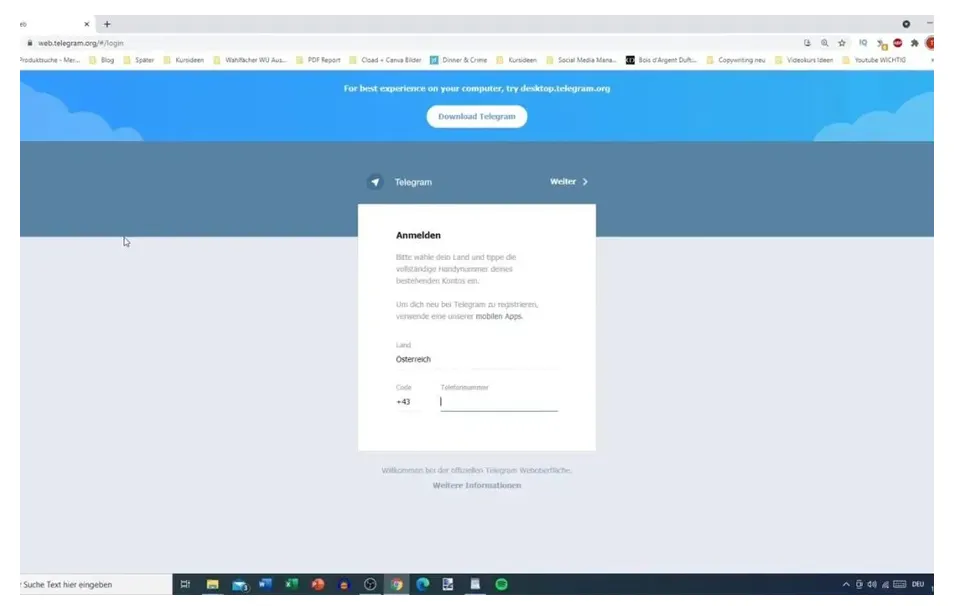
Telegram Web is the browser-based version of Telegram. It lets you access your account without downloading or installing a separate app.
Once you're logged in, you can use many of Telegram's main features, including sending messages, joining group chats, following channels, sharing files, and interacting with bots.
How to Delete a Telegram Account: Official Link and Step-by-Step Guide for Android and iPhone
Your regular cloud chats sync across your devices, so you can pick up a conversation on your computer even if you started it on your phone.
One of the biggest advantages of Telegram Web is that your phone doesn't need to stay connected to the internet for you to keep using it. After you've logged in, you can access your account through your browser.
How to Log In to Telegram Web
There are two common ways to log in to Telegram Web: scanning a QR code or using your phone number. Here's how both methods work.
Method 1: Log In With a QR Code
This option is convenient if you're already logged in to Telegram on your phone or another device.
- Open a browser on your computer or the device you want to use.
- Go to https://web.telegram.org/.
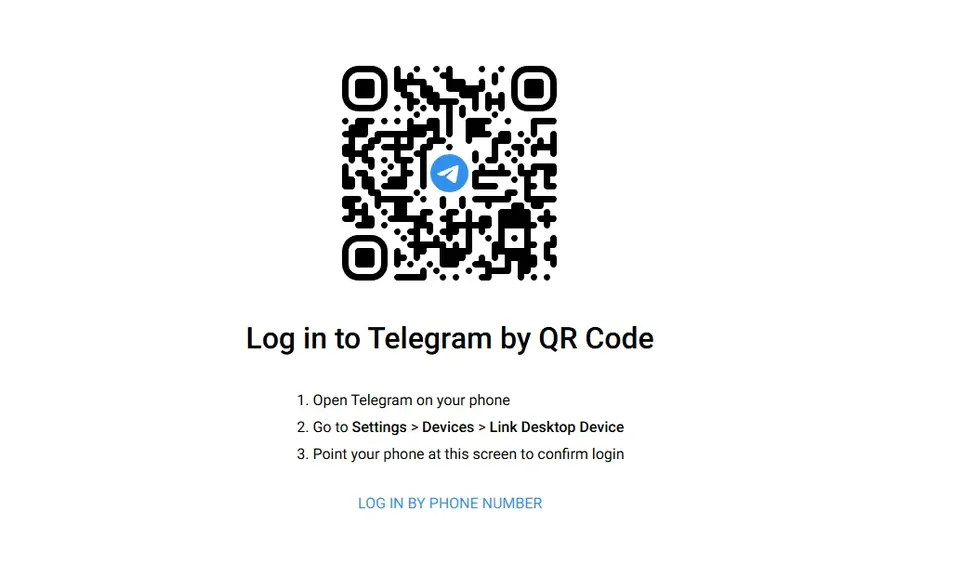
- If a QR code appears, open Telegram on your phone.
- Go to Settings, then select Devices.
- Tap Link Desktop Device.
- Use your phone to scan the QR code displayed in your browser.
- Once the login is approved, your Telegram account should open in the browser.
The exact names of these options may vary slightly depending on your Telegram version or language settings.
Method 2: Log In With Your Phone Number
If you can't scan a QR code, you may be able to sign in using your phone number, as long as this option is available on the login page.
- Visit the official Telegram Web website.
- Select Log In by Phone Number.
- Enter your country code and the phone number linked to your Telegram account.
- Get the verification code using the method Telegram provides.
- Enter the code on the login page.
- If you've enabled two-step verification, enter your password when prompted.
Keep in mind: Telegram doesn't always send login codes by SMS. Depending on your account and the login process, the code may arrive in an existing Telegram session or through another method shown on the screen.
Telegram Web for Windows: No Installation Needed
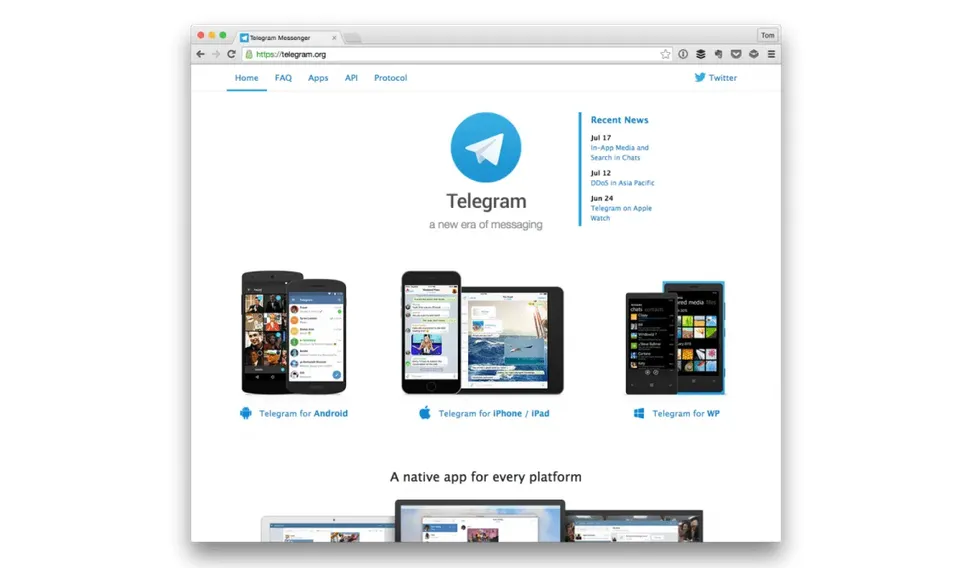
You don't need to download a Windows installer to use Telegram Web. It runs directly in your browser, so there's no separate program to install.
Open a browser such as Google Chrome, Microsoft Edge, or Mozilla Firefox, visit the official Telegram Web website, and sign in using a QR code or your phone number.
This is a handy option if you're using a work computer, don't want to install another app, or want to save storage space on your device.
Does Telegram Web Work on Windows 10 and Windows 11?
Yes. You can access Telegram Web on both Windows 10 and Windows 11 through a compatible browser.
There's no separate web version for each Windows release. Your experience mainly depends on your browser, internet connection, and whether the service works properly on your device.
The same goes for desktop computers and laptops. The login process is essentially the same on both.
Telegram Web for Android
If you have an Android phone and don't want to install the Telegram app, you can try accessing Telegram Web through your mobile browser.
Here's how:
- Open Chrome or another browser on your phone.
- Visit https://web.telegram.org/.
- Choose one of the available login methods.
- Enter your phone number and verification code, or use another device to scan the QR code.
- Once your identity is verified, you'll be able to access your account.
If the website doesn't display properly, try updating your browser or switching to desktop mode if needed.
If you want to log in using a QR code, you'll need another device with Telegram installed. You can't easily scan a QR code displayed on the same phone you're using to open the website.
Telegram Web for iPhone
iPhone users can also access Telegram Web through Safari or another compatible browser. The process is similar to logging in on Android.
To get started:
- Open Safari on your iPhone.
- Go to https://web.telegram.org/.
- Choose your preferred login method.
- Enter your phone number and verification code, or scan the QR code using another device.
- Once your login is approved, you can start using Telegram Web.
Keep in mind that the mobile web experience may look different from the desktop version. Some features may also work differently depending on your browser and the version of Telegram Web you're using.
Can You Use Telegram Web Without a Phone Number?
Yes, if you mean not having to type your phone number into the login page, you can use the QR code method.
With this option, you don't need to enter your number manually on the web page. However, you'll still need access to your existing Telegram account on another device to approve the login.
In other words, a QR code doesn't let you create an anonymous account or bypass verification. It simply makes signing in to an existing account easier.
Can You Log In to Telegram Web With an Email Address?
Generally, you can't log in to Telegram Web using only an email address. The usual login methods are your phone number and QR code.
If Telegram offers another verification method for your account, follow the instructions shown on the official login page. Also, keep in mind that a recovery email or an email used for security settings isn't necessarily a way to log in to your account.
Can You Download Telegram Web?
Technically, the phrase «download Telegram Web» isn't quite accurate because the web version runs directly in your browser. You don't need to download an installer to use it.
If you want quicker access, you can bookmark the website in your browser. Some browsers also let you create a shortcut or install a website as a web app.
If you'd rather use a standalone application on Windows or Mac, you can download Telegram Desktop from Telegram's official website.
What Can You Do With Telegram Web?
Telegram Web supports many of Telegram's everyday features. Here are some of the main things you can do with it:
- Send and receive messages: Chat with your contacts and manage your conversations.
- Access groups and channels: Follow channels and use supported group features.
- Share files: Send and receive documents, images, and other files, subject to the limits of your account and the version you're using.
- Use Telegram bots: Interact with bots and access their features.
- Sync your chats: Access your cloud-based conversations across different devices.
- Use Telegram in your browser: Stay connected without installing a separate application.
Not every feature works exactly the same way across Telegram Web, the mobile apps, and Telegram Desktop. Some tools may be limited or unavailable in the web version.
Is Telegram Web Secure? What About Encryption?
Before using Telegram Web, it's worth understanding the difference between regular cloud chats and Secret Chats.
Regular Telegram chats are cloud-based, which means your messages are stored in Telegram's cloud and synced across your devices. Telegram uses encryption to protect messages in transit and within its infrastructure, but regular cloud chats aren't the same as end-to-end encrypted conversations.
Secret Chats, on the other hand, use end-to-end encryption. This means the conversation is designed so that only the participating devices can read the messages. Secret Chats aren't generally available in Telegram Web.
If you need end-to-end encryption for a particular conversation, you'll need to use a Telegram app that supports Secret Chats.
Here are a few simple ways to keep your account safer:
- Use only the official Telegram Web website.
- Never share your login code or two-step verification password with anyone.
- Avoid saving login details when using a public or shared computer.
- Log out when you're finished using Telegram on a shared device.
- Check your active sessions under Settings > Devices and terminate any sessions you don't recognize.
- Enable two-step verification to add another layer of protection to your account.
How to Log Out of Telegram Web
If you're using a public or shared computer, it's a good idea to log out when you're done.
Open Telegram Web, go to Settings, and select Log Out. If you need to disconnect a device remotely, you can open the Devices section in another Telegram app where you're logged in and end the session you want to remove.
Simply closing the browser tab doesn't necessarily log you out. Your session may remain active, allowing you to access your account again later.
Common Telegram Web Problems and How to Fix Them
Sometimes Telegram Web may fail to load, a verification code may not arrive, or the login process may not work as expected. Here are a few things you can try.
1. Telegram Web Won't Open
Check your internet connection, refresh the page, and try another browser if necessary. Also, make sure you're using the correct official website address.
2. You Haven't Received a Verification Code
Double-check your phone number and country code. Then check your existing Telegram sessions and follow the instructions on the login screen. Remember, the code isn't always sent by SMS.
3. The QR Code Won't Scan
Make sure the entire QR code is visible on your screen and that your phone's camera can scan it clearly. If the problem continues, refresh the page or try signing in with your phone number instead.
4. Telegram Web Is Running Slowly
Your internet speed, the number of open browser tabs, and your device's available resources can all affect performance. Closing unnecessary tabs and updating your browser may help.
Frequently Asked Questions About Telegram Web
Can I use Telegram Web without installing the app?
Yes. Telegram Web runs directly in your browser, so you don't need to install a separate application. However, you'll still need to verify your identity using one of Telegram's supported login methods.
Does Telegram Web work if my phone is turned off?
Yes. Once you've successfully logged in, you don't need to keep your main phone turned on or connected to the internet to continue using Telegram Web.
Does Telegram Web work on Mac and Windows?
Yes. Telegram Web works through compatible browsers on different operating systems, including Windows and macOS.
Is Telegram Web different on a laptop and a desktop computer?
No major differences exist. Both devices use the same browser-based service, and the login process is essentially the same.
Can I create a new Telegram account through Telegram Web?
Telegram Web is mainly designed for accessing an existing account. If you want to create a new account, use Telegram's official, supported registration process.
Is Telegram Web safe to use?
It can be used safely if you take the right precautions. Make sure you're visiting the official website, protect your login details, and check your active sessions regularly. Be especially careful when using public computers.