



If you want to permanently delete your Telegram account, you can use Telegram’s official account deletion page or, on supported iOS versions, the in-app deletion option. This guide explains how to delete your account on Android, iPhone, iPad, and desktop, along with the important things to know before you proceed.
There are two main ways to permanently delete a Telegram account: using the official account deactivation page, which works through a web browser on any device, or using the account deletion option available in the Telegram app for iOS. The Android app does not currently offer the same direct account deletion option.
Read More


Quick Guide: Two Ways to Delete Your Telegram Account
1. From the Telegram app (iPhone and iPad)
On supported versions of Telegram for iOS, you can access the account deletion option through Settings. Open Telegram, go to Settings > Privacy and Security, and look for If Away For or the account deletion option near the bottom of the page. Depending on your app version, the available options may differ.
2. From Telegram’s official account deletion page (all devices)
You can delete your account using Telegram’s official website on a computer, Android phone, iPhone, or iPad.
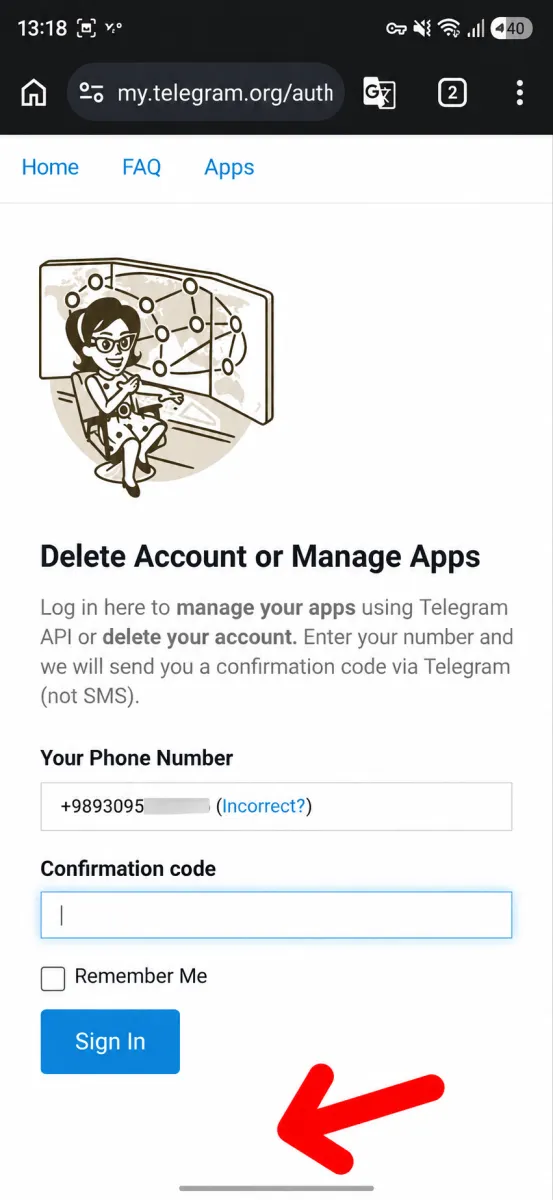
Open the official Telegram account deletion page, enter your phone number in international format, and follow the on-screen instructions. Telegram will send a confirmation code through the Telegram app rather than by SMS in the standard verification flow. After signing in, select the account deletion option and confirm your decision.
Things to Know Before Deleting Your Telegram Account
Before permanently deleting your account, consider the following points.
1. Back Up Your Data
If you want to keep copies of your conversations, photos, videos, or other files, export your data before deleting your account. You can do this using Telegram Desktop.
Open Telegram Desktop and navigate to:
Settings > Advanced > Export Telegram Data
Choose the data you want to export and follow the instructions. Make sure the export is complete before proceeding with account deletion.
2. Deleting the App Is Not the Same as Deleting Your Account
There are three different actions to understand:
- Uninstalling Telegram: Removes the app from your device but does not delete your account.
- Logging out: Signs you out of the current device while keeping your Telegram account and cloud chats. Secret Chats are an exception because they are device-specific.
- Deleting your account: Permanently removes your account and associated cloud data. This action cannot be undone.
Telegram also offers automatic account deletion after a period of inactivity. The default period is currently 18 months, although you can change it in the app's settings.
3. Two-Step Verification
If you have enabled Two-Step Verification, Telegram may ask for your additional password during the process. Make sure you have access to the credentials required to sign in and complete the deletion.
4. Check Your Groups and Channels
If you own Telegram groups or channels, consider appointing another administrator before deleting your account.
Your groups and channels may remain available after deletion, and existing administrators retain their permissions. However, your account will no longer be their creator or administrator, and you will not be able to manage them through the deleted account.
How to Delete a Telegram Account Using the Official Website
This method works on desktop computers, Android phones, iPhones, and iPads. Using a desktop browser may make the process easier.
Step 1: Open the Official Telegram Deletion Page
Visit the following link in your browser:
Delete Your Telegram Account — Official Page
Make sure you are using Telegram's official website rather than a third-party account deletion service.
Step 2: Enter Your Phone Number
Enter the phone number associated with your Telegram account in international format, including your country code.
For example, if you use an UAE phone number, enter +97 followed by your number without the initial zero.
Click Next to continue.
Step 3: Retrieve Your Confirmation Code
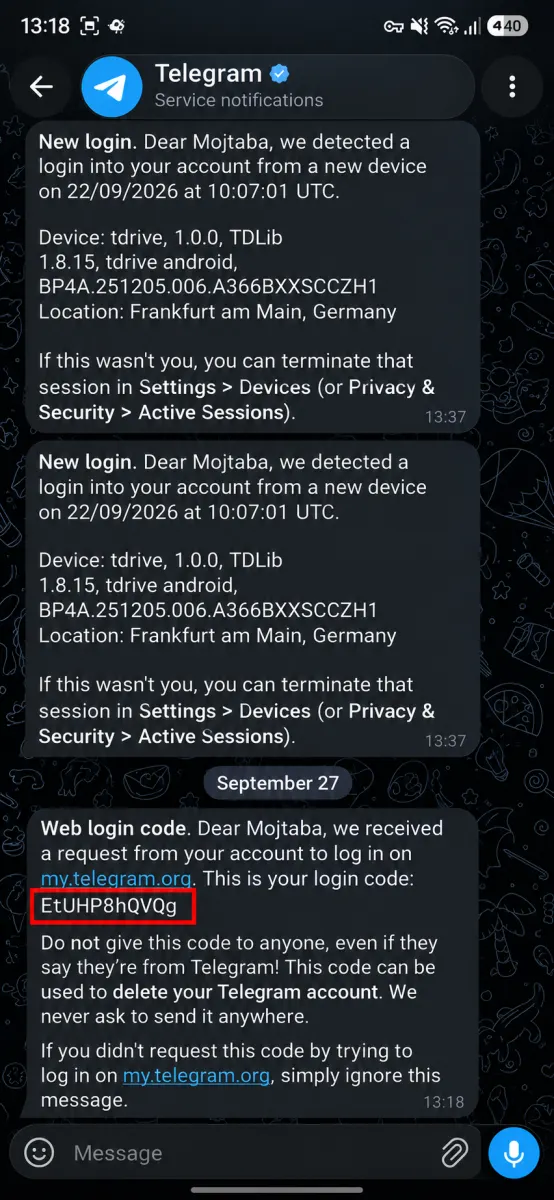
Telegram will normally send a login confirmation code to your Telegram account through the app, rather than by SMS.
Open Telegram on a device where you are still logged in, find the verification message, and enter the code on the website.
Step 4: Sign In and Select the Deletion Option
After entering the confirmation code, sign in to the account management page. Find the option to delete your account and select it.
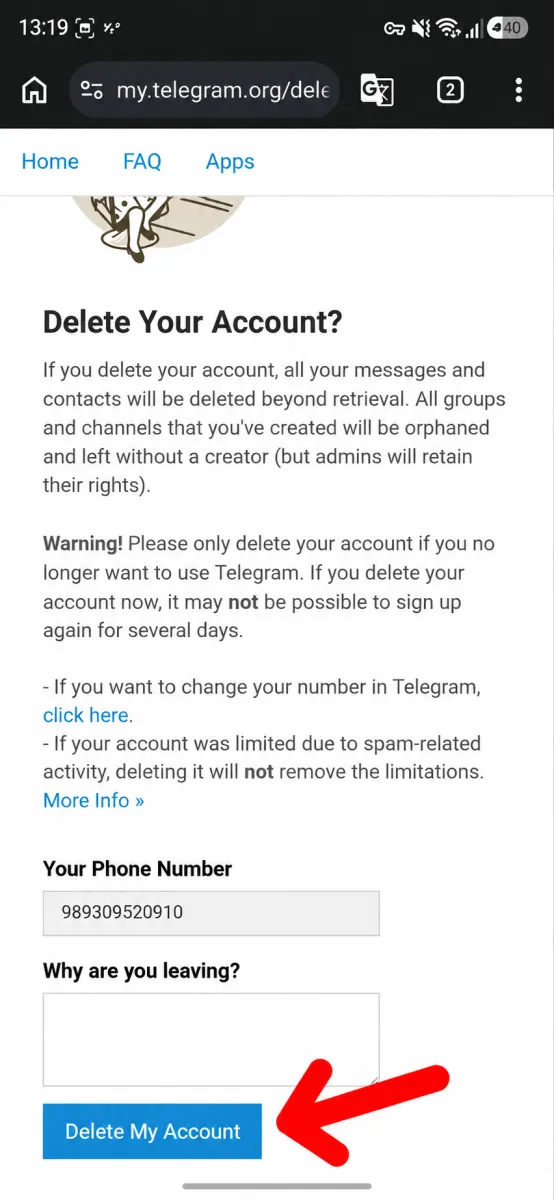
Follow the instructions displayed on the page. Telegram may ask you to provide a reason for leaving.
Step 5: Confirm Permanent Deletion
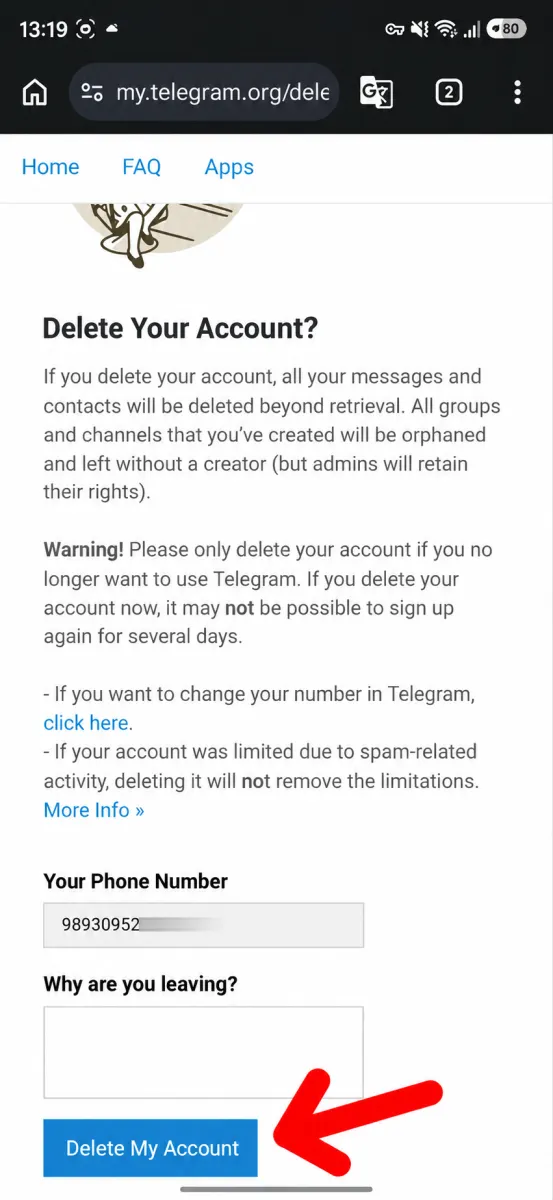
Review the warning carefully before confirming your decision. Select the final account deletion option, which may be labeled Delete My Account, and confirm when prompted.
Once the deletion is completed, your Telegram account is permanently removed. You will no longer be able to access it, and the associated cloud data cannot be restored.
Suggested image captions:
- Telegram's official account deletion page
- Telegram's login verification code prompt
- Telegram account management and sign-in page
- The final confirmation screen for deleting a Telegram account
After deletion, you will be signed out of Telegram sessions associated with that account.
How to Delete a Telegram Account From the iPhone App
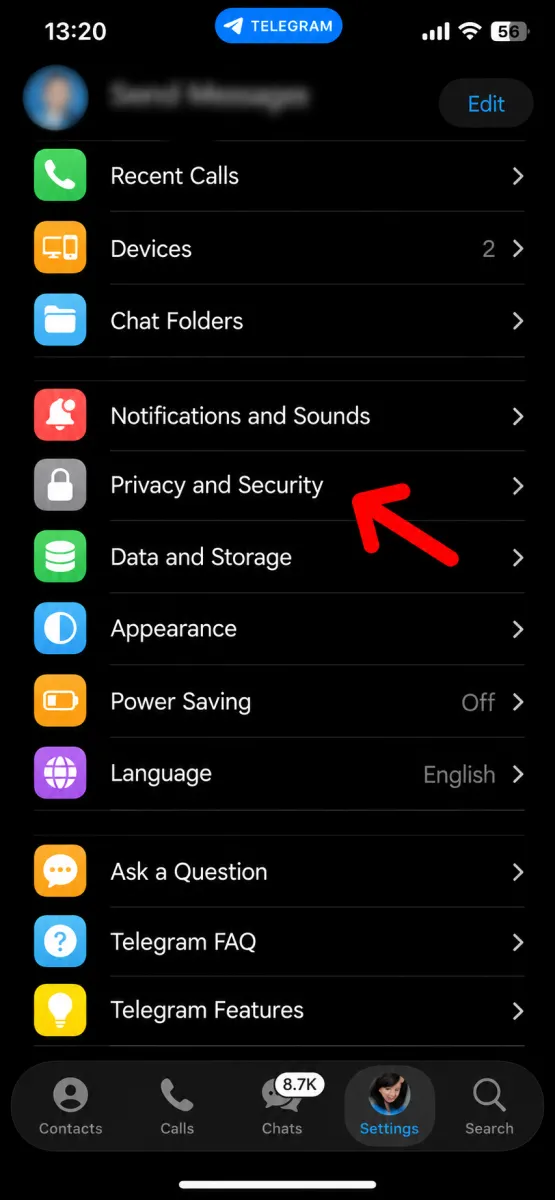
If your version of Telegram for iOS supports in-app account deletion, you can use the following steps. Menu names and available options may vary between versions.
Step 1: Open Telegram Settings
Launch Telegram on your iPhone or iPad and tap Settings.
Step 2: Open Privacy and Security
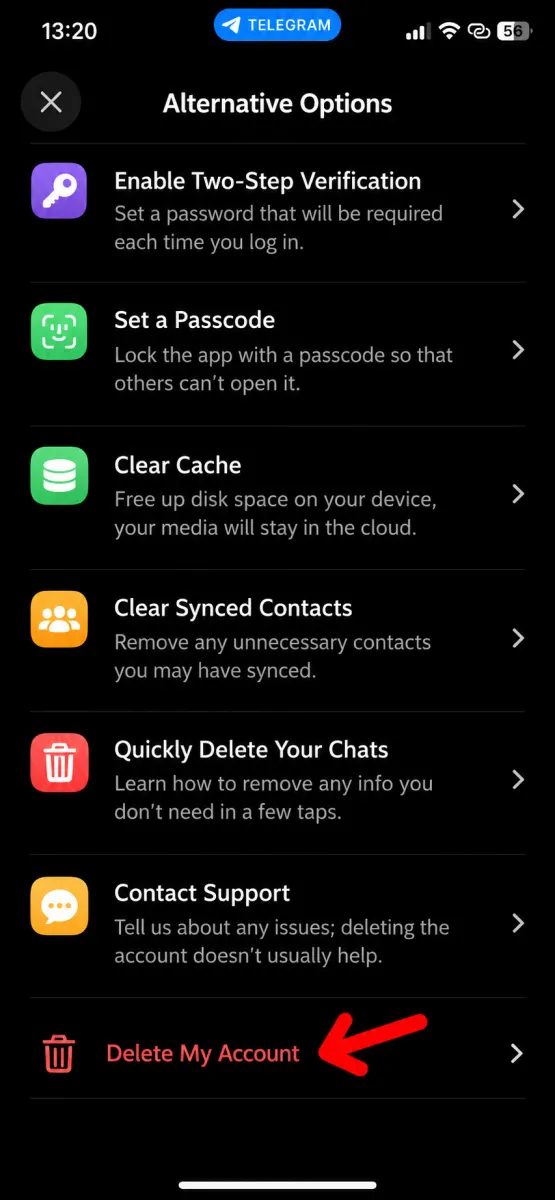
Go to Privacy and Security and look for the account deletion controls.
The If Away For setting normally controls how long your account must remain inactive before Telegram automatically deletes it. If your app version provides a separate immediate deletion option, follow the on-screen instructions to access it.
Step 3: Review the Deletion Warning
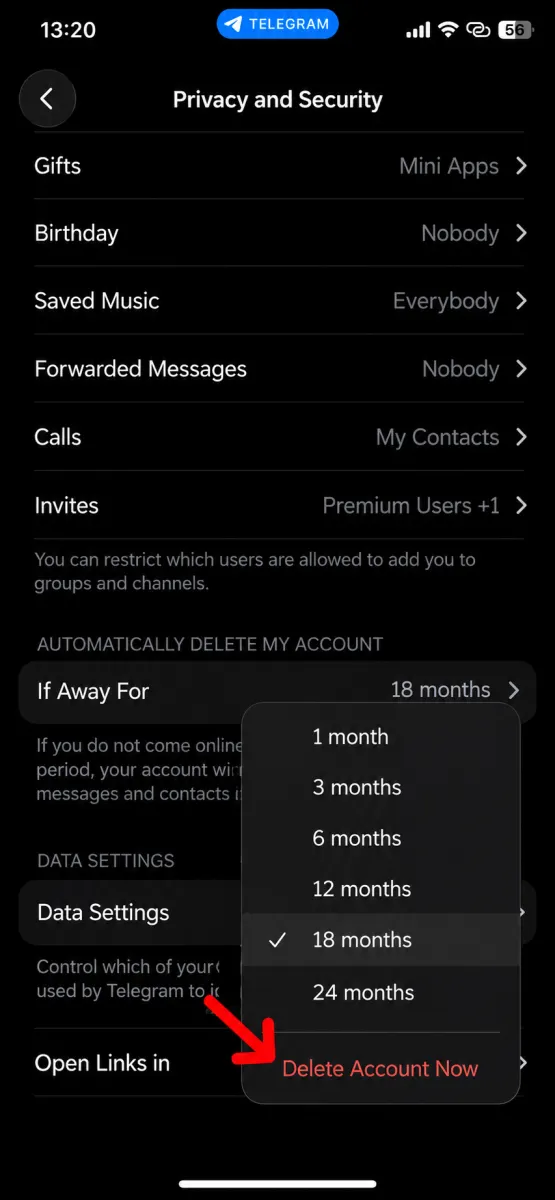
Telegram may display warnings about losing your messages, media, contacts, and other account data. Read these notices carefully before continuing.
If the app presents a Delete My Account option, select it to proceed.
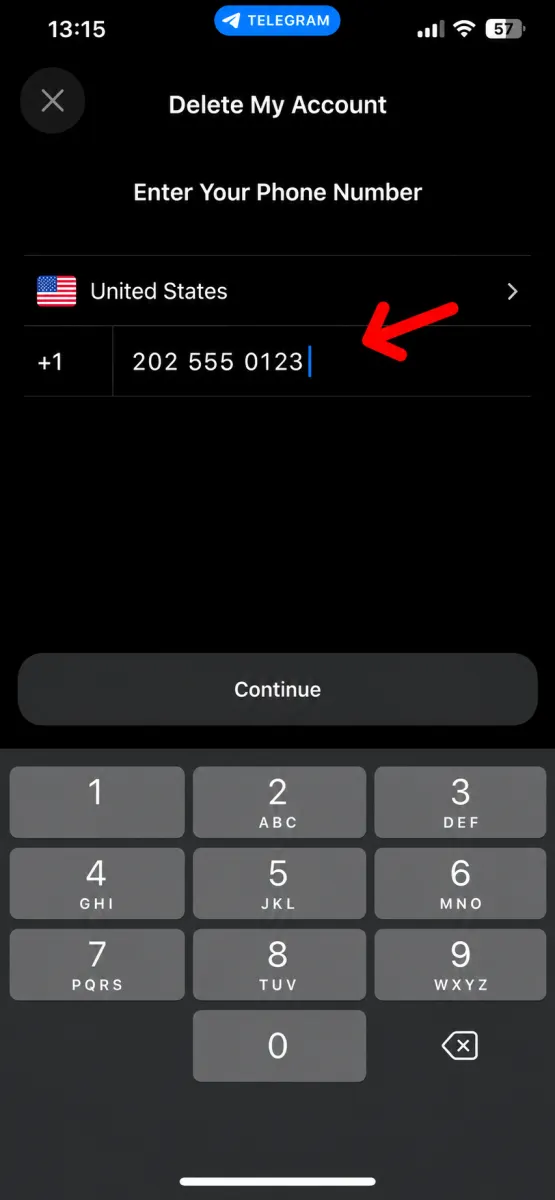
Step 4: Complete the Confirmation Process
Follow any additional prompts displayed by Telegram. Depending on the deletion flow and your account's security settings, you may need to verify your identity or enter your Two-Step Verification password.
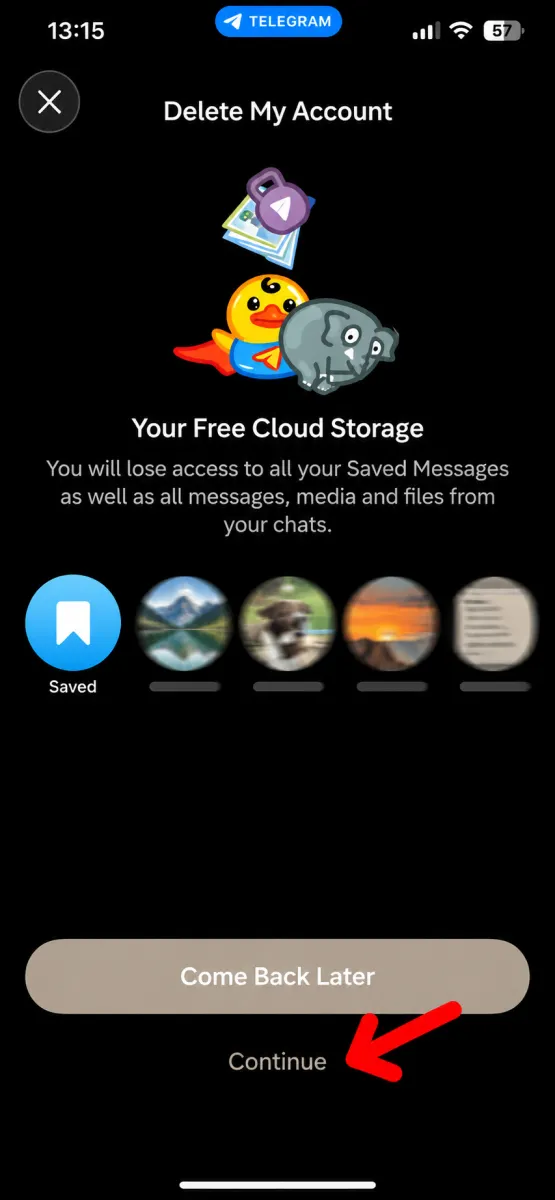
Confirm the final deletion request only if you are certain you want to close your account permanently.
Important: If you cannot find an immediate deletion option in your iPhone app, use Telegram's official account deletion website instead.
Suggested image captions:
- Telegram's Privacy and Security settings on iPhone
- Account deletion controls in Telegram for iOS
- The final account deletion confirmation screen
What Happens After You Delete Your Telegram Account?
Deleting your account has several permanent consequences.
Your Account Data Is Removed
Telegram removes your account and the associated data stored in its cloud, including your messages, media, contacts, and other account information.
However, deleting your account does not erase every copy of every message you have sent. Other people may still have your messages in their chat histories, along with any photos, videos, or files they previously saved.
Your Groups and Channels May Remain
Groups and channels you created may continue to exist after your account is deleted. Other administrators retain their permissions, but your account will no longer be available to manage them.
If a group or channel has no other administrators, it may be left without an active administrator.
You Cannot Restore Your Deleted Account
Telegram account deletion is permanent and cannot be reversed. You cannot restore your previous account, chat history, contacts, or cloud data after deletion.
If you register again using the same phone number, Telegram creates a new account rather than restoring the old one. You may not be able to register again immediately, and your previous conversations and account history will not return.
Frequently Asked Questions
Can I delete my Telegram account without uninstalling the app?
Yes. You can delete your account through Telegram's official account deletion page without uninstalling the app first.
Can I delete my Telegram account on Android?
Yes. Open Telegram's official account deletion page in your Android browser and follow the verification and confirmation steps.
Does Telegram send the deletion code by SMS?
Telegram's standard account deletion process sends the confirmation code through the Telegram app, not SMS. Follow any instructions displayed on the official page if the verification process differs for your account.
Can I recover my Telegram account after deleting it?
No. Account deletion is permanent. You can register again with the same phone number if Telegram allows it, but your old account and its data cannot be restored.
Will deleting Telegram remove my messages from other people's phones?
No. Other users may retain copies of messages and media in their chats. Deleting your account does not automatically erase every message you previously sent to other people.