

Thinking about deleting your YouTube account? Maybe you no longer need your channel, want to spend less time online, or simply want to reduce your digital footprint. Whatever your reason, there’s one important thing to know before you get started: deleting a YouTube channel is not the same as deleting your Google Account.
You can delete your YouTube channel without losing access to Gmail or other Google services. However, deleting your entire Google Account can also mean losing your emails, Google Drive files, Google Photos, digital purchases, and other information linked to that account.
In this guide, we’ll explain the difference between the two options, show you how to delete a YouTube channel using a phone or computer, walk you through deleting your Google Account, and cover what to check before you permanently remove your data.
What's the Difference Between Deleting a YouTube Channel and a Google Account?
YouTube relies on your Google Account for sign-in and access to many of its features. That's why the phrase «delete a YouTube account» can refer to two different actions.
| What happens? | Delete YouTube channel | Delete Google Account |
|---|---|---|
| YouTube videos | Deleted | The associated channel may also be deleted |
| Channel comments and playlists | Deleted | Depends on channel ownership and account setup |
| Gmail | Not affected | Access and associated data are lost |
| Google Drive and Google Photos | Not affected | Data linked to the account is at risk of deletion |
| Other Google services | Not affected | Access to linked services is affected |
| Can you recover it? | Recovery isn't guaranteed | Recovery may be possible for a limited time |
Here's the bottom line: If you only want to remove your YouTube videos and channel activity, you don't need to delete your entire Google Account. And if you're not completely sure about leaving YouTube for good, hiding your channel is another option.
How to Take Sharp Photos at Night (and the Street Lamppost Secret)
How to Delete a YouTube Account From Your Phone
Whether you're using a Samsung, Xiaomi, iPhone, or another smartphone, you can access YouTube Studio through your mobile browser to review your channel settings.
However, YouTube's official help documentation currently says that permanent channel deletion isn't supported on mobile devices. For the most reliable way to complete the process, use a computer.
If you want to check the settings on your phone first, here's what to do:
- Open Chrome or Safari on your phone.
- Visit YouTube Studio and sign in with the Google Account linked to your channel.
- If needed, enable Desktop site in Chrome or Request Desktop Website in Safari.
- Open Settings → Channel → Advanced Settings.
- Select Remove YouTube Content.
- Review the available options for hiding your channel or permanently deleting its content.
If the permanent deletion option isn't available on your phone, switch to a computer to finish the process. Menu layouts may vary slightly depending on your device and YouTube's current interface.
How to Permanently Delete a YouTube Channel on a Computer
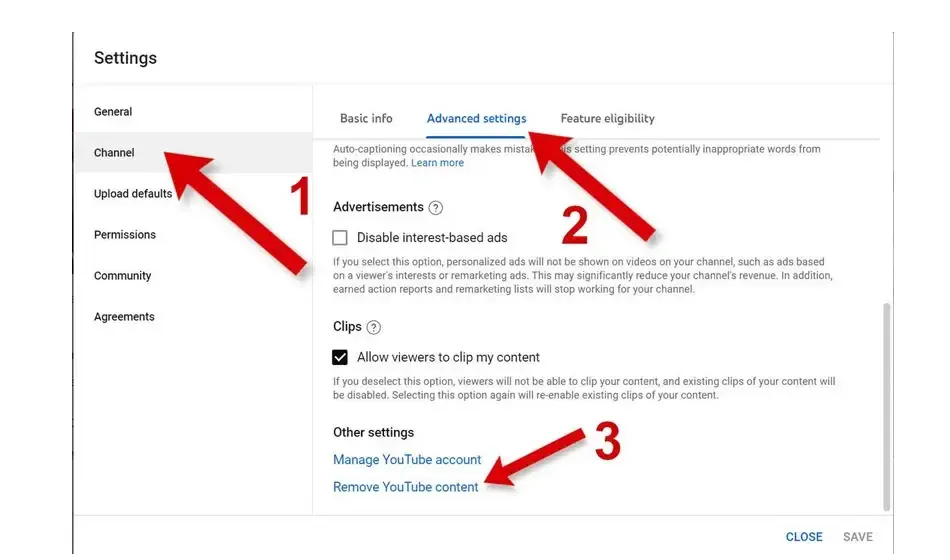
If you're sure you want to remove your channel permanently, follow these steps:
- Go to YouTube Studio.
- Click Settings in the left-hand menu.
- Select Channel.
- Open the Advanced Settings tab.
- Scroll down and click Remove YouTube Content.
- Enter your sign-in details again if prompted.
- Select I want to permanently delete my content.
- Check the confirmation boxes and click Delete my content.
Deleting your channel can permanently remove its videos, comments, messages, playlists, and other associated content. The process may take some time to finish, so video thumbnails might still appear on YouTube for a short while.
Keep in mind that this process deletes your YouTube channel, not the Google Account you use to sign in.
How to Delete Your Google Account From a Phone
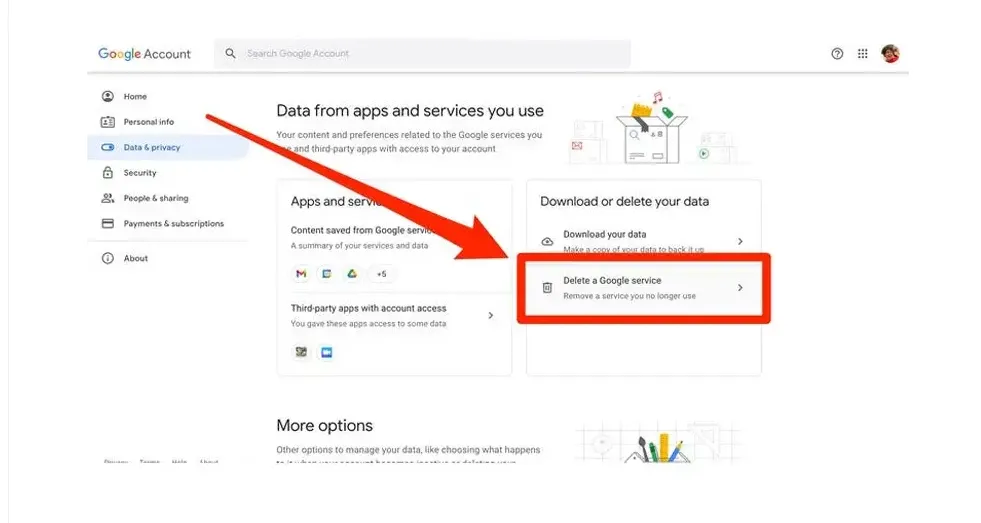
If you want to leave Google entirely, you can delete your Google Account through your account settings.
This is different from simply signing out of Google on your phone or removing the account from your device. Deleting the account can permanently remove data stored across Google's connected services.
Here's how to do it:
- Open your Google Account settings.
- Go to Data & privacy.
- Scroll down to Your data & privacy options.
- Select More options, then choose Delete your Google Account.
- Enter your password and complete any identity verification steps.
- Review the warnings carefully and follow the final confirmation steps if you're sure you want to continue.
On Android phones, you can also access your Google Account through the device's Settings app. On an iPhone, opening your Google Account in a browser is usually a straightforward option.
Important: Choosing Remove account in your phone's settings generally removes the account from that device. It does not permanently delete the Google Account itself.
What to Check Before Deleting Your YouTube Channel
Before you confirm the deletion, take a few minutes to protect anything you might need later.
- Back up your data. Use Google Takeout to download available information from your Google services, including YouTube videos and other account data.
- Save your channel analytics. If you're a content creator, download important revenue reports, view statistics, and video performance data before deleting your channel.
- Check connected services. If you use your Google Account to sign in to websites, apps, or other services, update your login details or add an alternative email address first.
- Make sure permanent deletion is necessary. If you just need a break from YouTube, hiding your channel is a less drastic option.
- Understand the recovery limits. YouTube channel recovery isn't guaranteed after deletion. A deleted Google Account may also become unrecoverable after some time.
Can You Hide Your YouTube Channel Instead of Deleting It?
Yes. If you're not ready to delete everything permanently, hiding your channel is worth considering.
When you hide your channel, your channel name, videos, likes, subscriptions, and subscribers become private to other users. This lets you step away from YouTube without immediately committing to permanent deletion.
To hide your channel:
- Sign in to YouTube Studio.
- Go to Settings → Channel → Advanced Settings.
- Select Remove YouTube Content.
- Choose I want to hide my channel.
- Follow the instructions and confirm your choice.
You can reactivate your channel later if you change your mind. Keep in mind that some statistics may take time to update after reactivation.