

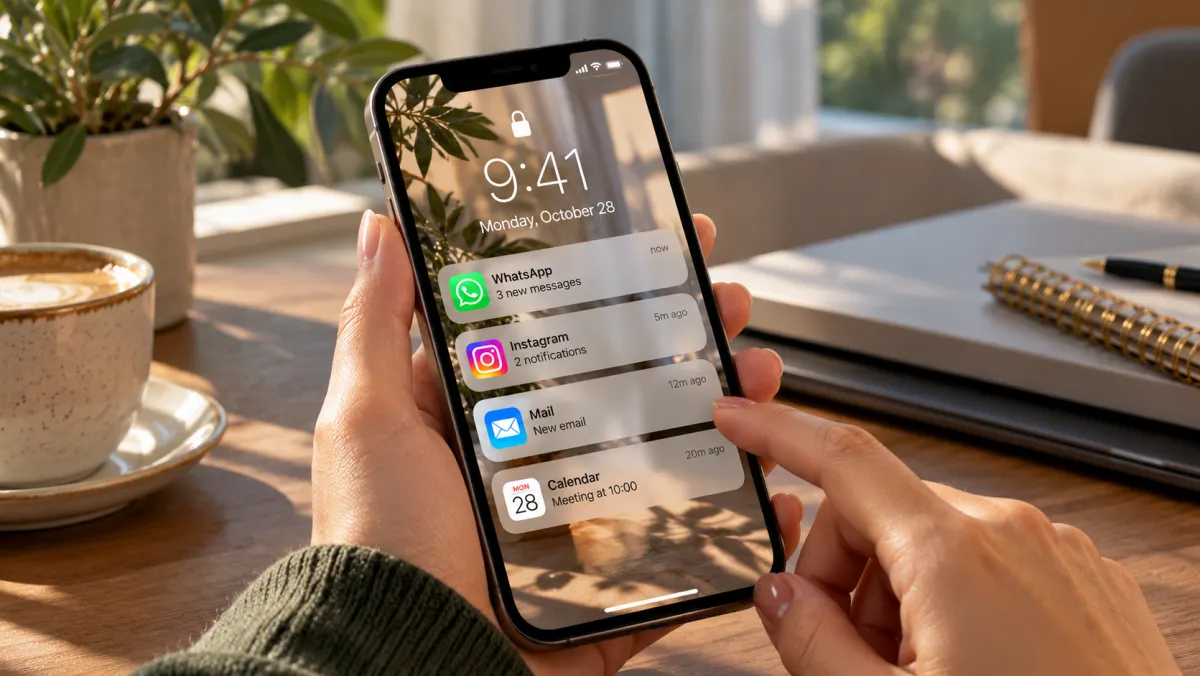

iPhone notifications keep you updated on incoming messages, calls, emails, and activity from your favorite apps. But you don't have to stick with the default settings. You can choose how notifications appear, change their sounds, hide message previews, and decide which apps can send you alerts.
Whether you want fewer distractions or more control over your Lock Screen, this guide walks you through the most useful iPhone notification settings.
Where to Find Notifications on Your iPhone
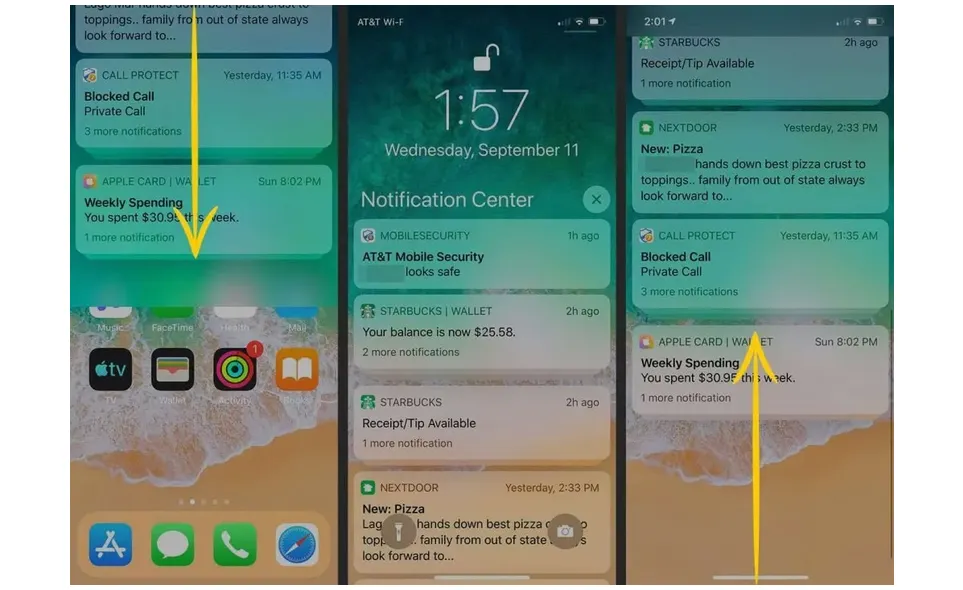
Your iPhone keeps recent alerts in a feature called Notification Center. You can open it whether your phone is locked or unlocked.
- When your iPhone is locked: Swipe up from the middle of the Lock Screen to see your notifications.
- When your iPhone is unlocked: Swipe down from the top of the screen to open Notification Center.
Scroll up to see older notifications. To close Notification Center, swipe up from the bottom of the screen.
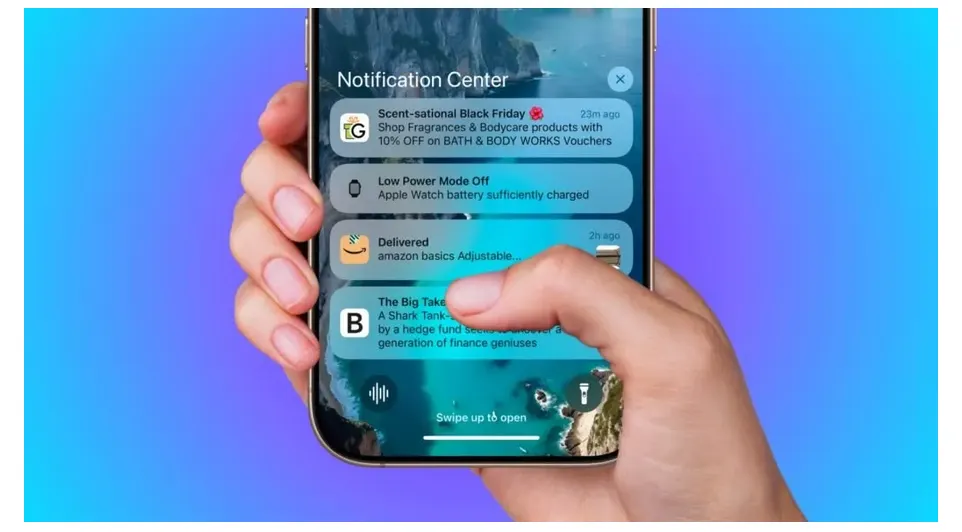
Notifications appear as individual cards. Tap one to open the related app or interact with it directly. Depending on the app, you may also be able to reply to a message, check a missed call, or take another quick action.
How to Take Portrait Photos on an iPhone: Tips, Settings & Tricks
How to Reply to and Manage iPhone Notifications
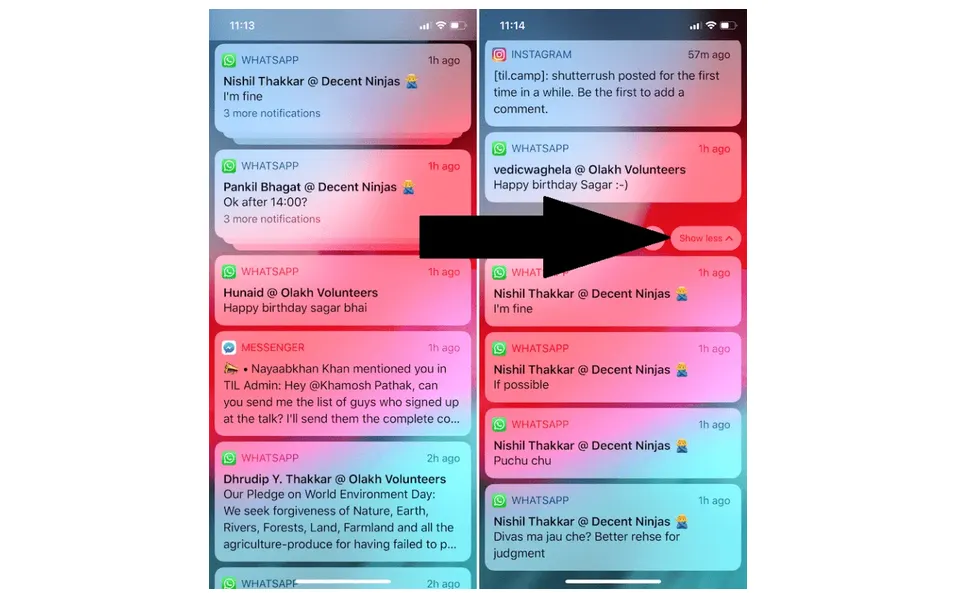
When you receive several notifications, your iPhone may group them into stacks. This makes it easier to keep track of messages and alerts without filling up your screen.
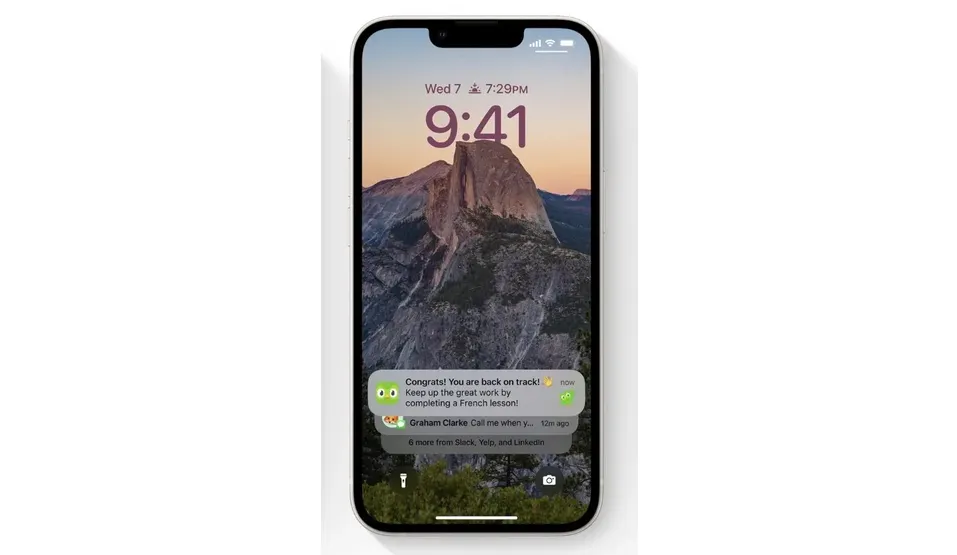
Here are a few ways to manage them:
- Open a notification group: Tap a stack to see each notification separately. Tap Show Less to collapse it again.
- Quickly view notification options: Touch and hold a notification to see available actions.
- Open an app: Tap a notification to go straight to the app that sent it.
- Clear a notification: Swipe left on an alert and tap Clear.
- Clear multiple notifications: Swipe left on a notification group and choose Clear.
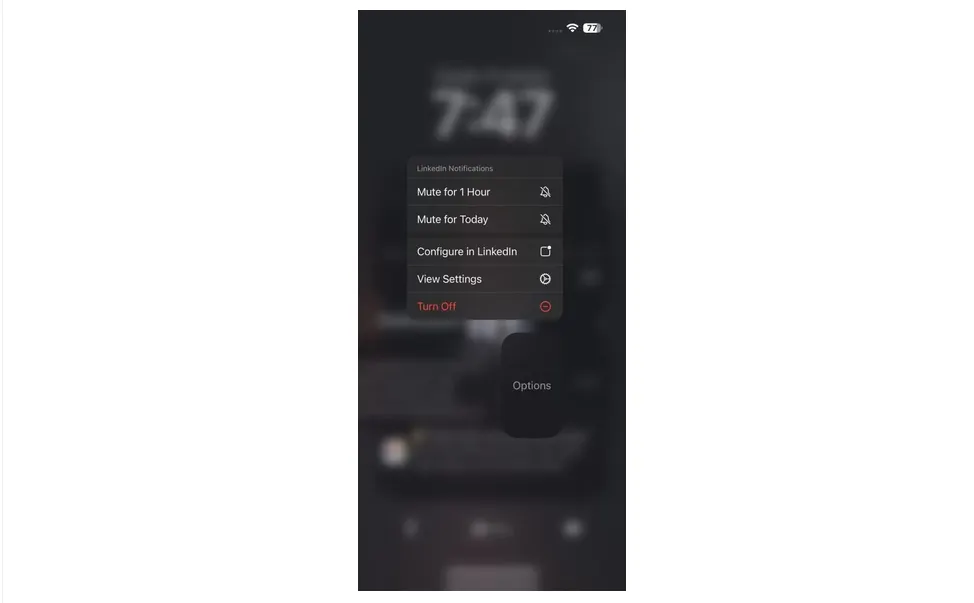
- Mute an app: Swipe left, tap Options, and choose a mute option if available.
- Turn off notifications: Open Options or Manage, then select Turn Off if the option appears.
If you want to turn muted notifications back on, open the notification options and select Unmute when available.
How to Show Recent Notifications on the Lock Screen
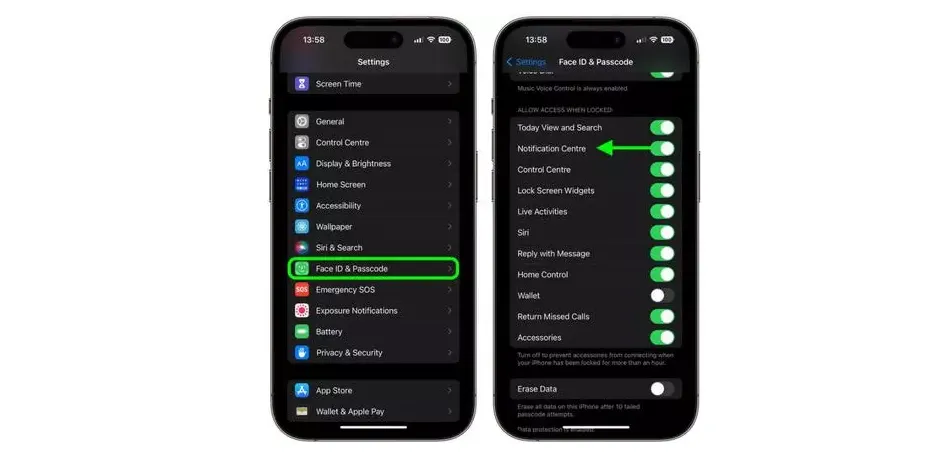
You can check your notifications without unlocking your iPhone. To do this, make sure Notification Center is allowed when your phone is locked.
- Open Settings.
- Tap Face ID & Passcode or Touch ID & Passcode, depending on your iPhone model.
- Enter your passcode.
- Scroll down to Allow Access When Locked.
- Turn on Notification Center.
Your recent alerts will now be available from the Lock Screen.
How to Change the Way Notifications Look on iPhone
If you don't like the default notification layout, you can change how alerts appear on your Lock Screen.
- Open Settings.
- Tap Notifications.
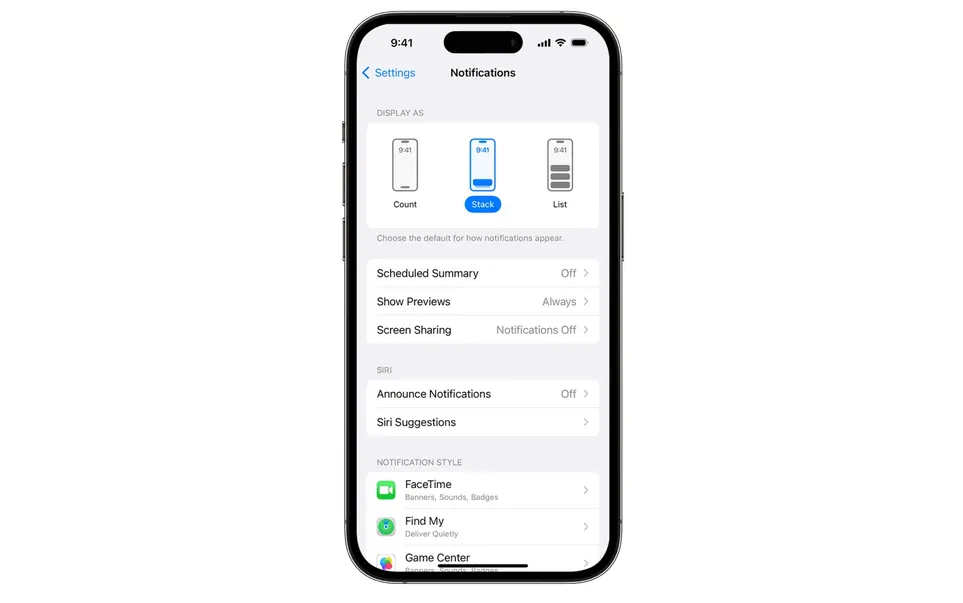
- Under Display As, choose one of these options:
- Count: Shows only the total number of notifications.
- Stack: Groups notifications into stacks, keeping the screen tidy.
- List: Displays notifications in a regular list.
You can also pinch the notifications on your Lock Screen with two fingers to switch between display styles.
How to Hide Message Previews on iPhone
Want to keep your private messages away from prying eyes? You can hide notification previews so other people can't read your messages from the Lock Screen.
- Open Settings.
- Tap Notifications.
- Select Show Previews.
- Choose one of these options:
- Always: Shows message previews even when your iPhone is locked.
- When Unlocked: Shows previews only after you unlock your phone.
- Never: Hides notification previews completely.
You can also change this setting for individual apps.
For example, to hide WhatsApp message previews without changing your other notification settings:
- Go to Settings > Notifications.
- Select WhatsApp.
- Tap Show Previews, if available.
- Choose your preferred option.
You can follow the same steps for Instagram, Messages, and other supported apps. Keep in mind that hiding previews doesn't always hide the sender's name or other notification details.
How to Group Notifications on iPhone
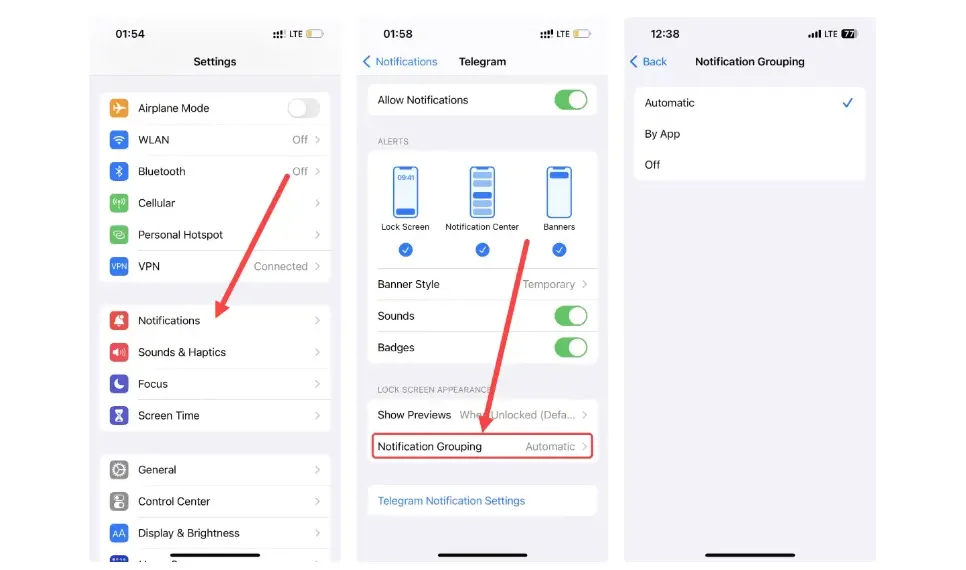
Your iPhone can organize alerts automatically, but you can choose how each app's notifications are grouped.
- Open Settings.
- Tap Notifications.
- Select an app under Notification Style.
- Tap Notification Grouping.
- Choose one of these options:
- Automatic: Your iPhone groups notifications based on factors such as conversations or topics.
- By App: All notifications from the same app appear in one group.
- Off: Every notification appears separately.
This is especially useful if you receive a lot of messages or alerts throughout the day.
How to Change Notification Sounds on iPhone
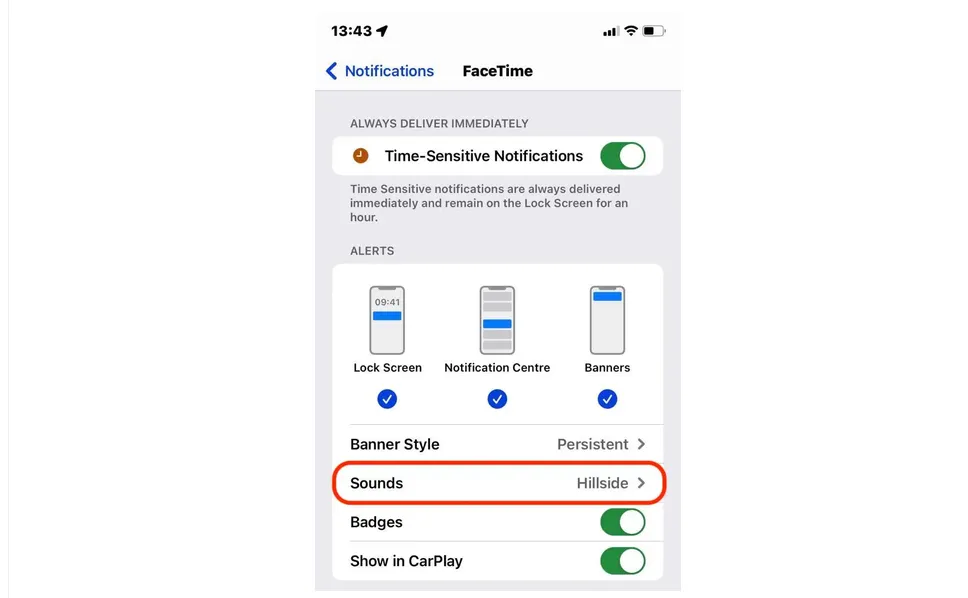
You can choose different notification sounds for supported apps. This makes it easier to recognize certain alerts without looking at your phone.
- Open Settings.
- Tap Notifications.
- Select the app you want to customize.
- Make sure Allow Notifications is turned on.
- Tap Sounds, if the option is available.
- Choose your preferred sound.
Some apps, such as Messages and Mail, offer sound choices in their notification settings. Others may use their own in-app settings or may not let you choose a different tone.
How to Change Instagram Notification Sounds
If you want to change the sound for Instagram notifications, follow these steps:
- Open Settings on your iPhone.
- Tap Notifications.
- Find and select Instagram.
- Look for the Sounds option.
- Choose a sound if one is available.
If you don't see a sound selection, Instagram may not support changing its notification tone through iOS settings.
How to Change WhatsApp Notification Sounds
You can manage WhatsApp notification sounds through your iPhone settings or WhatsApp's own notification options.
- Open Settings.
- Tap Notifications.
- Select WhatsApp.
- Check whether the Sounds option is available.
You can also open WhatsApp and check Settings > Notifications for additional sound and alert options.
Do Notification Sound Settings Differ Between iPhone Models?
The basic notification settings are similar on iPhone 13, 14, 15, and 16 models. However, some features may differ depending on your iOS version, device compatibility, and the app you're using.
How to Schedule Notifications on iPhone
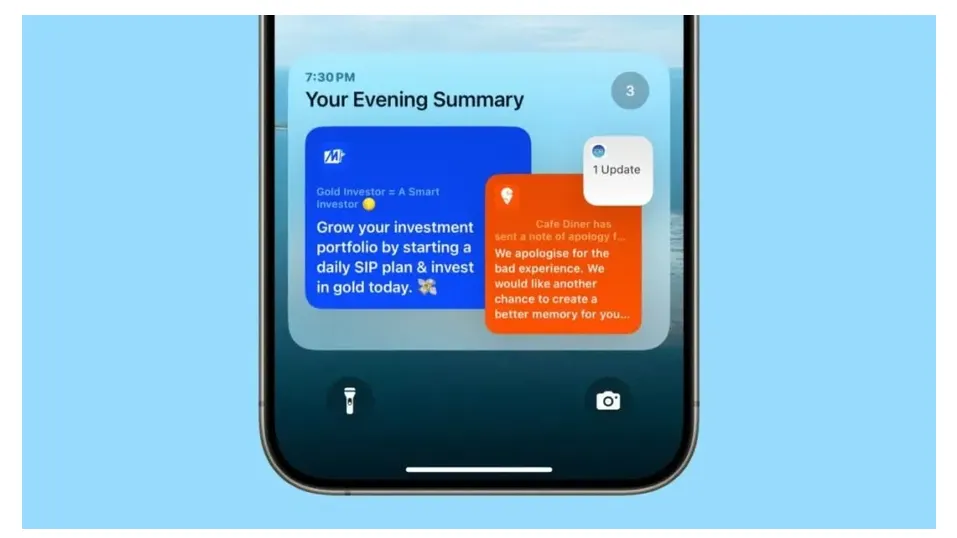
If you receive too many alerts during the day, Scheduled Summary can help. Instead of getting every notification as soon as it arrives, you can receive selected alerts together at specific times.
Here's how to set it up:
- Open Settings.
- Tap Notifications.
- Select Scheduled Summary.
- Turn on Scheduled Summary.
- Choose the times you want to receive your summaries.
- Select the apps you want to include.
You can add more than one summary throughout the day if needed.
This feature is useful for less urgent notifications, such as shopping updates, social media activity, and news alerts. Important notifications can still be delivered immediately, depending on your settings.
How to Summarize Notifications With Apple Intelligence
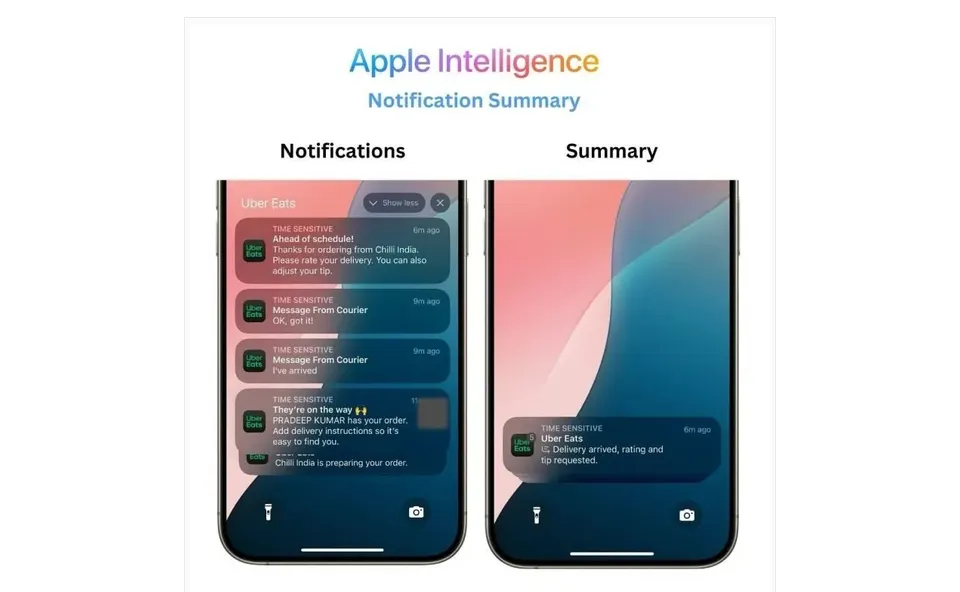
Apple Intelligence can summarize long notifications and help you understand important information more quickly. For example, it can make a busy group chat easier to follow by showing a short summary instead of several individual alerts.
To manage notification summaries:
- Open Settings.
- Tap Notifications.
- Select Summarize Notifications.
- Turn on the feature.
- Choose the apps whose notifications you want summarized.
You can change these selections whenever you want.
Keep in mind that Apple Intelligence isn't available on every iPhone. Support depends on your device, iOS version, language, and region.
How to Use Reduce Interruptions Focus on iPhone
Reduce Interruptions is an Apple Intelligence-powered Focus mode that helps filter notifications. It uses the content of incoming alerts to show potentially important ones while silencing less urgent notifications.
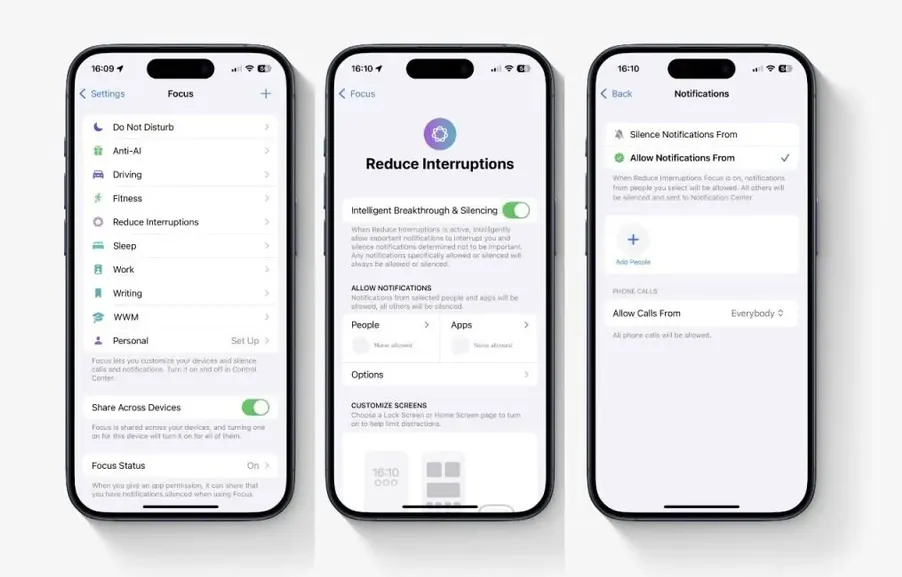
To turn it on:
- Open Settings.
- Tap Focus.
- Tap the Add (+) button.
- Select Reduce Interruptions.
- Tap Customize Focus.
- Choose People or Apps.
- Select the people and apps you want to allow.
You can also adjust the settings to decide which notifications should come through.
How to Turn Off Notifications for Certain Apps
Some apps send more alerts than you need. If you want to stop notifications from a specific app, you can turn them off without affecting the others.
- Open Settings.
- Tap Notifications.
- Select the app you want to manage.
- Turn off Allow Notifications.
You can also customize where notifications appear, whether they make a sound, and whether they show a badge on the app icon.
How to Control Location-Based Notifications
Some apps use your location to send alerts that are relevant to where you are. For example, a weather app may send warnings about local conditions.
If you don't want an app to use your location, follow these steps:
- Open Settings.
- Tap Privacy & Security.
- Select Location Services.
- Find the app you want to manage.
- Change its location access settings.
Keep in mind that changing location permissions may affect other app features, not just notifications. Some apps also have separate settings for location-based alerts.
How to Use Focus to Silence Notifications Temporarily
Focus lets you control which people and apps can contact you during certain activities. You can use it while working, sleeping, driving, or simply taking a break.
To set up a Focus mode:
- Open Settings.
- Tap Focus.
- Choose an existing mode, such as Do Not Disturb, Personal, Sleep, or Work.
- You can also tap the Add (+) button to create a new Focus.
- Customize the people and apps you want to allow or silence.
- Open Control Center and turn on your preferred Focus mode.
You can also schedule Focus to turn on automatically at certain times, locations, or when you open a specific app.
How to Allow Notifications From Certain People
If you don't want to miss messages from important contacts while Focus is on, you can allow notifications from specific people.
- Go to Settings > Focus.
- Select the Focus mode you want to customize.
- Tap People.
- Choose Allow Notifications From.
- Tap Add People and select the contacts you want.
You can also allow calls from certain groups or enable repeated calls so that someone who calls again within a short period can still reach you.
How to Silence Notifications From Certain People
You can also do the opposite and silence alerts from selected contacts.
- Go to Settings > Focus.
- Choose your preferred Focus mode.
- Tap People.
- Select Silence Notifications From.
- Tap Add People and choose the contacts you want to silence.
You can also choose whether to allow calls from these people.
How to Allow Notifications From Certain Apps
To keep important apps working while Focus is active:
- Open Settings > Focus.
- Select a Focus mode.
- Tap Apps.
- Choose Allow Notifications From.
- Tap Add Apps.
- Select the apps you want to receive alerts from.
How to Silence Notifications From Certain Apps
If you want to block alerts from specific apps during Focus mode:
- Go to Settings > Focus.
- Select a Focus mode.
- Tap Apps.
- Choose Silence Notifications From.
- Tap Add Apps and select the apps you want to silence.
How to Share Your Focus Status
When Focus is active, people who message you may see that you've silenced notifications. This lets them know you might not respond right away.
To manage this feature:
- Open Settings.
- Tap Focus.
- Select Focus Status.
- Turn on Share Focus Status.
- Choose which Focus modes can share your status.
You can change this setting whenever you want.
How to Receive Important Calls Even When Your iPhone Is on Silent
If you don't want to miss emergency calls from certain people, you can use Emergency Bypass.
Here's how:
- Open the Contacts app.
- Select the person you want.
- Tap Edit.
- Select Ringtone.
- Turn on Emergency Bypass.
You can also enable Emergency Bypass for text tones, if available.
This allows calls or text alerts from that contact to make a sound even when your iPhone is muted or a Focus mode is active.
How to Mute or Turn Off Notifications From the Lock Screen
You don't always need to open Settings to manage alerts. Your iPhone lets you control notifications directly from the Lock Screen or Notification Center.
- Swipe left on a notification or a group of alerts.
- Tap Options.
- Choose one of the available options:
- Mute for 1 Hour: Stops alerts from that app for one hour.
- Mute for Today: Keeps the app silent for the rest of the day.
- View Settings: Opens the app's notification settings.
- Turn Off: Disables notifications from that app.
The available options may vary depending on the app and your iOS version.
How to Change Notification Badges and Alert Styles
Notification badges are the small numbers or indicators that appear on app icons. For example, the Mail app can show how many unread emails you have.
To turn badges on or off:
- Open Settings.
- Tap Notifications.
- Select the app you want.
- Turn Badges on or off.
You can also choose where alerts appear under the app's notification settings, including the Lock Screen, Notification Center, and banners.
What Are Critical Alerts on iPhone?
Critical Alerts are special notifications that can make a sound even when your iPhone is muted or a Focus mode is active.They're designed for important information, such as certain health or safety alerts. However, not every app supports this feature.
If an app offers Critical Alerts, you can manage its permissions through its notification settings.