

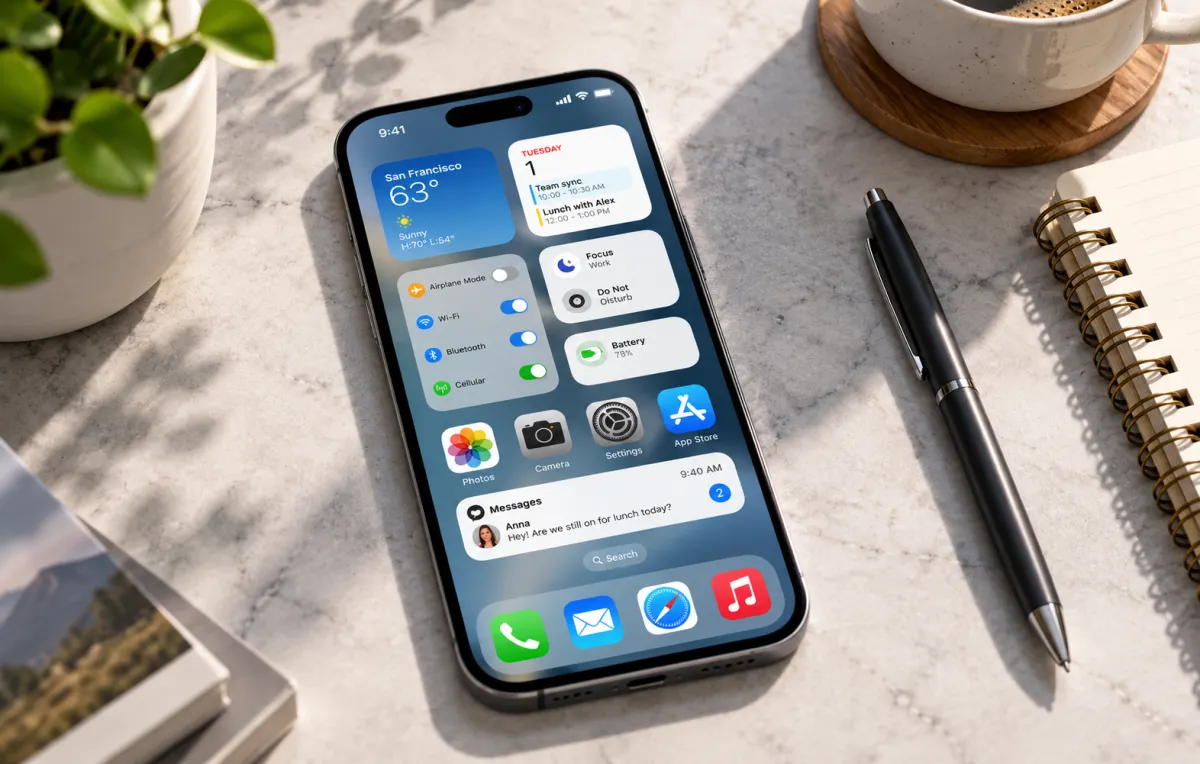

Your iPhone can do much more than make calls, send messages, and take photos. Buried in iOS are dozens of useful features that can save time, improve privacy, make everyday tasks easier, and unlock capabilities you might never have noticed.
From sending animated iMessages and turning your keyboard into a trackpad to identifying objects with your camera and creating custom shortcuts, these 30 iPhone tricks are worth trying.
Some features require a recent version of iOS, a compatible iPhone, an internet connection, or access to Apple services. Availability may vary by region and language.
How to Take Portrait Photos on an iPhone: Tips, Settings & Tricks
1. Send Hidden iMessage Effects With Special Phrases
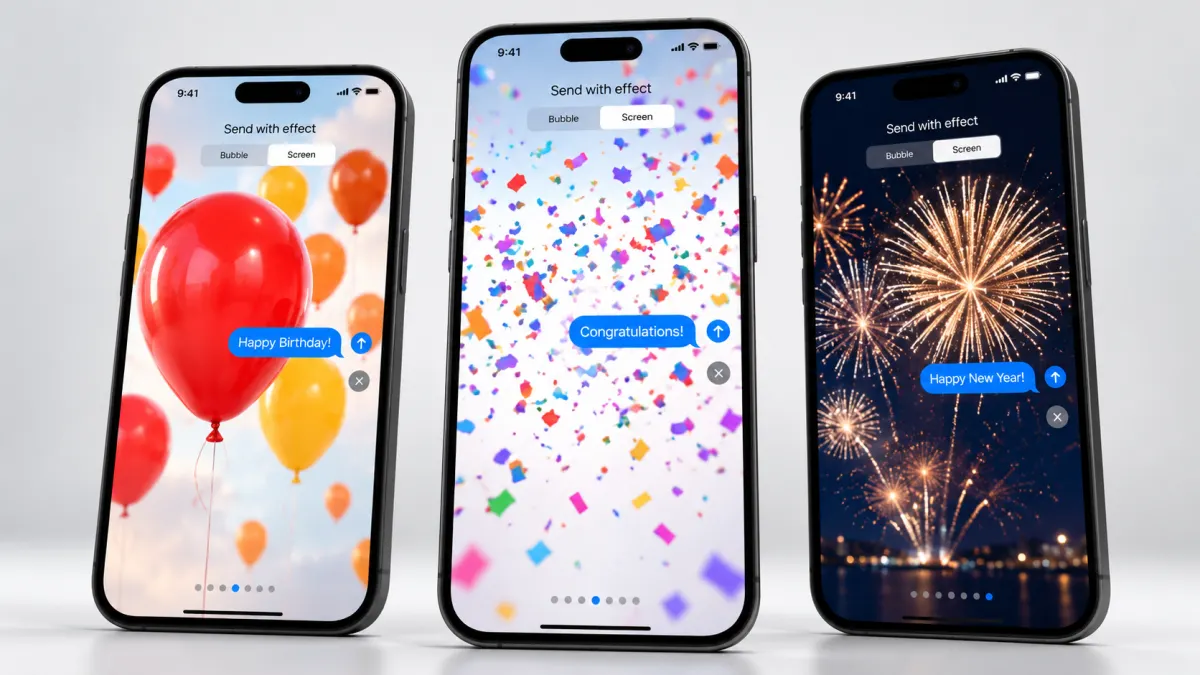
Certain phrases can automatically trigger full-screen animations in Apple's Messages app.
Try sending these messages:
- Happy Birthday: Triggers a balloon animation.
- Congratulations: Triggers a confetti effect.
- Happy New Year: Triggers a fireworks animation.
- Pew Pew: Commonly triggers colorful laser effects, although behavior can vary by software version.
These effects work through iMessage rather than ordinary SMS or MMS. Make sure your message appears in a blue bubble before expecting the animation to work.
2. Send a Message With Invisible Ink
Want to send a surprise without revealing the message immediately? Invisible Ink hides the contents behind a shimmering, blurred effect until the recipient reveals them.
How to use it:
- Open Messages and enter a conversation.
- Type your message or attach a photo.
- Touch and hold the Send button.
- Select Invisible Ink under the Bubble effects.
- Tap Send.
It is useful for surprises, playful messages, and content you want the recipient to reveal deliberately. However, it is a visual effect, not an additional layer of encryption.
3. Animate Individual Words in Your Messages
You don't have to animate an entire conversation to make a message stand out. On compatible versions of iOS, you can apply text formatting and animation to individual words, sentences, or emoji.
How to use it:
- Open an iMessage conversation.
- Type your message and select the text you want to modify.
- Open the text-formatting menu.
- Choose an available effect or formatting option.
- Send the message.
Depending on your software version, options may include bold, italic, underline, strikethrough, shake, ripple, and other animated effects.
4. Add Full-Screen Effects to Any Compatible iMessage
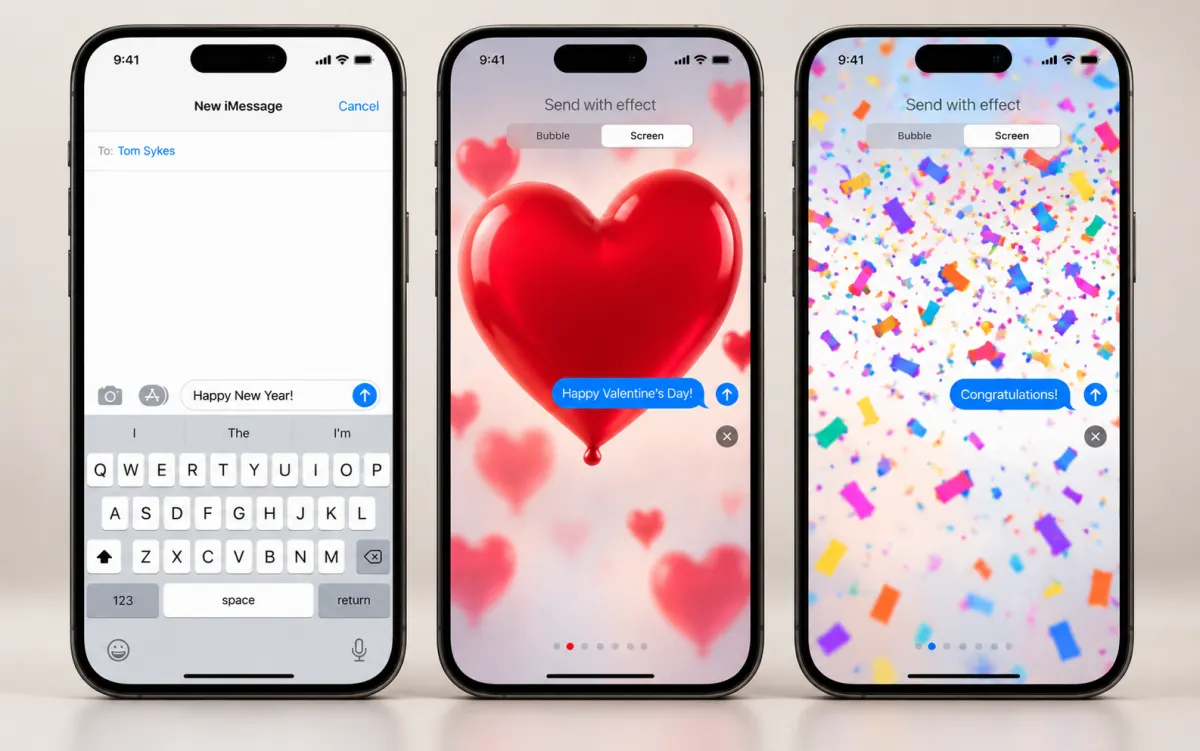
You don't have to rely on special phrases to send animated messages. You can choose an effect manually.
How to use it:
- Open a conversation in Messages.
- Type your message.
- Touch and hold the Send button.
- Select Screen.
- Swipe through the available animations.
- Choose an effect and tap Send.
Popular options include Echo, Spotlight, Balloons, Confetti, Love, Lasers, Fireworks, and Celebration. The available selection may vary by iOS version.
5. Write Messages by Hand
A handwritten message can feel more personal than a standard text. Your recipient can see the handwriting animate as though you were writing it in real time.
How to use it:
- Open a conversation in Messages.
- Rotate your iPhone horizontally, if needed.
- Open the handwriting option on the keyboard.
- Write your message with your finger.
- Tap Done and send it.
If the handwriting option doesn't appear, look for the drawing or handwriting feature in the Messages app's additional tools. The exact interface varies by version.
6. Let Your iPhone Check That You've Reached Your Destination
Apple's Check In feature can automatically notify a selected contact when you reach a destination or complete a journey.
How to use it:
- Open a Messages conversation.
- Tap the plus (+) button beside the message field.
- Select Check In.
- Choose the appropriate destination-based or timer-based option.
- Follow the prompts and send the Check In request.
If you don't arrive as expected or fail to respond to a prompt, the feature can offer to share certain information with your contact, depending on your settings.
It's especially useful for late-night journeys, solo travel, and letting family members know you've arrived safely.
7. Create Polls in Group Messages
When a group can't agree on a restaurant, meeting time, or weekend activity, a poll can make the decision easier.
If Polls is available in your version of Messages:
- Open a group conversation.
- Tap the plus (+) button.
- Look for Polls in the available tools.
- Enter a question and add answer choices.
- Send the poll so group members can vote.
Availability depends on the software version and supported features. If Polls doesn't appear, you may need another polling app or a shared link.
8. Trigger Actions by Tapping the Back of Your iPhone
Back Tap lets you assign actions to two or three taps on the back of a compatible iPhone.
How to set it up:
- Open Settings.
- Go to Accessibility.
- Select Touch.
- Tap Back Tap.
- Choose Double Tap or Triple Tap.
- Assign an action.
Depending on your configuration, you can use Back Tap to take a screenshot, open Control Center, activate the flashlight, or run a shortcut.
It's particularly useful for actions you perform repeatedly throughout the day.
9. Turn Your Keyboard Into a Trackpad
Moving a text cursor with your finger can be frustrating, especially when correcting a typo in the middle of a long sentence.
There's a simpler method.
How to use it:
- Open any app with a text field.
- Press and hold the space bar.
- Wait for the keyboard to enter trackpad mode.
- Slide your finger to move the cursor precisely.
This trick is useful when editing emails, correcting documents, or moving the cursor within a long message.
10. Type Long Phrases With Shortcuts
Text Replacement allows you to create shortcuts that automatically expand into longer phrases.
For example, you could type @@ to insert your email address or create a shortcut for your business address.
How to set it up:
- Open Settings.
- Select General.
- Tap Keyboard.
- Choose Text Replacement.
- Tap the plus (+) button.
- Enter the full phrase and its shortcut.
- Tap Save.
Choose shortcuts that you won't accidentally type during ordinary conversations. You can create several for frequently used email responses, addresses, and other information.
11. Copy Text From Photos Without Typing It Again
Live Text recognizes text in supported photos, videos, and other content. You can use it to copy a paragraph, translate a sign, or extract a phone number.
How to use it:
- Open a photo containing readable text, or point your camera at printed text.
- Tap the text-detection icon when it appears.
- Select the text you need.
- Choose Copy, Translate, Look Up, or another available action.
Live Text can also recognize useful details such as phone numbers and website addresses.
Support depends on the iPhone model, iOS version, language, and region.
12. Identify Plants, Animals, and Other Objects in Photos
Visual Look Up can help identify certain plants, animals, landmarks, and other subjects in your pictures.
How to use it:
- Open the Photos app.
- Select a picture containing a recognizable subject.
- Tap the information button if a visual identification option is available.
- Review the suggested information.
For example, you might use it to learn the name of a plant in your garden or identify an animal you photographed during a trip.
Results aren't guaranteed to be correct, so verify important identifications when accuracy matters.
13. Turn Speech Into On-Screen Captions
Live Captions can display a transcription of supported audio, including certain videos and conversations.
How to enable it:
- Open Settings.
- Select Accessibility.
- Look for Live Captions.
- Turn the feature on if it is available on your device.
This can be useful when watching videos in noisy environments, following speech when you can't play audio aloud, or making supported conversations easier to follow.
Language support and availability vary, and automatic captions may contain errors.
14. Reduce Motion Sickness While Using Your iPhone in a Car
Looking at your phone while traveling can make some people feel dizzy or nauseated. Vehicle Motion Cues is designed to help reduce this discomfort.
How to find it:
- Open Settings.
- Select Accessibility.
- Tap Motion.
- Look for Vehicle Motion Cues.
- Enable the feature and choose the available automatic or manual option.
The feature displays moving indicators near the edges of the screen that respond to vehicle movement.
It may help some users, but it doesn't eliminate motion sickness for everyone. Avoid using your phone if doing so makes you uncomfortable or distracts you from your surroundings.
15. Make Your iPhone Flash When You Receive an Alert
If you frequently miss notifications because your phone is silent, you can configure a visual alert.
How to enable it:
- Open Settings.
- Go to Accessibility.
- Select Audio & Visual.
- Find the flash-alert settings.
- Enable the available LED flash or screen-flash option.
Depending on your device and iOS version, additional choices may let you control when the flash operates.
This can be helpful in noisy environments or when your phone is across the room.
16. Change Your Lock Screen Wallpaper Automatically
Photo Shuffle lets your iPhone rotate through a collection of pictures instead of displaying the same wallpaper every day.
How to set it up:
- Open Settings and select Wallpaper.
- Tap Add New Wallpaper.
- Choose Photo Shuffle.
- Select the photos or categories you want to use.
- Choose how frequently the images should change.
- Set the wallpaper.
You can use personal photographs, travel memories, family pictures, or a carefully selected album.
17. Turn Your iPhone Into a Smart Bedside Display
StandBy transforms your iPhone into a useful display when it is charging and positioned horizontally.
Depending on your settings and device, it can show a clock, calendar, widgets, or selected photographs.
How to use it:
- Open Settings and look for StandBy.
- Enable the feature if it is available.
- Connect your iPhone to a charger.
- Place the phone horizontally on a stable stand.
Compatible iPhones can display the StandBy interface while charging. Whether the screen remains continuously visible depends on the model and its display capabilities.
18. Customize Control Center for Faster Access
Control Center gives you quick access to frequently used settings without navigating through the Settings app every time.
You can customize the available controls to suit your routine.
How to get started:
- Open Control Center by swiping down from the top-right corner of the screen.
- Enter its editing or customization mode.
- Add, remove, resize, or rearrange controls where supported.
- Keep your most frequently used tools easy to reach.
Depending on your preferences, useful controls may include the flashlight, screen recording, Low Power Mode, notes, and accessibility shortcuts.
19. Hide Your Real Email Address With Hide My Email
Hide My Email lets eligible users generate random email addresses that forward messages to their personal inbox.
This means you can sign up for a website or newsletter without giving the service your primary email address.
How to use it:
- When an app or website offers Sign in with Apple, select Hide My Email if the option is available.
- To manage addresses created through iCloud+, open Settings, select your Apple Account, then iCloud and Hide My Email.
You can manage or deactivate addresses when they are no longer needed.
Hide My Email can reduce unwanted exposure of your main address, but it doesn't guarantee that a service cannot identify you through other information.
20. Use Visual Intelligence to Learn About Your Surroundings
On supported iPhones, Visual Intelligence can help you understand information about objects, signs, and other subjects in front of the camera.
How to use it:
- Activate Visual Intelligence using the supported control or shortcut on your iPhone.
- Point the camera at the subject.
- Follow the available prompts to search, translate, or learn more.
Depending on the device and software, it may help you identify products, read text, or find information about a place.
Visual Intelligence is not available on every iPhone. Its features depend on compatible hardware, software, language, region, and Apple Intelligence availability.
21. Download Maps for Offline Navigation
You don't always need a reliable mobile connection to navigate. Apple Maps supports downloading maps for offline use in supported regions.
How to use it:
- Open Maps.
- Tap your profile picture or account button.
- Select Offline Maps.
- Choose the option to download a new map.
- Select the area you need and download it.
Offline maps can help when traveling, driving through areas with poor reception, or trying to conserve mobile data.
Available directions and other features may be more limited offline, and map coverage varies by region.
22. Share Contact Information With NameDrop
NameDrop makes it easier to exchange contact details with another compatible Apple device.
How to use it:
- Make sure AirDrop is enabled and set up appropriately.
- Bring the top of your iPhone close to the other compatible device.
- Wait for the NameDrop interface to appear.
- Choose whether to share your contact information or receive the other person's details.
- Confirm the exchange.
You remain in control of what you share. NameDrop is designed for compatible devices and software versions, and it doesn't automatically exchange every detail stored in your address book.
23. Schedule a Message to Send Later
If you remember to send a birthday message at midnight or need to contact someone during business hours, scheduled messaging can help.
On supported versions of iOS, Messages includes a Send Later option for compatible messages.
How to use it:
- Open Messages and enter a conversation.
- Tap the plus (+) button or open the available messaging tools.
- Select Send Later if available.
- Choose the date and time.
- Write your message and schedule it.
Check that the option is available in your current version of iOS and understand any restrictions on the recipient or message type.
24. Scan Documents With Your iPhone
You don't need a separate scanner to digitize a receipt, contract, or school document. The Notes app can scan documents using your camera.
How to use it:
- Open Notes and create a note.
- Tap the attachment or additional-options button.
- Choose Scan Documents.
- Position the document inside the camera frame.
- Capture the page and adjust the corners if necessary.
- Save the scan.
You can scan multiple pages into one document, making this particularly useful for paperwork, invoices, and travel documents.
25. Jump to the Top of a Long Page Instantly
Scrolling back to the beginning of a long article, message thread, or document can take time.
On many iPhone screens, tapping the status bar near the top of the display takes you back to the top of the current page or list.
Try it in Safari, Mail, Notes, or a long conversation.
The exact behavior depends on the app, and some applications may not support this shortcut.
26. Protect Sensitive Notes With a Lock
If you store personal information in Notes, you may be able to lock individual notes rather than leaving them openly accessible.
How to use it:
- Open Notes and select the note you want to protect.
- Open the note's additional-options menu.
- Choose the lock option if available.
- Follow the prompts to use your device passcode or another supported authentication method.
A locked note can provide an extra layer of privacy for personal records or sensitive information.
Remember that locking a note does not secure every other copy of the same information stored elsewhere.
27. Hide Private Photos From Your Main Library
The Hidden album can help keep selected photos out of your regular Photos library view.
How to use it:
- Open Photos.
- Select the photo or video.
- Open the additional-options menu.
- Choose Hide.
- Confirm the action.
On supported versions, access to the Hidden album can be protected with Face ID, Touch ID, or your device passcode.
Hiding a photo is not the same as deleting it or removing every possible copy from shared albums, backups, or other devices.
28. Use the Action Button for Your Favorite Shortcut
Some newer iPhone models have an Action button that can be assigned to a range of functions.
How to customize it:
- Open Settings.
- Select Action Button if the option is available.
- Browse the supported actions.
- Choose a function, such as the flashlight, a supported accessibility feature, or a shortcut.
- Test it to make sure it behaves as expected.
If you use Shortcuts, you may be able to assign a custom workflow that opens an app or performs a sequence of actions.
The feature is limited to models equipped with the Action button.
29. Use the Measure App Instead of Guessing
The built-in Measure app uses augmented reality to estimate the dimensions of objects and distances.
How to use it:
- Open Measure.
- Follow the on-screen instructions to move your iPhone and calibrate the view.
- Point the camera at the object.
- Mark the beginning and end of the measurement when prompted.
- Read the displayed estimate.
It can be handy when checking whether a small piece of furniture fits in a space or estimating an object's dimensions.
Measurements are estimates rather than substitutes for a professional measuring tool when precision is important.
30. Set Up Emergency SOS Before You Need It
Emergency SOS is an important safety feature that can help you contact emergency services quickly from a compatible iPhone.
The exact activation method varies by model and region, so it is worth learning how your own device works.
How to prepare:
- Open Settings and locate Emergency SOS.
- Review the available activation options.
- Check your Medical ID and emergency contacts in the Health app.
- Understand which emergency services and location-sharing features are supported where you live.
Avoid testing an emergency call casually. Familiarize yourself with the instructions without accidentally contacting emergency services.
Quick Guide to Hidden iPhone Features and Shortcuts
| Feature | Settings Path | Requirements / Software Compatibility |
|---|---|---|
| Back Tap | Settings > Accessibility > Touch | iPhone 8 or later; iOS 14+ |
| StandBy | Settings > StandBy | iOS 17 or later |
| Text Replacement | Settings > General > Keyboard | Available on supported iOS versions |
| Invisible Ink | Messages > Touch and hold Send | Active iMessage account |
| Live Text | Photos or Camera > Tap the text icon | iPhone XS or later; A12 Bionic or newer |
| Offline Maps | Maps > Profile > Offline Maps | iOS 17 or later |
| Vehicle Motion Cues | Settings > Accessibility > Motion | iOS 18 or later |
| Hide My Email | Settings > Apple Account > iCloud | iCloud+ subscription for manually creating and managing addresses |
Hidden iPhone Features, Access Methods, and Compatibility
| Feature | How to Access or Use It | Approximate Version / Requirements |
|---|---|---|
| iMessage Effects | Touch and hold the Send button | iOS 10 or later; requires iMessage |
| Invisible Ink | Send > Bubble > Invisible Ink | iOS 10 or later |
| Text Effects and Formatting | Messages > Text Effects | Newer iOS versions; availability varies |
| Handwritten Messages | Rotate the iPhone to landscape mode in Messages | Supported iOS versions and devices |
| Scheduled Messages | Messages > Add (+) > Send Later | iOS 18 or later; message-type restrictions may apply |
| Back Tap | Settings > Accessibility > Touch > Back Tap | iOS 14 or later; iPhone 8 or newer |
| Live Text | Photos or Camera > Select recognized text | Compatible model and supported language |
| Live Captions | Settings > Accessibility > Live Captions | Compatible iOS version; language and regional restrictions apply |
| Photo Shuffle | Settings > Wallpaper > Add New Wallpaper > Photo Shuffle | iOS 16 or later |
| Vehicle Motion Cues | Settings > Accessibility > Motion | iOS 18 or later |
| Flash for Alerts | Settings > Accessibility > Audio & Visual | Compatible iPhone with LED flash or supported screen-flash option |
| Text Replacement | Settings > General > Keyboard > Text Replacement | Supported iOS versions |
| NameDrop | AirDrop > Bring Compatible Devices Together | Compatible devices and software |
| Check In | Messages > Add (+) > Check In | iOS 17 or later |