

Is your Instagram Explore page filled with posts, videos, and recommendations that have nothing to do with your interests? Instagram's recommendation algorithm is designed to personalize your experience, but sometimes it gets things wrong. Old searches, accidental interactions, and changing interests can all influence what appears in your feed.
Fortunately, there are several ways to improve your Instagram recommendations. From using the Not Interested option to adjusting content preferences and clearing your search history, you can take practical steps to make your Explore page more relevant.
Here's how to reset your Instagram Explore page and get better recommendations.
Read More

How Does the Instagram Explore Algorithm Work?
Instagram's Explore page uses an algorithm to recommend photos, videos, Reels, and accounts based on your activity across the platform.
Rather than displaying random content, Instagram analyzes different signals to predict what you might find interesting.
Some of the main factors include:
- Likes and saves: Posts you like or save help Instagram identify your interests.
- Comments and shares: Interacting with content provides additional signals about your preferences.
- Following activity: The accounts you follow influence the recommendations you receive.
- Search history: Previous searches can contribute to your content recommendations.
- Viewing behavior: The content you watch and interact with can influence future suggestions.
- Popular content: Instagram may recommend trending posts that match your interests.
- Location: General location signals can also influence some recommendations.
The problem is that your interests can change over time. You might have searched for a particular topic once or accidentally interacted with a post, only to find similar content appearing repeatedly in your Explore feed.
Understanding how these signals work makes it easier to improve your recommendations.
Why Should You Reset Your Instagram Explore Page?
Your Explore page should reflect your current interests, but that's not always what happens. Sometimes, Instagram continues recommending content based on outdated activity or interactions that no longer represent your preferences.
Resetting or adjusting your recommendations can help when:
- Your Explore page is filled with irrelevant posts.
- You repeatedly see the same types of videos.
- Instagram recommends topics you no longer enjoy.
- Your previous searches influence unwanted recommendations.
- You want to discover new creators and subjects.
- You want to reduce potentially sensitive content.
Although Instagram doesn't provide a single setting that instantly erases every recommendation signal, it offers several tools to help you improve your feed.
1. Refresh Your Instagram Explore Page
If you generally like the content Instagram recommends but keep seeing the same posts, refreshing the Explore page is the quickest option.
Follow these steps:
Step 1: Open Instagram on your phone.
Step 2: Tap the magnifying glass icon to access the Explore page.
Step 3: Swipe downward on the screen to refresh the content.
Instagram will load new posts and recommendations.
However, refreshing your Explore page doesn't reset the algorithm. It simply loads new content using your existing recommendation preferences.
If you want to change the types of posts Instagram shows you, you'll need to adjust your content preferences.
2. Use Not Interested to Remove Unwanted Recommendations
One of the most useful ways to improve your Instagram Explore page is to tell the platform which posts you don't want to see.
Instagram uses this feedback to adjust future recommendations.
Here's how to do it:
Step 1: Open Instagram and go to the Explore page.
Step 2: Find a post or Reel that you don't want to see.
Step 3: Tap the three-dot menu on the post.
Step 4: Select Not Interested.
Step 5: Repeat the process for other unwanted posts.
Instagram will use your feedback to reduce similar recommendations over time.
You may also see additional options that allow you to explain why a particular post isn't relevant to you.
For better results, use this feature consistently whenever you encounter content that doesn't match your interests.
3. Clear Instagram Cache and App Data
Clearing Instagram's cache can help resolve certain app performance issues, but it's important to understand that this process doesn't directly reset your Explore algorithm.
The steps differ depending on whether you're using an Android phone or an iPhone.
How to Clear Instagram Cache on Android
Android users can clear Instagram's cached files through their phone settings.
Follow these steps:
-
Open your phone's Settings.
-
Select Apps or Applications.
-
Find and tap Instagram.
-
Open Storage & Cache or Storage.
-
Select Clear Cache.
The exact menu names may vary depending on your Android device.
You may also see an option called Clear Data or Clear Storage. This removes more locally stored app information and may sign you out of Instagram.
Remember that clearing the cache and clearing app data are two different actions. Neither guarantees that Instagram's recommendation history will be reset.
How to Clear Instagram App Data on iPhone
Unlike Android, iPhones don't provide a direct option to clear an individual app's cache through the Settings menu.
You can remove Instagram's locally stored data by deleting and reinstalling the application.
Here's how:
-
Open Settings on your iPhone.
-
Tap General.
-
Select iPhone Storage.
-
Find and select Instagram.
-
Tap Delete App.
-
Open the App Store and reinstall Instagram.
Once the installation is complete, sign in to your account again.
Keep in mind that reinstalling Instagram doesn't erase the activity associated with your account or automatically reset your recommendations.
4. Clear Your Instagram Search History
Previous searches can provide Instagram with information about the topics and accounts you're interested in.
If your interests have changed, clearing your search history is a useful way to remove old search entries.
Follow these steps:
Step 1: Open Instagram and go to your profile.
Step 2: Tap the three-line menu in the upper-right corner.
Step 3: Open Accounts Center.
Step 4: Select Your Information and Permissions.
Step 5: Tap Search History.
Step 6: Select the Instagram account you want to manage.
Step 7: Choose Clear All Searches and confirm if prompted.
You can also remove individual searches if you don't want to delete your entire search history.
One important detail: clearing search history removes previous searches, but it doesn't erase all the other signals Instagram uses to personalize your Explore page.
5. Manage Your Instagram Suggested Content Settings
Instagram provides additional controls for managing suggested posts and recommendations.
These settings can help you adjust what appears in your Explore page and other parts of the app.
To find them:
- Open Instagram and visit your profile.
- Tap the three-line menu.
- Open Settings and Privacy.
- Look for Suggested Content or content preferences.
The exact location and available options may vary depending on your Instagram version and account.
Review Your Interested Content
Instagram allows you to provide feedback about posts you enjoy.
When you mark content as Interested, you signal that you'd like to see more similar recommendations.
If your preferences have changed, review your content preferences and remove selections that no longer represent your interests, where this option is available.
This helps Instagram receive more accurate feedback about the topics you enjoy.
Adjust Sensitive Content Settings
Instagram also offers controls for limiting potentially sensitive content in recommendations.
Depending on your account settings, you may see three options:
- More: Allows more potentially sensitive content in recommendations.
- Standard: Applies Instagram's standard recommendation settings.
- Less: Reduces the amount of potentially sensitive content recommended to you.
If you prefer a more restricted Explore experience, selecting Less can help limit certain types of content.
Snooze Suggested Posts
Instagram may also offer a feature called Snooze Suggested Posts in Feed.
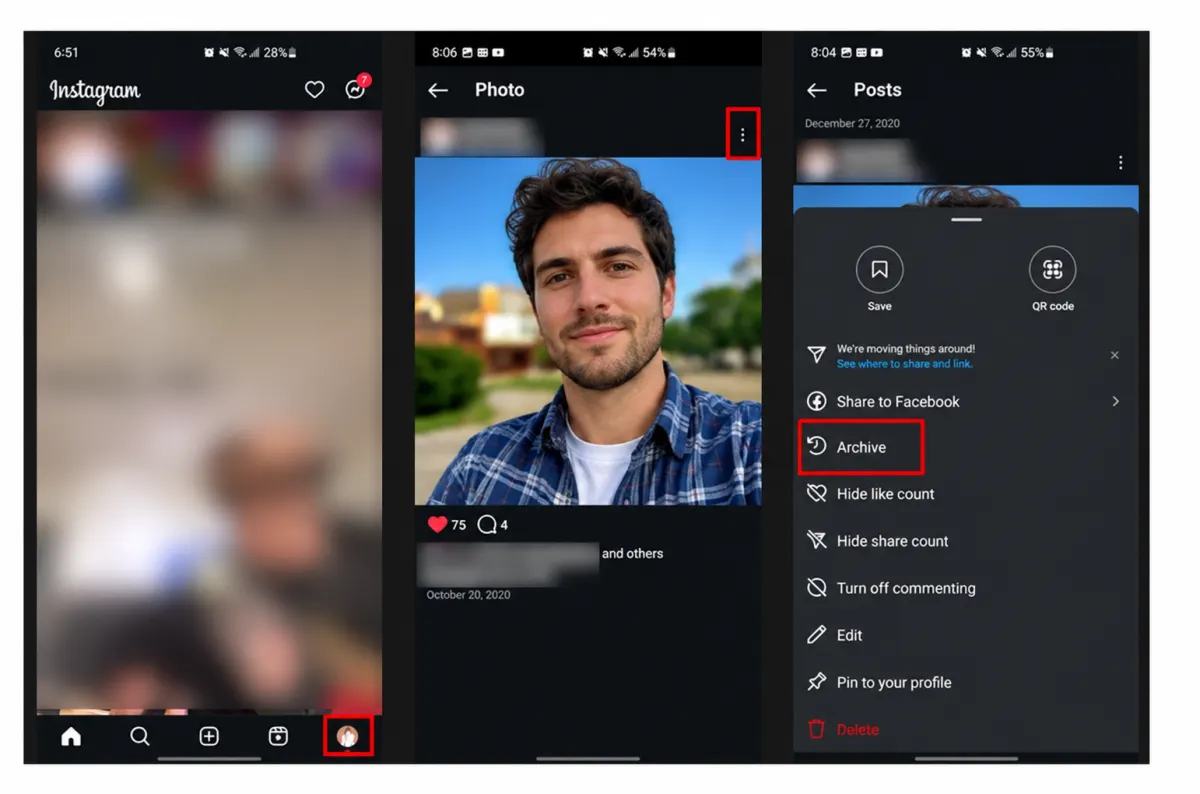
When available, this setting allows you to temporarily hide suggested posts from your main Instagram feed for 30 days.
It's useful if you want to take a break from recommendations and focus on updates from accounts you already follow.
However, this feature affects suggested posts in your main feed and doesn't completely reset the Explore algorithm.
Review Your Not Interested Preferences
If you've previously marked certain posts as Not Interested, you may be able to review or manage that feedback through Instagram's content preference settings.
This is useful if you've changed your mind about a particular topic and want to allow similar recommendations again.
The available controls may differ between app versions.
Filter Specific Words and Phrases
Instagram also provides tools for filtering certain words, phrases, and emojis.
You can add terms associated with content you prefer not to encounter. Instagram may then limit posts containing those terms in supported areas of the platform.
This can be particularly useful if you want to avoid recurring subjects or unwanted themes.
6. Train the Instagram Algorithm With Your New Interests
After adjusting your settings and removing unwanted recommendations, the next step is to show Instagram what you actually enjoy.
The algorithm learns from your activity, so your behavior can gradually influence the content you see.
Here are some practical ways to improve your recommendations:
Follow Relevant Accounts: Follow creators, brands, and communities that regularly publish content related to your interests.
Like Posts You Enjoy: Interact with content you genuinely want to see more often.
Save Useful Content: Saving posts provides another signal about the topics you find valuable.
Watch Relevant Reels: Spend time watching videos that match your interests rather than interacting with unrelated content.
Search for Specific Topics: Search for subjects, hashtags, and keywords that reflect your current preferences.
Share Interesting Posts: Sharing content can help Instagram understand which topics you find engaging.
Avoid Unwanted Interactions: Don't repeatedly watch, like, or comment on content you don't want to see in your recommendations.
With consistent activity, Instagram can gradually adjust its suggestions to better match your interests.
Advantages and Disadvantages of Resetting Your Instagram Explore Page
Changing your Instagram recommendations can make browsing more enjoyable, but there are a few things worth considering.
Advantages
- More relevant recommendations based on your current interests.
- Fewer unwanted or repetitive posts.
- Better opportunities to discover new creators.
- More control over suggested content.
- A more personalized Instagram experience.
Disadvantages
- Instagram may need time to understand your preferences.
- Some previously relevant recommendations may disappear.
- You may temporarily encounter less relevant content.
- Changing content preferences doesn't guarantee that every unwanted recommendation will disappear.
It's also important to remember that clearing search history, refreshing the Explore page, and reinstalling Instagram are not the same as resetting the recommendation algorithm.