


Telegram's Spoiler feature lets you hide parts of a message, photos, or videos so other people don't see them unless they choose to. To use it, simply select the text you want to hide and choose Spoiler from the formatting menu. On Android and iPhone, you'll find this option in the pop-up menu or under the BIU section. On desktop, right-click the selected text and choose Formatting > Spoiler. You can also use keyboard shortcuts: Ctrl + Shift + P on Windows and Cmd + Shift + P on Mac.
For photos and videos, select the media before sending it, open the three-dot menu, and choose Hide with Spoiler. The content will appear blurred until the recipient taps it.
What Is Telegram Spoiler?
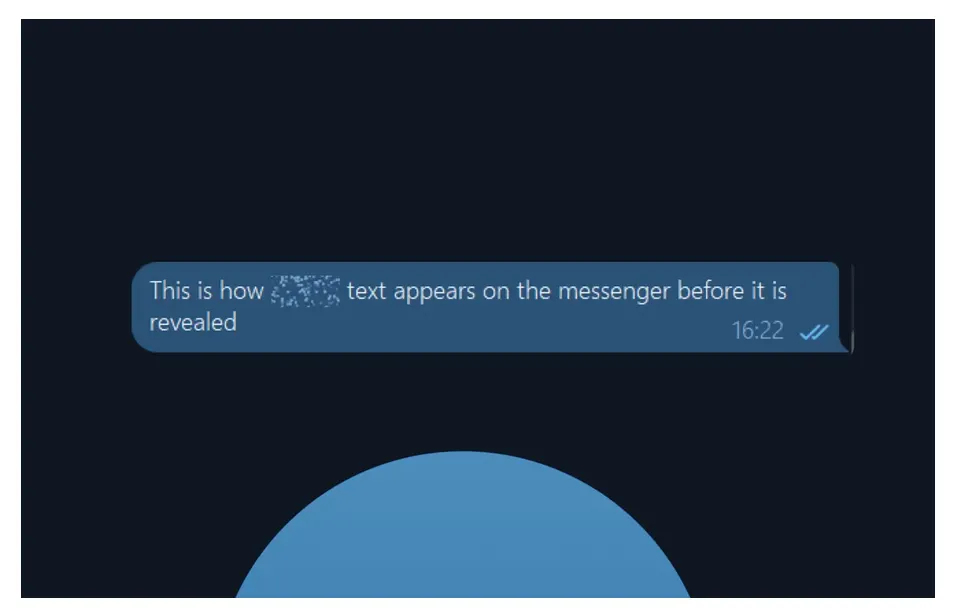
In simple terms, Telegram Spoiler is a message formatting feature that lets you hide specific parts of a message, an entire photo, or a video behind a moving, blurred effect.
The hidden content is covered with a sparkling animation, so the recipient can't see what's underneath at first. To reveal it, they simply need to tap the blurred area.
One useful detail about this feature is what happens after someone opens a spoiler. Once they tap it, the content stays visible while they're in the same chat. However, when they leave the conversation and open it again, the spoiler is hidden once more.
This makes it less likely that someone will accidentally see content they haven't opened yet.
Read More


Another interesting thing is that Telegram Spoiler also works in Secret Chats. These conversations use end-to-end encryption to keep messages private between participants.
That's possible because the spoiler feature doesn't actually change the original content of a message. It simply adds a formatting tag that tells Telegram how to display it. The app applies the blur effect on the recipient's device, without changing the message's encryption.
How to Enable Telegram Spoiler
Before getting started, keep in mind that hiding text works a little differently from hiding photos and videos. The steps can also vary slightly depending on whether you're using Telegram on Android, iPhone, desktop, or the web.
Is Telegram Spoiler Free?
Yes! Telegram Spoiler is completely free to use. You don't need a Premium subscription or any paid features to hide your messages and media.
The feature is designed to make conversations more comfortable and help users avoid sharing unwanted spoilers. Telegram Premium, on the other hand, offers additional features such as faster downloads and larger file uploads.
How to Hide Text with Telegram Spoiler
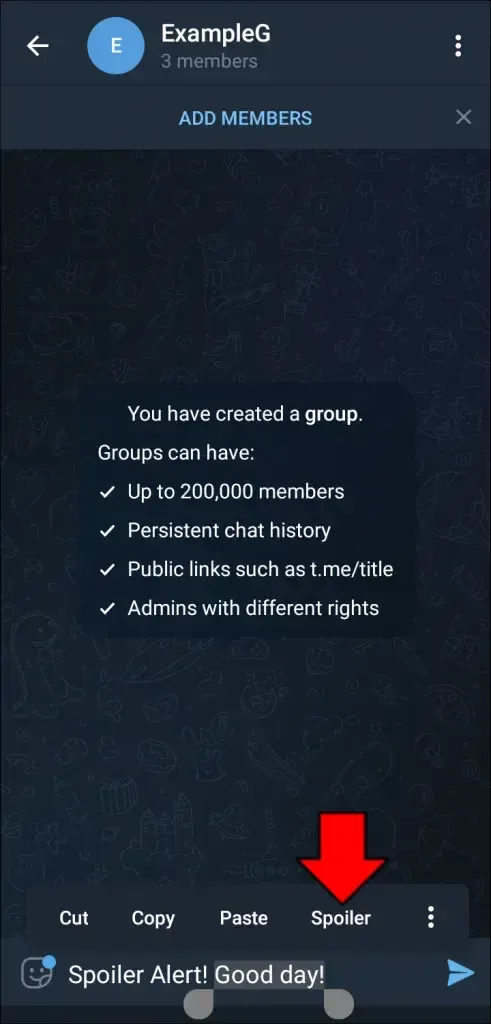
Adding a spoiler effect to text is pretty easy. Here is how to do it on different devices.
On Android and iPhone
- Open Telegram and go to the chat where you want to send your message.
- Type your message as usual.
- Press and hold the text you want to hide.
- Adjust the selection handles to highlight the exact words or sentences.
- A pop-up menu will appear. On Android, you can usually find the Spoiler option directly in this menu.
- On iPhone, tap BIU first to open the additional formatting options, then select Spoiler.
- Your selected text will now appear hidden. Send the message when you're ready.
On Desktop (Windows, Mac, and Linux)
- Open Telegram Desktop and enter the chat you want.
- Type your message.
- Use your mouse to highlight the text you want to hide.
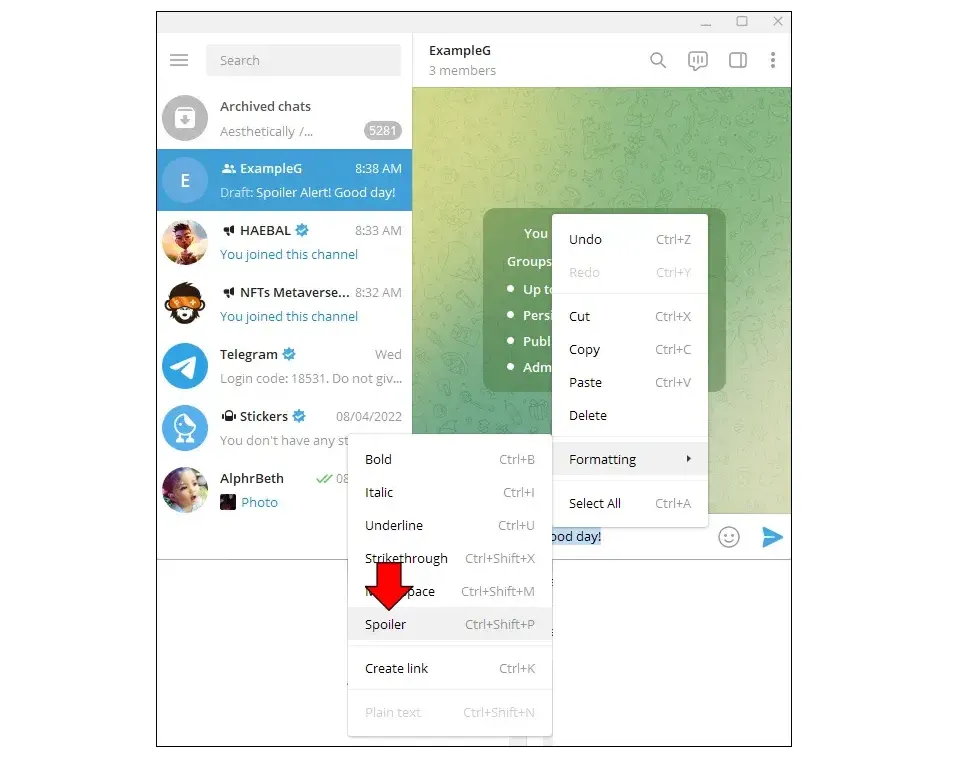
- Right-click the selected text.
- Choose Formatting, then click Spoiler.
If you want a quicker way to do it, you can use these keyboard shortcuts after selecting the text:
- Windows: Ctrl + Shift + P
- Mac: Cmd + Shift + P
How to Hide Photos and Videos with Telegram Spoiler
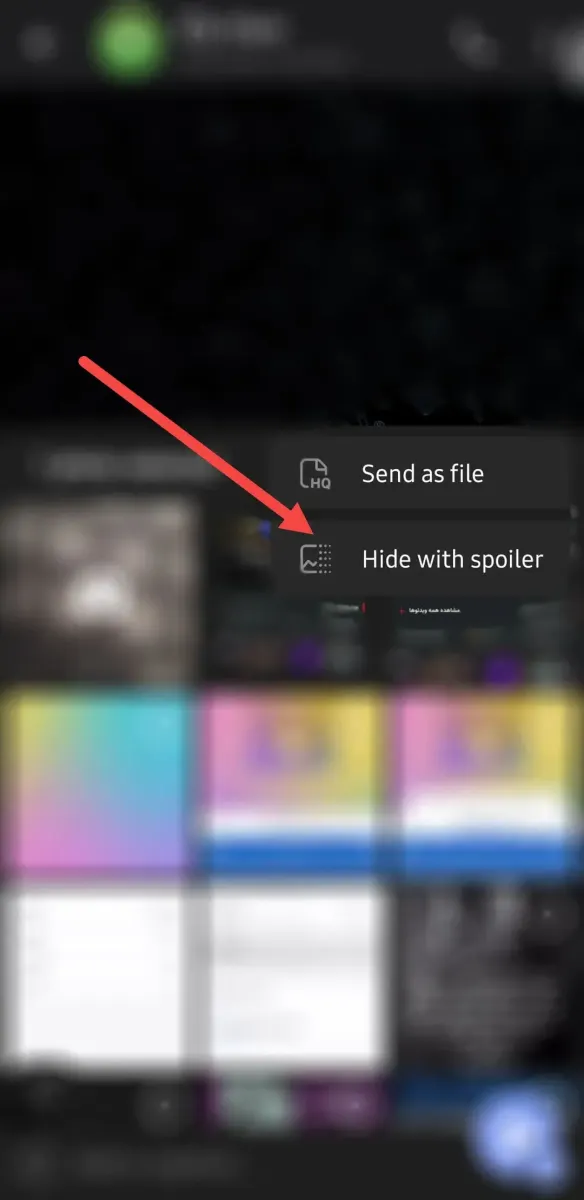
Telegram later expanded the Spoiler feature to include photos and videos, making it even more useful.
Now, you can easily hide visual content before sharing it with friends, family, or members of a group. Here's how to do it.
- Open a Telegram chat and tap the paperclip (attachment) icon.
- Select the photo or video you want to send. You can choose more than one file.
- Before sending, tap the three-dot menu at the top of the screen.
- Select Hide with Spoiler.
- You'll see a blurred preview of your selected media.
- Send the message, and the recipient will need to tap the image or video to reveal it.
Security and Privacy When Using Telegram Spoiler
Although Spoiler is a useful feature for keeping conversations comfortable, it's not a security tool. It simply hides content from view until someone chooses to reveal it.
If you want to protect your Telegram account from unauthorized access, it's a good idea to enable Two-Step Verification. This adds an extra layer of security and makes it harder for someone else to access your account.
Also, remember that a recipient can still take a screenshot or save content after revealing it. So, don't use the Spoiler feature as a way to protect sensitive or confidential information.
Using Telegram Spoiler on Different Phones
The feature works on both Android and iOS, but there are a few small differences in how you access the formatting menu.
Telegram Spoiler on iPhone
On iPhones and other Apple devices, hiding text takes one extra step compared to Android.
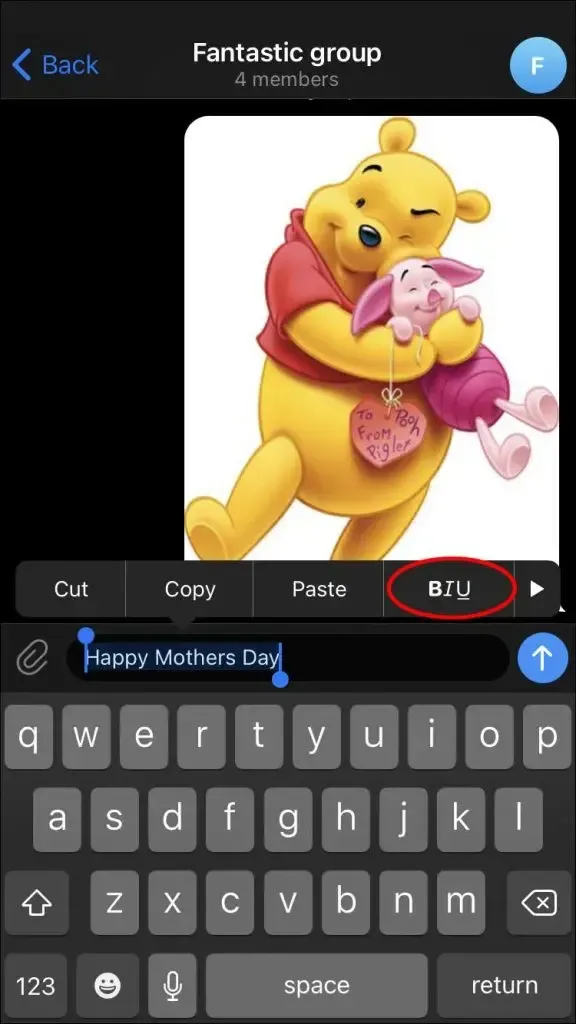
After typing your message and selecting the text, you won't usually see the Spoiler option right away. Instead, tap BIU in the pop-up menu. This opens additional formatting tools, including Spoiler.
Select it, and your text will be hidden.
The steps for hiding photos and videos are pretty much the same as on other platforms.
Telegram Spoiler on Xiaomi Phones
Although this section focuses on Xiaomi phones, the same steps generally apply to other Android devices, including Samsung and Huawei phones.
After selecting the text you want to hide, look for the Spoiler option in the pop-up formatting menu. In most cases, you won't need to open an additional menu.
How to Use Spoiler on Telegram Desktop and Web
If you prefer using Telegram on your computer, you'll be happy to know that the Spoiler feature is also available on desktop and web versions.
On Telegram Desktop
As mentioned earlier, the easiest way to hide text is to highlight it, right-click, and select Formatting > Spoiler.
You can also use the keyboard shortcuts to save time.
To hide photos and videos, select your files before sending them, open the three-dot menu, and choose Hide with Spoiler.
On Telegram Web
If you use Telegram through your browser, the process is slightly different:
- Open Telegram Web and sign in to your account.
- Type your message in the chat.
- Highlight the part of the text you want to hide.
- Look for the small formatting toolbar that appears above the selected text.
- Click the eye icon to apply the Spoiler effect.
- Your text is now hidden and ready to send.
Hiding photos and videos on Telegram Web generally follows the same process as the desktop app.
Useful Tips and Frequently Asked Questions
Here are a few things worth knowing before using Telegram's Spoiler feature.
Does Telegram Spoiler also hide text in notifications?
Yes. Telegram is designed to hide spoiler text in notifications as well. However, some older app versions may have had bugs that caused hidden text to appear on the lock screen. Keeping Telegram updated is always a good idea.
How can you hide a spoiler again after opening it?
Once you've tapped a spoiler, the content stays visible while you're in that chat. To hide it again, simply leave the conversation and open it once more. The spoiler effect should return automatically.
Do other messaging apps have a similar feature?
Yes. Telegram isn't the only platform offering this option. Apps like Discord also let users hide text and images behind spoiler tags, making it easier to discuss movies, games, and other topics without ruining the experience for others.