
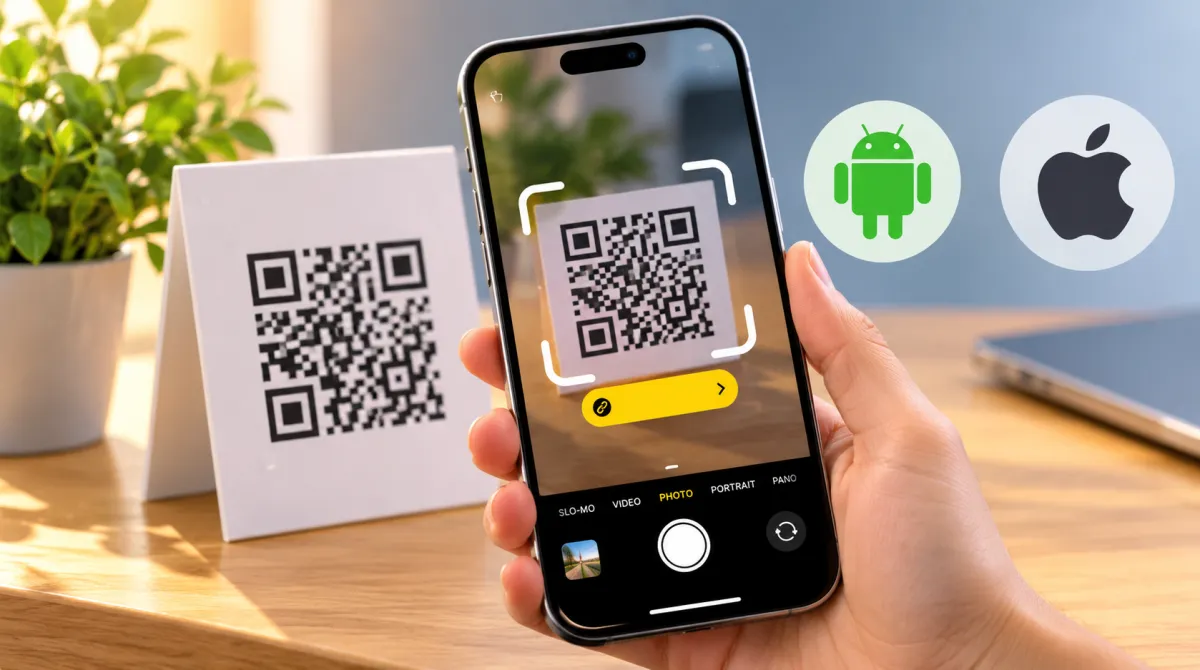

Looking for the quickest way to scan a barcode online with your phone? The good news is that you probably don't need to download any extra apps. Most modern smartphones can scan QR codes directly through the camera, while tools like Google Lens make it easy to scan codes from saved images, too.
Whether you're using an Android phone or an iPhone, there are several simple ways to scan QR codes and access the information behind them in seconds. In this guide, we'll walk you through the easiest methods, explain how to scan codes from photos, and share a few tips for fixing common scanning problems.
30 Hidden iPhone Tricks You’ll Wish You Knew Sooner
How to Scan a Barcode Online With Google
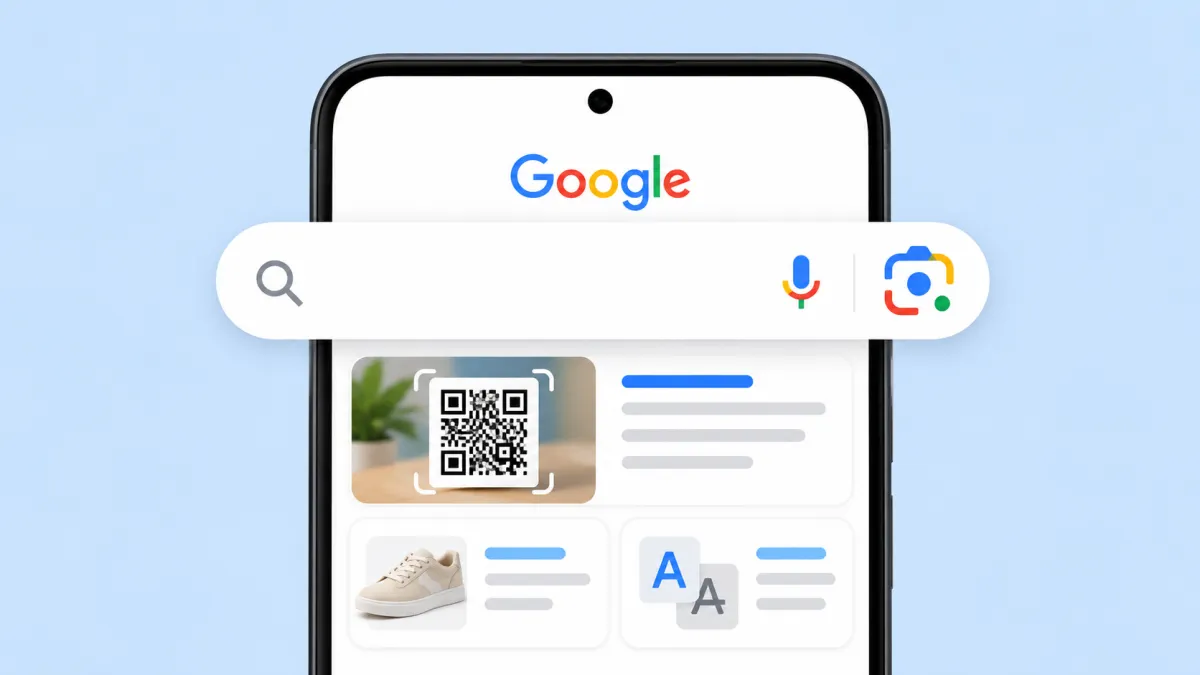
Google makes scanning QR codes incredibly easy with Google Lens, a tool that uses image recognition to identify objects, read text, and scan codes. It's built into many Android phones, and iPhone users can access it through the Google app.
Google Lens does more than simply read QR codes. It can translate text, identify products, find similar items online, and recognize information in images.
If you want to scan a barcode online with Google, here are a few easy ways to do it.
1. Use Google Lens
Open the Google app or tap the Google Lens icon in the search bar on your phone's home screen. Point your camera at the QR code and wait for Lens to recognize it. If the code contains a website link, you'll usually see a link you can tap to open.
2. Use Circle to Search
Some Android phones support Circle to Search, which lets you search for things directly on your screen without switching between apps.
If your phone supports this feature, open the page or image containing the QR code, activate Circle to Search, and circle the code. Your phone may be able to recognize it and display related information or a link.
Keep in mind that results can vary depending on your phone, software version, and the type of code you're scanning.
3. Scan an Image With Google Lens
If someone sends you a screenshot containing a QR code, you don't need to point your camera at another screen.
Instead, open Google Lens, select the saved image from your gallery, and let the tool analyze it. If the code is clear enough, Lens should identify the information it contains.
You can also try these options:
- Google app: Tap the Lens icon in the search bar.
- Google Assistant: Depending on your device and software version, you may have access to camera-based search features.
- Google Chrome: On supported devices, press and hold an image on a webpage and look for an option such as Search image with Google Lens.
These tools make it easier to scan QR codes without installing a separate barcode scanner.
How to Scan a Barcode on Android
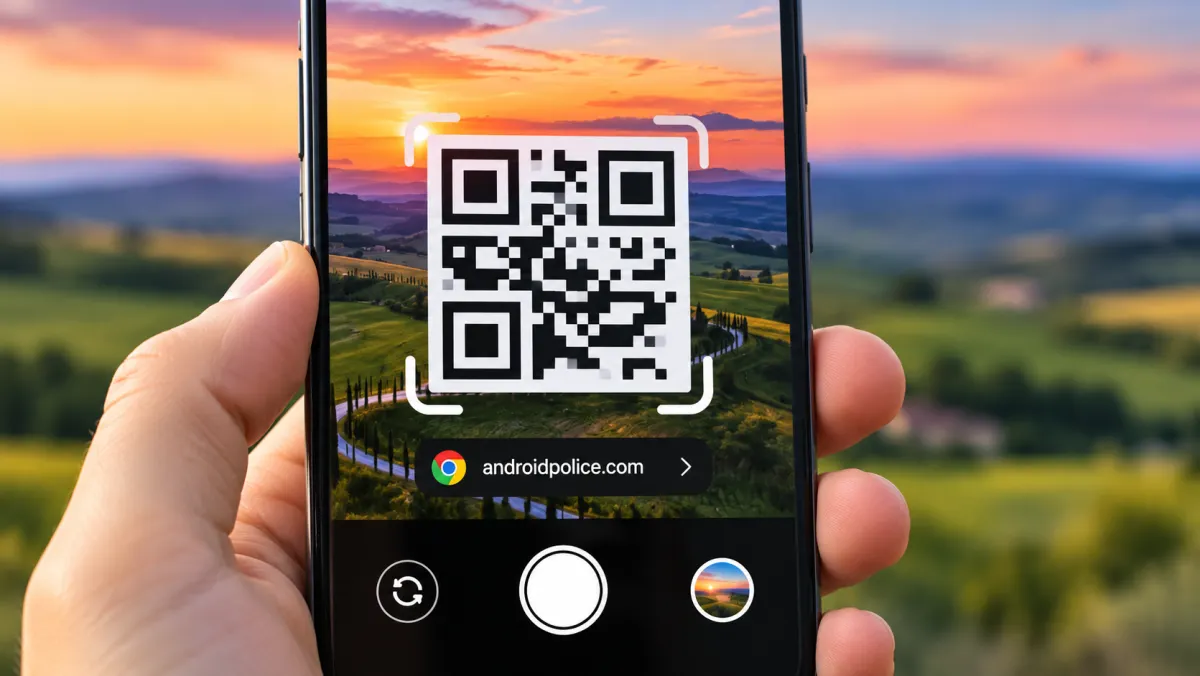
Most newer Android phones have a built-in QR code scanner, so you can often scan a code directly with your camera.
Here's how:
- Open the Camera app.
- Point your phone at the QR code.
- Hold your phone steady and wait for the code to be recognized.
- Tap the notification or link that appears on the screen.
If nothing happens, don't worry. Your camera may have QR code scanning turned off, or your phone may use a separate scanning tool.
Turn On QR Code Scanning
The exact steps depend on your phone's brand and software version, but you can try the following:
- Open the Camera app.
- Go to Settings by tapping the gear icon.
- Look for an option such as Scan QR codes.
- Turn it on if it's disabled.
- Point your camera at the code again.
Some Android phones also include a dedicated QR scanner in the Quick Settings panel. Swipe down from the top of the screen and look for an option labeled Scan QR code or something similar.
QR codes can contain more than website links. Depending on the code, scanning it may reveal contact details, Wi-Fi connection information, a location, or plain text.
How to Scan a Barcode on a Samsung Phone
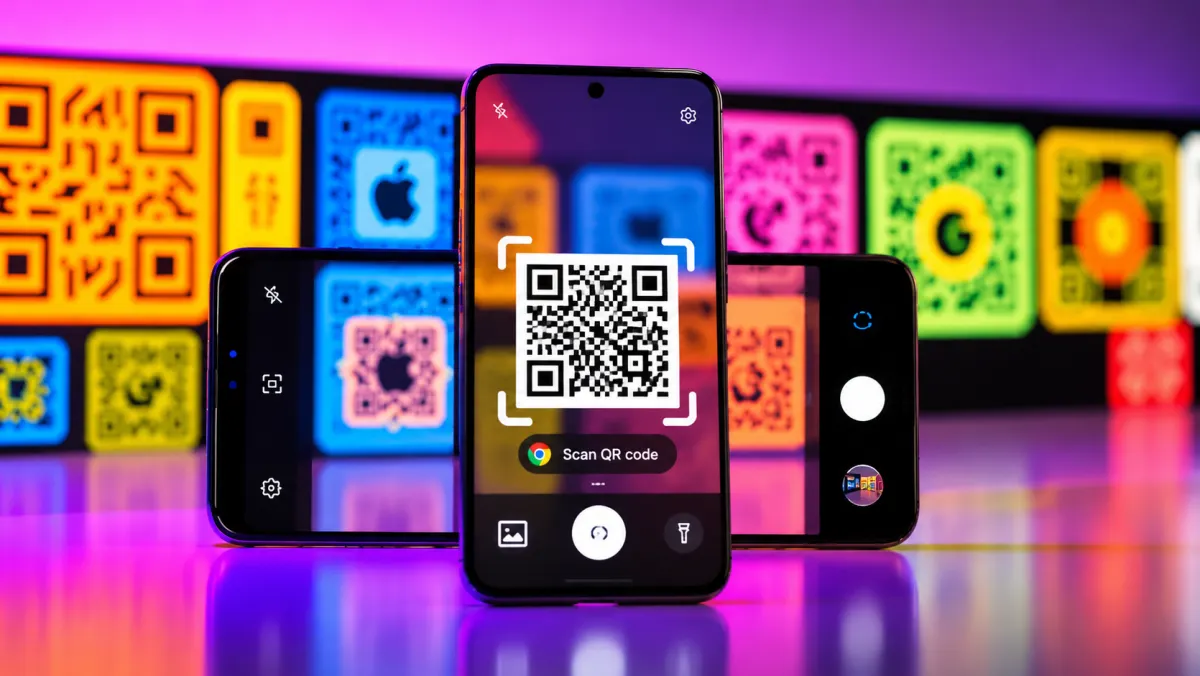
Samsung Galaxy phones offer several convenient ways to scan QR codes without downloading another app.
Method 1: Use the Camera
The easiest option is to use your phone's built-in camera.
- Open the Camera app.
- Point it at the QR code.
- Wait for the code to be recognized.
- Tap the link or notification that appears.
If the camera doesn't recognize the code, check whether QR scanning is enabled in the camera settings.
Method 2: Use the Quick Settings Panel
Some Samsung Galaxy models include a dedicated QR scanner in Quick Settings.
- Swipe down from the top of the screen to open the notification panel.
- Swipe down again to expand Quick Settings.
- Look for Scan QR code.
- Tap it and point your phone at the code.
On supported devices, the scanner may also let you select an image from your gallery, making it easy to read a QR code saved as a screenshot.
The available options can vary depending on your Galaxy model and One UI version.
Method 3: Use Samsung's Built-In Tools
Some Samsung devices offer additional image recognition features through tools such as Bixby Vision.
Depending on your device and software version, these features may help you identify objects, read text, or translate content in images.
If you can't find a particular option, use the Camera app or Google Lens instead.
How to Scan a Barcode on an iPhone
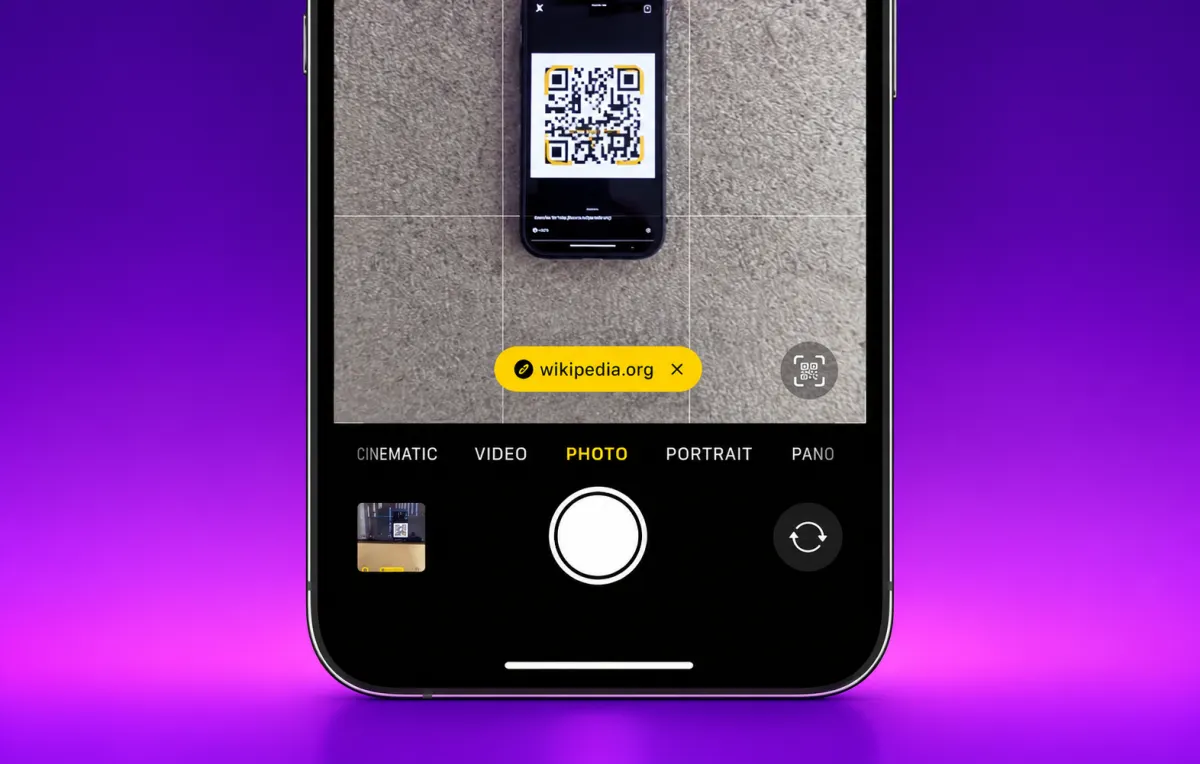
Scanning QR codes on an iPhone is straightforward. Apple's built-in Camera app has supported QR code scanning since iOS 11, so you usually don't need to install anything.
Scan a QR Code With the Camera
Follow these steps:
- Open the Camera app.
- Point the camera at the QR code.
- Keep your phone steady until the code is recognized.
- Tap the notification that appears near the top of the screen.
If the code contains a website address, tapping the notification will open the link in your browser.
Make sure the entire QR code is visible and that there's enough light for your camera to read it.
Use the Code Scanner Shortcut
iPhones also offer a built-in feature called Code Scanner, which provides a quick way to scan QR codes.
To add it to your Control Center:
- Open Settings.
- Select Control Center.
- Find Code Scanner in the available controls.
- Add it to your Control Center.
The exact menu layout may vary depending on your iOS version.
Once you've added it, open Control Center and tap the Code Scanner icon. Point your iPhone at the QR code, and follow the on-screen instructions.
This is a handy alternative when you want to scan a code quickly without opening the Camera app.
Scan a QR Code From a Saved Photo
What if the QR code is already saved in your Photos app?
You can use Google Lens through the Google app to analyze a saved image. Open the app, select the image containing the code, and let Lens scan it.
Depending on the image and your device's available features, you may also be able to interact with recognized content directly from your photo.
How to Scan a QR Code From an Image Online Without Using Your Camera
Sometimes the QR code you need to scan is already saved as an image on your phone or computer. It might be in a screenshot, an email attachment, a digital ticket, or a document.
In that case, you don't need to use your camera at all. You can scan the saved image with an image recognition tool or an online QR code reader.
Option 1: Use Google Lens
Google Lens is one of the easiest options for reading a QR code from a saved image.
- Open Google Lens or the Google app.
- Select the image from your gallery or device.
- Wait for the tool to analyze the image.
- Tap the detected link or view the information displayed.
This method is particularly useful when someone sends you a screenshot containing a QR code.
Option 2: Use an Online QR Code Reader
You can also search online for terms such as online QR code scanner or QR code decoder.
Some websites allow you to upload an image and extract the information stored in the code.
Here's the general process:
- Open an online QR code reader.
- Choose the option to upload an image.
- Select the photo or screenshot containing the QR code.
- Let the website process the image.
- Review the decoded information.
Some online tools work directly in your browser, while others may require camera access or additional permissions.
A quick security tip: If the image contains private information, avoid uploading it to an unfamiliar website. Choose a trusted tool and check its privacy policy before sharing sensitive files.
How to Fix QR Codes That Won't Scan
Sometimes you point your camera at a QR code and nothing happens. The good news is that the problem is often easy to fix.
Here are some of the most common causes and what you can do about them.
1. Check the Distance
Holding your phone too close to the code can make it difficult for the camera to focus.
Try moving your phone back a little until the entire code appears sharp on the screen. If necessary, adjust the distance slowly until the camera recognizes it.
2. Improve the Lighting
QR codes can be difficult to read in poor lighting or when bright reflections cover parts of the image.
Try moving to a brighter area or changing the angle of your phone to reduce glare. If you're scanning a code printed on glossy paper, avoid positioning it directly under a bright light.
3. Clean Your Camera Lens
A smudged or dusty lens can make images blurry, preventing your phone from recognizing the code.
Wipe the lens gently with a clean, soft microfiber cloth, then try scanning again.
4. Keep the Entire Code in View
Make sure the complete QR code fits inside the camera frame. If part of the code is cut off, covered, or damaged, your phone may struggle to read it.
For printed codes, check that the paper isn't folded or torn.
5. Try Zooming In or Out
If the code is small or difficult to focus on, changing the distance may help. On some phones, a little optical zoom can also improve readability.
Avoid excessive digital zoom, as it can reduce image quality and make the code harder to recognize.
6. Check Your Camera Settings
If your phone never detects QR codes, check whether the feature is enabled in your camera settings.
You can also try restarting the Camera app, updating your phone's software, or using Google Lens as an alternative.
7. Make Sure the Code Is Still Valid
Not every scanning problem comes from your phone. A QR code may contain an expired ticket link, a broken website address, or information that is no longer available.
If the code remains unreadable after you've tried the steps above, ask the sender for a new image or check whether the original link is still active.
QR Code Safety: What You Should Know Before Scanning
QR codes are convenient, but they can also be used to trick people into opening unsafe websites.
A QR code doesn't automatically tell you whether a link is trustworthy. In some cases, scammers use fake QR code stickers to direct people to fraudulent websites that imitate legitimate services.
Before opening a link, keep these precautions in mind.
- Check the URL first. If your phone displays a website address before opening it, take a moment to review it.
- Watch for fake websites. Scammers may use addresses that look similar to those of well-known brands.
- Be careful with unexpected QR codes. Avoid scanning suspicious stickers placed over official signs, payment terminals, or other legitimate codes.
- Don't enter sensitive information on unfamiliar sites. Never provide passwords, banking details, or verification codes unless you've confirmed that the website is legitimate.
- Avoid downloading unknown files. If a QR code directs you to an unexpected download, don't install it without checking the source.
- Use trusted scanning tools. Your phone's built-in camera or a reputable tool such as Google Lens is usually a good place to start.
Remember, scanning a QR code and opening its link are two different steps. You can often review the destination before deciding whether to open it.